

Track and bill time
The timer keeps running in the menu bar, even with no window open. Tracked time appears under Time, where you check it and add it to an invoice with the rounding you agreed on. What your customer should see beforehand, you share as a time sheet through a folder.
The Time page
Under Time in the sidebar, the start bar for the timer sits at the top and the list of your time entries below it. Here you start the timer with customer, project and activity, add time, review proposals and bill.
- In the start bar, use the field for customer, project and activity to choose what you work on. The project’s customer appears next to it.
- Under What are you working on?, write a description.
- Click Start. Under Recent, one click starts again with a recent customer, project and description.
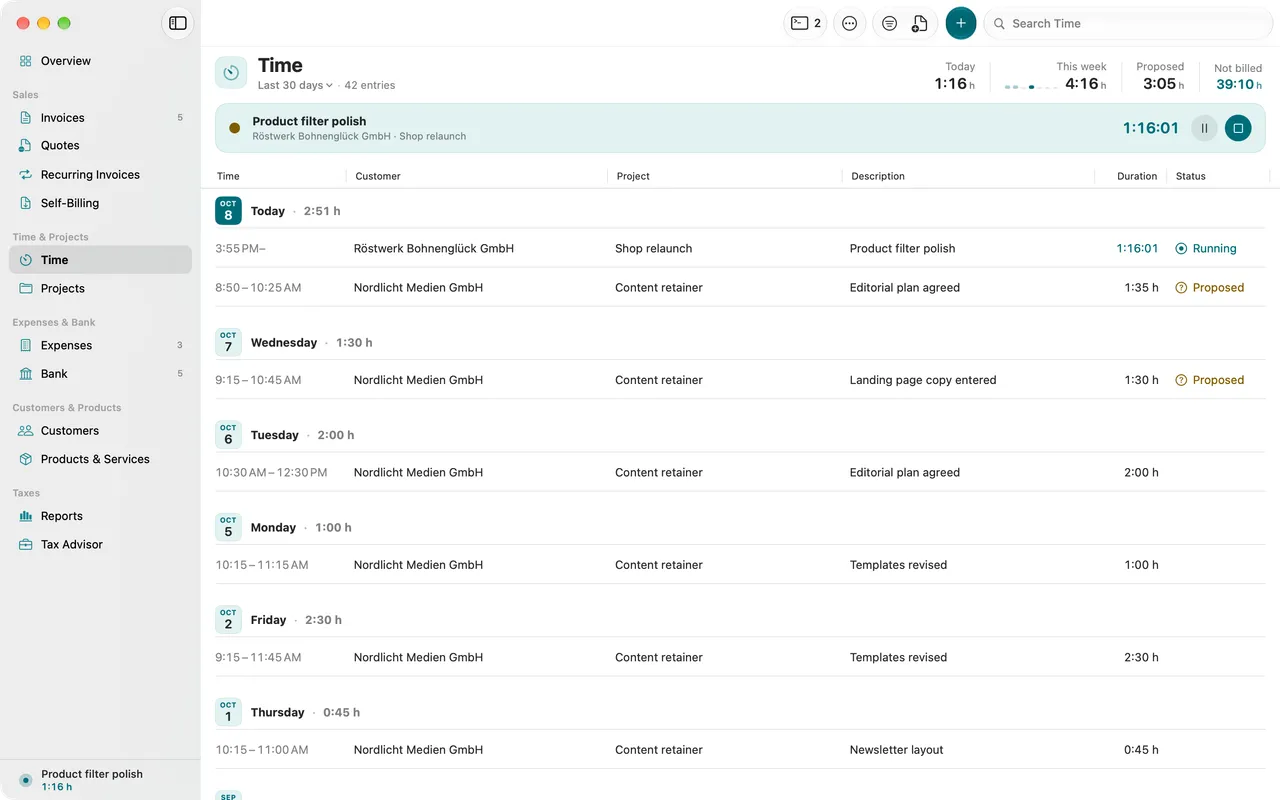
The key figures at the top of the page
- Today and This week show your tracked time. Beside the week, a small rhythm shows how the hours spread across the weekdays.
- Proposed appears only while proposals from agents wait for your approval.
- Not billed is approved time in the list that is on no invoice yet, rounded as billing rounds it. A running timer counts once it is stopped. The overview counts by the same rule, so both figures match.
Group, filter and search
- Under Filter in the toolbar, choose Period, Status, Customer and Project… and, under Group by, Day, Week, Project or Customer. Every group shows its total, rounded if you like.
- Grouped by day, each day carries a day stamp. In the other groupings the date appears in the row and the Time column can be sorted.
- The status shows where an entry stands: Running, Proposed, Not billed, Not billable, In draft (on an invoice draft) or Billed (only once the invoice is finalized).
- Go > Unbilled Time shows everything still open.
Start and stop the timer
- Click the timer symbol in the menu bar or press ⌃⌥⌘O.
- In the field Start project or task, type the name of a project or task. Tab completes the suggested project name.
- If you like, write a note under What are you working on? and press Return.
- To finish, choose Time > Stop Timer or press ⇧⌘..
Without a window it is even faster: ⌃⌥⌘T starts the timer with your most recent task, pauses it or resumes it. These keys work in every app. In the Time menu the same command reads Start Timer, Pause Timer or Resume Timer, depending on the state.
- Correct the start: in the timer menu, type a time like 9:30 next to Since if you started earlier. The time has to be before now.
- Pause: a paused timer keeps the start of its session. When you resume, the session counts on from its first start; the pause itself does not count.
- Switch project: choose Time > Switch Project… or press ⌃⌥⌘P. A running entry stops and a new one starts. An entry that just started moves instead. If the timer is paused, resume it first.
- Resume a recent task: Time > Resume Recent Task lists your five most recent tasks; in the timer menu ⌘1 to ⌘5 reach them. The Dock menu has the same list under Recent Tasks, each task once with its day.
- Start for a selection: select an item in Customers or Projects and press ⌃⌘T (Start Timer for Selection).
The timer in the menu bar and in the sidebar
The timer symbol in the menu bar is the timer’s home. Depending on the setting it shows the symbol only, the running time, or time and project. A click opens the timer menu with the running entry, pause and stop, the start next to Since, your time today and this week, and the recent tasks. At the bottom of the main window’s sidebar, while a timer runs, a line Timer running shows project and time. A click on it opens Time.
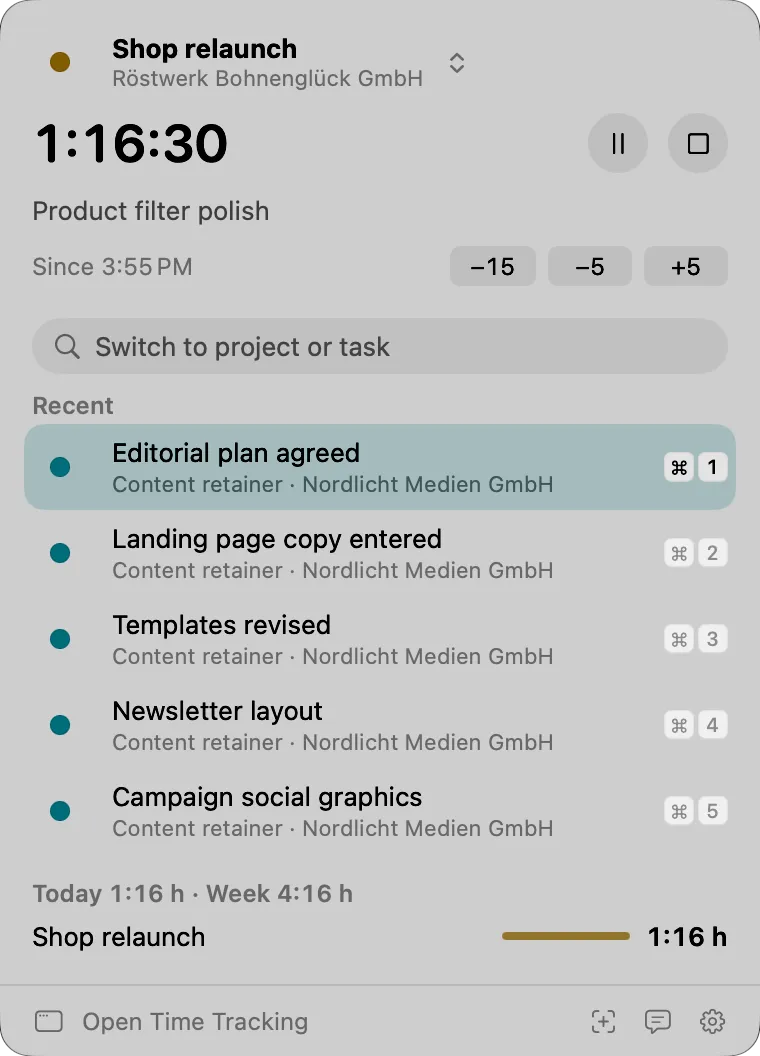
While Folnaro is locked, the timer menu only shows how long a timer has been running or at which time it is paused. Unlock Folnaro to see the timer.
Control the timer from Search and Capture
Press ⌘K and type the name of a project. For every project that takes time, Folnaro offers Start Timer for … and, while a timer runs, Switch Timer to …. More under Search and Capture.
Done projects
A project with the status Done, or an archived project, takes no new time. If you start a timer for it anyway, Folnaro asks whether to reopen the project. With Reopen and Start it is active again and the timer runs.
The Timer Island
The Timer Island floats at the top center of the screen, right below the menu bar. It never covers menus or symbols of the menu bar. Clicks next to it go to the app underneath. While a timer runs, it shows project and time. Point at it and it opens. Then you can start a timer with a description, pause, stop, switch the project or pick up a recent task. It never takes the focus. The Timer Island is off at first.
- Choose Folnaro > Settings… > Timer.
- Under Timer Island, turn on Show Timer Island.
- To keep it visible without a running timer, turn on Show without a running timer. It then shows the timer symbol and today’s time. Turned off, it disappears until you point at its place.
- To show it over full screen apps too, turn on Also in full screen apps.
If your menu bar is so full that the timer disappears behind the camera, Folnaro says The timer is hidden in the menu bar and offers Turn On Timer Island. ⌃⌥⌘O still opens the timer, then at the top center of the screen the pointer is on.
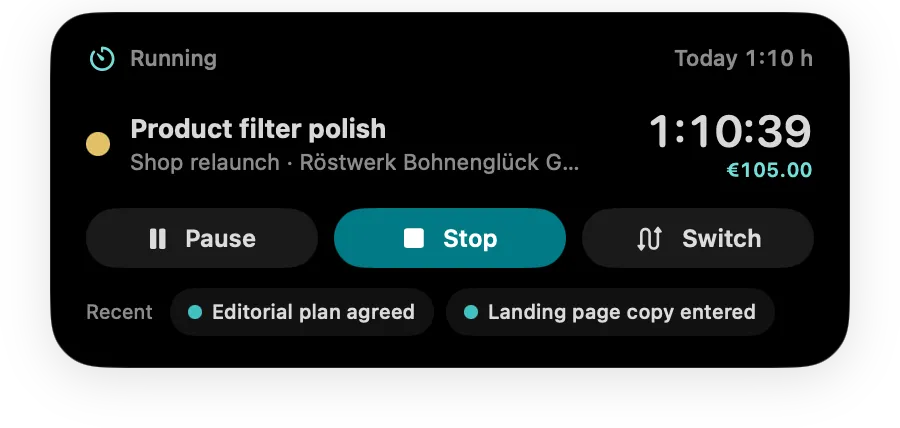
What the Timer Island shows
- Timer: no timer is running. Open, you choose the project for the next timer under Project and start.
- Running: project and time with seconds. Open, you also see Today, This week and, with an hourly rate, Worth so far. Switch moves to another project.
- Paused: the time stands still; Resume carries on.
- Stopped: after a stop the island briefly shows the tracked time and its value. Start Again picks the same task up right away.
- Locked: Folnaro is locked. The island only shows how long a timer has been running or at which time it is paused.
- After the trial without a subscription the island keeps showing your times; starting needs a subscription or the one-time purchase. See Options opens the choice.
Timer settings
Under Folnaro > Settings… > Timer you set:
- Menu bar shows: Symbol only, Running time or Time and project.
- Badge on the Dock icon: None, Running time, Today’s hours or Overdue invoices and new receipts.
- Timer Island: see The Timer Island.
- Remind me when a timer runs for: Never or a number of hours. The notification has a button to stop the timer and also arrives when the window is closed. If a timer runs longer, the menu bar symbol carries a badge and the timer menu asks calmly whether the start time is right.
- Ask about time away: see When you were away.
- Keyboard Shortcuts: Start or pause timer, Open timer in menu bar and Switch project. Click a shortcut and press the new keys. esc cancels, Delete removes the shortcut, Reset to Default brings back the original keys. If another app uses the same combination, it says so under the shortcut.
When a timer runs for a very long time
If a timer keeps running unnoticed, the night should not end up on an invoice as work. When you stop a session of ten hours or more, Folnaro therefore does not record it right away but asks: The timer has been running for …. This applies to every stop in the app, whether in the main window, the menu bar, the Timer Island, the Dock, with ⌘K, with a keyboard shortcut or from the reminder.
- Under End, check when you stopped working. Proposed is a working day of eight hours after the start.
- Click Stop. Folnaro records the time up to the chosen end; time after that is not recorded.
- Under More Options, Keep All … keeps the whole time as tracked. Discard Time removes the whole session. Keep Running closes the question and the timer keeps running.
If an agent, a widget or a shortcut in the Shortcuts app stops such a long session, nobody can be asked. Folnaro then records the time as not billable. Check the entry under Time and mark it with Time > Mark as Billable once it is right.
When you were away
When a timer keeps running while you are away from the Mac, Folnaro asks what to do with that time when you come back, for example: “You were away for 25 minutes”. This also applies after sleep or a locked screen.
- Keep: the time away counts as work.
- Remove: the time away is removed and the timer keeps running from now.
- More Options: Assign to Project assigns the time away to another project; the timer keeps running. Remove and Stop stops the timer at the moment you left.
After how many minutes Folnaro asks is set under Folnaro > Settings… > Timer > Time Away with Ask about time away. With Never, Folnaro does not ask.
Time past midnight
Every time entry belongs to one day. When you work past midnight, Folnaro therefore splits the time at the day boundary, so day totals, weeks and service periods are right.
- Running timer: when a timer runs past 0:00, the entry of the old day ends at midnight and a new entry runs on for the new day. Both belong to the same session and are rounded together when you bill.
- Night work added later: if you enter, say, 22:00 to 2:00 with Start and end time, an end at or before the start lies on the next day. The editor then shows Ends the next day. Folnaro saves linked entries, one per day. Each part can be edited on its own.
- An entry that ends exactly at midnight shows 24:00 as its end.
Add and edit time entries
- Choose Time > Add Time Entry… or click New Entry under Time.
- Choose Customer, Project and, if needed, Activity. Write a Description.
- Enter the Duration as 1:30, 1.5 or 90m. Or turn on Start and end time and enter clock times.
- Leave Hourly rate empty to use the rate of the project, the customer or your default rate. A negative rate is not possible.
- Leave Billable on if the time should go on an invoice.
- Click Add.
Time > Continue Entry picks a stopped entry up again. Time > Mark as Billable and Mark as Not Billable change several entries at once. A running entry can be edited after you stop the timer.
What Folnaro checks when you save
The editor names anything unusual before you save. These are only hints; you can save the entry as it is:
- The entry has no duration.
- The entry is longer than 12 hours.
- The entry is in the future.
- The entry overlaps one or more others.
- With the entry, the day adds up to more than 24 hours.
Approve proposed time
Time that an agent creates through MCP arrives as a proposal. It appears on invoices, in reports and in shared times only after you approve it.
- Under Time, click Review … Proposals in the toolbar. The button shows how many are waiting.
- Select the entries that are right and check them in the editor.
- Choose Time > Approve or click Approve … Entries.
What an agent may do is set under Agents through MCP.
Add time to an invoice
- Under Time, select the entries. Without a selection, Folnaro takes all unbilled entries shown.
- Choose Time > Bill…, click Bill Time or press ⇧⌘B.
- Under Invoice, choose New invoice draft or an open draft to add to. That keeps a running monthly invoice in one place.
- Under Invoice lines, choose One per entry, One per project or Single line. With the last two, dates and descriptions appear in the line details.
- Check Rounding per entry and Work up to. The date cannot be in the future; later entries are left for a later invoice.
- Leave Set service period from the entry dates on, and the period of the entries appears on the invoice.
- Check the Summary and click Add to Invoice.
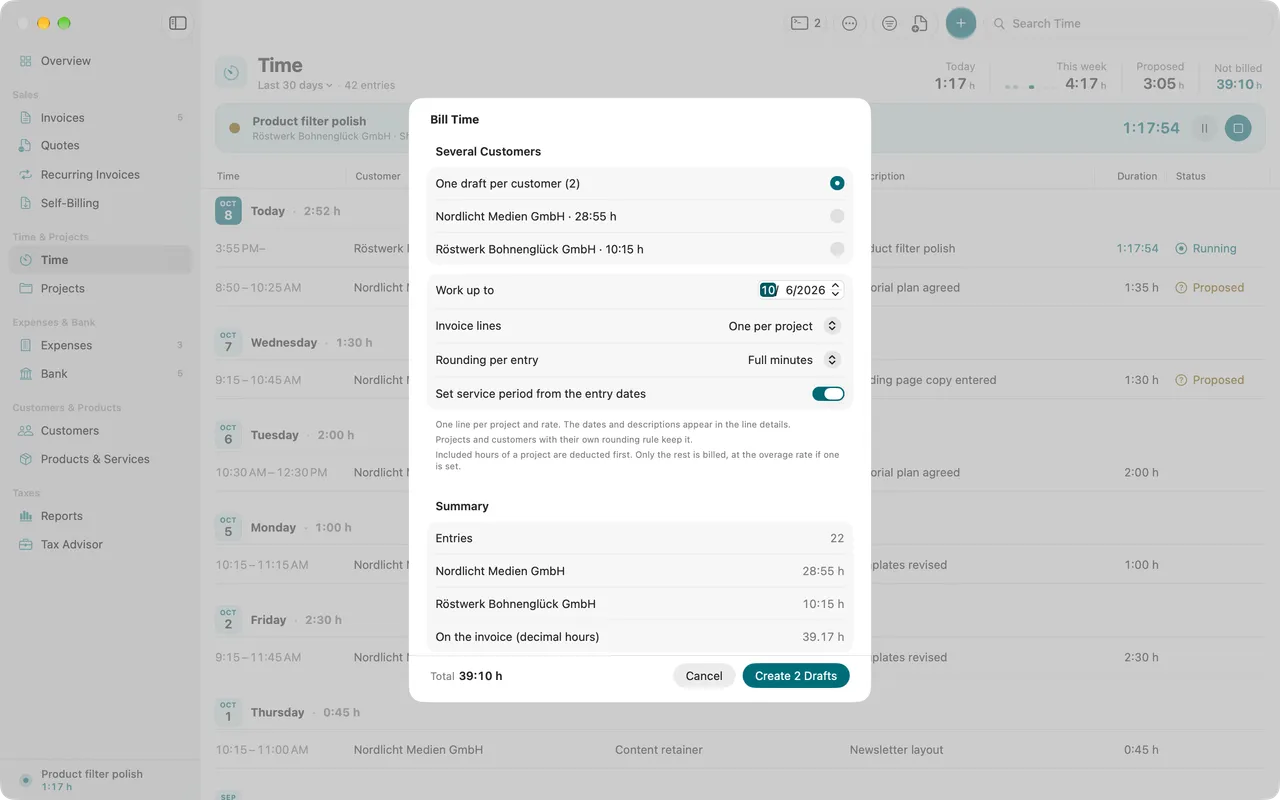
Billable, approved and stopped entries that are on no invoice yet can be billed. If they belong to several customers, One draft per customer creates a draft for each customer. Entries without a customer stay open then; choose a single customer to include them. Included hours of a project are deducted first. Only the rest is billed, at the rate for extra hours if one is set. If entries overlap in time, the summary names them so you can take a look before billing.
On the draft, the entries show as In draft. If you delete the draft, they are open again. They are Billed once you finalize the invoice; see Writing invoices.
Rounding
The rounding decides how much time goes on the invoice. The choices are Exact seconds, Full minutes and steps of 5, 6, 10, 15, 30 or 60 minutes, each with Round up, Round down or Round to nearest. Rounding applies per entry; a session split at midnight counts as one entry. Projects and customers with their own rounding rule keep it.
Folnaro computes billed time in one single place. The preview in the billing sheet, a project’s budget, the Not billed figure and the invoice draft therefore show the same number.
Billing cycles and collective invoices
For customers you bill monthly or quarterly, you set a cycle.
- Open the customer or project and under Billing cycle choose Monthly or Quarterly with a cutoff day. Projects without their own cycle follow the customer. For projects you also set Included hours per cycle and the Rate for extra hours here.
- Choose Time > Billing Cycles…, or More > Billing Cycles… under Time. The list shows, per customer or project, the running and the last cycle, what is due and the next cutoff.
- Select a cycle and click Bill Cycle. Billing again adds new hours to the open draft of the same cycle.
With Rolling collective invoice, finished time goes onto the open draft of its cycle right away. You finalize it after the cutoff.
Time sheet and export
- Time sheet: under Time, click More > Export Time Sheet… and choose customer, project, From, To and Language. The preview shows the hours, with included hours split into included and billable. Save it with Save as PDF… or Export CSV…. It contains approved billable entries with the rounding of each project, optionally with a Signature line for the customer. The PDF uses your document design.
- Spreadsheet: Export List as CSV… and Export List as Excel… save exactly the entries the list shows. With a selection there are also Export Selection as CSV… and Export Selection as Excel….
- Import: Import Entries… brings in time from a file. Afterwards Folnaro says how many entries are new, updated and unchanged, which lines had no date or duration, and which customers or projects it did not find. Billed and running entries stay as they are.
Share times with customers
Folnaro writes a customer’s times as a time sheet in PDF, CSV or Excel format to a folder you share with them, for example in Dropbox, iCloud Drive or OneDrive. The files are updated whenever your times change. That way your customer sees what you worked on before the invoice arrives.
- Under Time, select a customer, a project or entries of one customer.
- Choose Time > Share Times… or More > Share Times….
- Under Location, choose a folder or Use Default Folder; under Content, project, period and language; under Formats, at least one format; and under What Your Customer Sees, the details to show: Billable times only, Start and end times, Notes, Rounded as billed, Amounts and Billing status.
- Click Start Sharing.
Only approved and stopped entries appear. Rounded hours match what you invoice. A period without times writes no empty file. If a customer has no times yet, the window tells you. Share the folder in your cloud service, not the single file, and new periods appear on their own. If you write two customers’ times to the same folder, Folnaro warns you, because everyone with access sees both.
All shares are under Folnaro > Settings… > Shared Times. There you set a Default folder in which each customer gets a subfolder. You can also edit a share, pause it, write it right away with Update Now or open it with Show in Finder. When you stop, you choose Stop and Keep Files or Stop and Delete Files. Folnaro only deletes files it wrote that nobody has changed since.
Sharing is part of your data and keeps working after the trial.
Widgets, Shortcuts and Focus
- The Timer widget shows the running timer with start and stop, plus your hours today. In Control Center and the menu bar there is the Folnaro Timer control, which starts the timer for your last project or stops it.
- The Shortcuts app and Siri offer Start Timer (for a specific project if you like), Stop Timer and Timer Status. Timer Status tells you whether a timer is running and how long you worked today and this week.
- Under System Settings > Focus you can give a Focus the filter Timer Project. While that Focus is on, new time entries start with this project.
All keys of the Time menu are listed under Keyboard shortcuts.
Common problems
- I don’t see the timer in the menu bar.
- With a full menu bar it sits behind the camera. Press ⌃⌥⌘O or turn on the Timer Island under Folnaro > Settings… > Timer.
- A timer shortcut does not respond.
- Another app probably uses the same combination. Under Folnaro > Settings… > Timer it says so next to the shortcut. Choose different keys there.
- No timer starts for a project.
- The project is done or archived. Reopen it, for example with Reopen and Start in the question.
- I left the timer running overnight.
- Stop it as usual and choose under End when you stopped working. If a widget or an agent stopped it, the entry is in the list as not billable. Correct start and end there and mark it as billable.
- Bill Time is not available.
- No entry in view is ready. Only billable, approved and stopped entries that are on no invoice yet can be billed. Stop the timer, approve proposals or choose a longer period in the filter.
- The hours on the invoice differ from the list.
- The list shows the tracked time, the invoice the rounded time. Check the rounding of the project or customer, and Rounding per entry in the billing sheet.
- I can’t change an entry.
- It is on a finalized invoice, or the timer is still running. Stop the timer. For billed time you correct the invoice; see Correcting and canceling invoices.
- My customer sees no new times in the shared folder.
- Proposed and running entries appear only once approved or stopped. If the share is paused, resume it under Folnaro > Settings… > Shared Times or click Update Now. Share the folder in your cloud service, not a single file.