

Reconcile bank accounts
You import bank statements and Folnaro suggests the matching invoice or receipt for every transaction. You decide what is accepted. In the end every transaction has a receipt or a reason, and your invoices know they’re paid.
How Bank is laid out
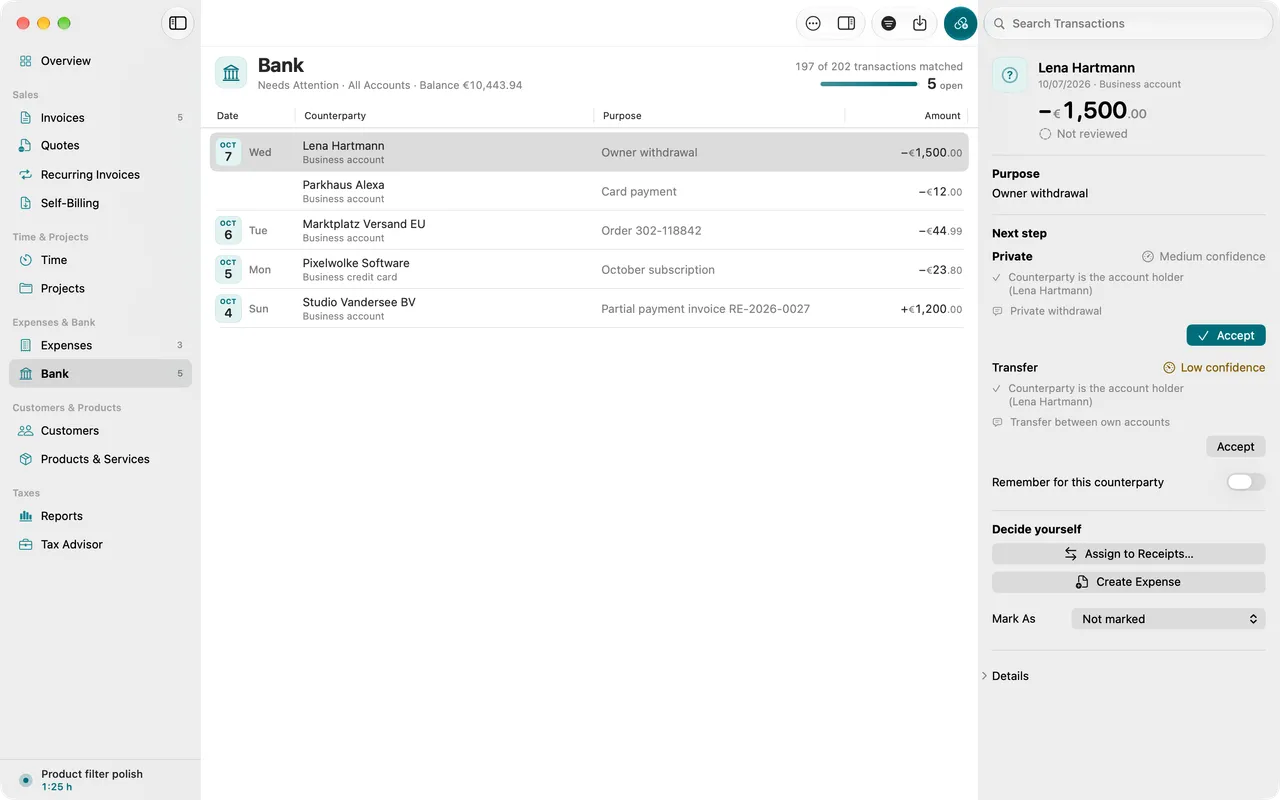
Choose Bank in the sidebar. The table shows the transactions of the chosen period, grouped by day, with date, counterparty, payment reference, amount and status. Incoming and outgoing payments share one column with their sign. The account’s Balance is at the top.
With Filter in the toolbar you choose status, period and account. The status starts at Needs Attention. The others are Unreviewed, Receipt Missing, Matched, No Receipt Needed, Private, Tax Office, Internal Transfers and All Transactions.
When you select a transaction, the inspector shows its amount in large type and below it open sections: Next step with the suggestions, Decide yourself for everything else and Details such as Name on statement, IBAN, Value date, Mandate reference and Creditor ID. When you select several transactions, you see their count and total.
Import a bank statement
- Download a statement as CAMT, MT940 or CSV from your bank, PayPal or Stripe.
- Choose File > Import Bank Statements… or press ⇧⌘I. You can also drag the file onto the list in Bank.
- In the Import Statement sheet, check the account next to Import into. For a new account choose New account.
- Click Import.
Folnaro checks for you:
- Transactions already imported are skipped. Transactions that only look like existing ones from another export appear under Duplicate check. Select only the ones that are really new.
- Pending transactions come in once the bank has posted them.
- When the file names a different IBAN than the chosen account, Folnaro points it out.
- Folnaro compares the file’s Opening balance and Closing balance with the transactions.
After the import you see what your rules already classified and what is still without a receipt in the period. The other new transactions wait under Needs Attention with suggestions.
Which formats Folnaro reads
- CAMT: CAMT.053 statement, CAMT.052 account report and CAMT.054 batch notification. If your bank offers CAMT, choose it: it keeps counterparty, IBAN and payment reference cleanly apart.
- MT940 and MT942 for pending transactions.
- CSV from Sparkasse, Volksbank and Raiffeisenbank, Deutsche Bank, Commerzbank, comdirect, DKB, ING, Postbank, N26, Qonto, Holvi, Kontist, Finom, Vivid, Revolut, Wise, PayPal and Stripe, among others. Any other CSV you map once yourself.
Map a CSV format
When Folnaro doesn’t know a CSV file’s format yet, Assign CSV Columns opens.
- On the left, assign every highlighted column that is Required, such as date, amount and payment reference.
- Leave Date format, Decimal separator and Encoding on Detect automatically unless the preview on the right is wrong.
- If the file lists outgoing payments as positive amounts, turn on The file shows outgoing payments as positive amounts.
- The list Recognized transactions appears on the right. When the transactions are right, click Continue.
Folnaro remembers the mapping for the account. Change it at the next import with Edit Columns….
A shop’s order history
When you drag a shop’s order history as CSV onto Bank, Folnaro doesn’t import it as transactions. It matches every order to the debit with the same amount and, with Apply Order Numbers, takes over the order number. It then shows on the transaction under Order number and helps you find the invoice in the customer portal.
Manage accounts
Under More in the toolbar you find Add Account… and Manage Accounts…. An account has a Type (checking account, credit card, PayPal or other), an IBAN and an Opening balance, the balance before the first imported transaction.
Folnaro recognizes transactions between your own accounts by IBAN, account holder and the matching transaction on the other account, such as a PayPal payout or the credit card settlement. They count as an internal transfer, not as income or an expense.
An account with transactions linked to invoices or receipts can be deleted only after you reset those matches.
The bank details printed on your invoices are entered separately under Folnaro > Settings… > Bank Account.
Match transactions
- Choose Bank in the sidebar. The filter starts at Needs Attention.
- Choose a transaction. Under Next step you see suggestions with their confidence: High confidence, Medium confidence or Low confidence. Every suggestion names its reasons, such as “Invoice number in payment reference” or “Amount matches exactly”.
- If a suggestion fits, click Accept or press ⌘↩. The next open transaction is then selected.
Folnaro recognizes invoice numbers in the payment reference, amounts, names and IBANs. A transfer covering several invoices of one customer is recognized by the total. Small differences up to 2 cents count as a match when reference or name fit. You also accept the chosen suggestion with Receipts > Accept Suggestion.
When you accept a suggestion for an invoice, Folnaro records the payment on the invoice. Once it is fully paid, it shows as Paid in the list. More on payments in Payments, refunds and write-offs.
Move through open transactions with Go > Next Open Item (⌃⌘↓) and Previous Open Item (⌃⌘↑). Page through periods with ⌘[ and ⌘], ⇧⌘T jumps to the current period.
Cash discounts and payment differences
When a customer pays a few cents less than is open, or takes a cash discount, the invoice doesn’t stay open with a small remainder. A checkbox appears below the suggestion:
- Write Off the Remaining … as a Payment Difference: for a difference of up to 2 cents. The invoice then counts as paid. The difference reduces your income and shows in the payment history and the DATEV export.
- Settle the remaining … as cash discount: when your customer paid within the cash discount terms on the invoice. The discount is not income and shows in the payment history.
When a customer pays more, the invoice is fully paid and the rest stays open on the transaction. Folnaro points it out. If you pay it back, record the refund on the invoice.
Match it yourself
When no suggestion fits, the inspector says No suggestion fits. Assign it yourself below. You then decide under Decide yourself or with the Receipts menu:
- Assign to Invoices… for incoming payments or Assign to Receipts… for debits (Receipts > Assign…): find the invoice or receipt and enter the amount. A transaction can be split across several items, such as a collective transfer. You can’t assign more than an invoice’s open remainder.
- Create Expense from Transaction: creates an expense with the open amount in the receipt inbox and links it. You attach the receipt there. You can also drag a receipt file straight onto the transaction.
- Receipts > Mark As: Private, Tax Office, Internal Transfer, Expense, Receipt Follows or Income, Invoice Follows. With “Receipt Follows” the transaction stays on the list of missing receipts until one is matched.
- Receipts > Reset Transaction: removes the match. The transaction is then open again.
For a payment to the tax office you choose the tax and period. Folnaro then compares the amount with your VAT return and shows any difference.
Every match can be taken back with Edit > Undo.
No receipt needed
Some transactions have no receipt of their own, such as account fees or interest. Then the bank statement serves as the receipt.
- Choose the transaction, then Receipts > No Receipt Needed….
- Choose a Reason, for example Account fee, the statement is the receipt, Loan installment per the loan contract, Paper receipt enclosed, Receipt requested, follows or Agreed with the tax advisor.
- Add what the reason asks for: a note for Other reason, the request date for Receipt requested, follows or the kind of tax for Tax payment.
- Turn on Remember for this counterparty if you like and click Save Reason.
The reason appears next to the transaction in the package for your tax advisor. When you top up a balance, for example with a phone provider, choose Balance topped up, receipts follow as it’s used. Folnaro then matches the vendor’s later invoices to the balance.
Refunds and returned direct debits
When a vendor refunds an earlier debit, Folnaro finds the original transaction with the same amount and counterparty from the last six months. The suggestion then reads Refund of an earlier transaction. If the original debit is linked to an expense, Folnaro reminds you to check whether the expense needs correcting.
A returned direct debit gets the reason Returned direct debit. Money you pay back to a customer, for example after a cancellation invoice, is recorded as a refund on the invoice, see Payments, refunds and write-offs.
Accept confident matches at once
- Click Confident Matches in the toolbar or choose Receipts > Find Confident Matches.
- Folnaro shows only suggestions with very high confidence that don’t conflict. Clear the checkbox for any you want to look at yourself.
- Click Accept.
Edit > Undo takes them all back in one step. When no suggestion is confident enough, review the open transactions one by one in the inspector.
Counterparty rules
You classify recurring transactions once and let Folnaro remember it.
- When you classify a transaction in the inspector, turn on Remember for this counterparty. Folnaro also asks on its own whether to remember the same match for the counterparty.
- Future transactions from this counterparty are classified the same way on import.
You find all rules under More > Counterparty Rules…. A rule checks name, payment reference or IBAN, optionally direction and amount range. For Mode you choose Assign automatically or Ask first. With “Ask first” the transaction stays open and the rule appears as a suggestion. That helps when the same counterparty sometimes does need a receipt. Higher Priority wins.
When your bank spells the same counterparty in different ways, combine the spellings under More > Merge Counterparties…. Rules and suggestions then apply to all of them.
Invoice reference patterns
Folnaro recognizes common forms such as “Invoice 42” or “RE-2026-0042” without help. When your customers write something else in the payment reference, such as “Order 42”, add a pattern.
- Choose More > Invoice Reference Patterns… in the toolbar.
- Enter the pattern. The placeholder stands for the invoice’s sequential number. Click Add.
- Paste a real payment reference under Try a purpose. Folnaro shows which invoice number your patterns find.
Spaces, hyphens and slashes in the pattern match any separator. Upper and lower case don’t matter.
Check completeness
Before handing over to your tax advisor, you see per month or quarter what is still without a receipt or reason.
- Choose Receipts > Check Completeness… or press ⇧⌘K.
- Open transactions lists every transaction without a receipt. Show in List jumps to it.
- When you requested a receipt, note it with Requested, Remind in a Week or one of the other periods.
- For vendors with a customer portal, Open Portal opens the saved address. You sign in once and download all invoices. Save the address with Vendor Invoice Link….
Under Statement coverage Folnaro points out gaps, for example when a balance doesn’t continue or a month has no transactions. Then a statement is probably missing.
File bank statements as PDF under More > Statements and PDFs… with File Statement PDF…. The PDF stays unchanged in the archive and marks the months of its period as covered.
Payment proposals from agents
Agents connected to Folnaro through MCP don’t record payments themselves. They propose them. You decide.
- When proposals are waiting, the toolbar in Bank shows the Payment Proposals button with their count. From Search and Capture you reach them with Review Payment Proposals.
- Under Waiting for your decision, click Accept or Decline.
- When declining you can give a Reason (optional). The agent sees it.
Accepting records the payment in your name. Only then does the invoice count as paid. More in Connecting agents through MCP.
Common problems
- The bank statement isn’t recognized
- If you can, download CAMT instead of CSV from your bank. For an unknown CSV you map the columns once. More tips in Troubleshooting.
- Transactions appear twice
- Two exports of the same period in different formats can overlap. Folnaro shows such transactions under Duplicate check on import. Select only the ones that are really new.
- A payment doesn’t find its invoice
- If the payment reference has no recognizable invoice number, add an invoice reference pattern or match the transaction yourself with Assign to Invoices…. An invoice that isn’t finalized yet is never suggested.
- An amount is higher than its invoice’s open remainder
- Assign at most the open amount. Assign the rest to another invoice or leave it open.
- An account can’t be deleted
- It has transactions linked to invoices or receipts. Reset those matches first with Receipts > Reset Transaction.
- Statement coverage reports a gap
- Usually a bank statement for that month is missing. Import it or file the statement as PDF.