

Recurring invoices
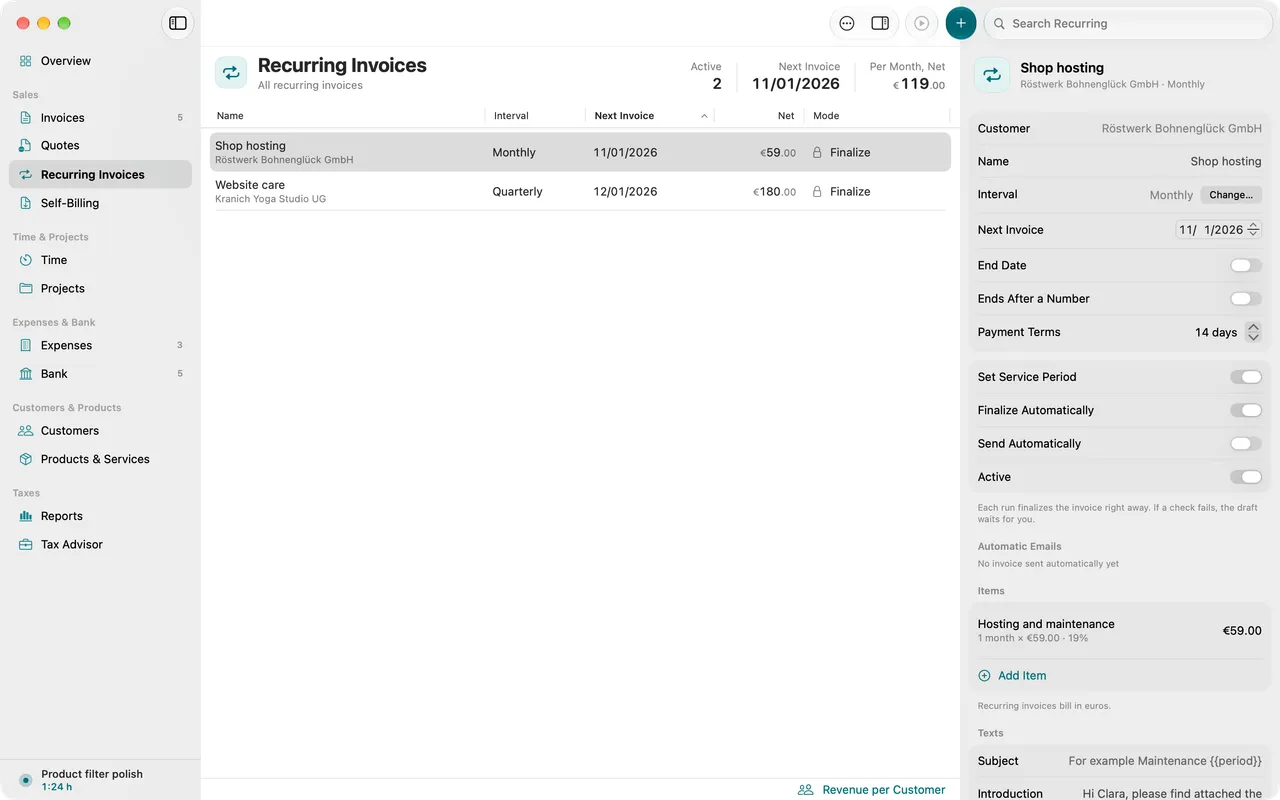
A recurring invoice is a template from which Folnaro creates invoices at a fixed interval, for example for hosting, maintenance or a monthly flat fee. Depending on the setting, each run creates a draft for you to review, a finalized invoice or an invoice that goes straight to the customer by email.
Set up a recurring invoice
You need a recurring invoice when you bill a customer for the same service regularly. All of them are in the sidebar under Recurring Invoices.
- Click New Recurring Invoice in the toolbar or choose File > New > Recurring Invoice.
- Choose the customer. The new recurring invoice opens in the inspector on the right.
- Give it a Name, for example “Hosting”. It appears only in the list, not on the invoice.
- Under Items, click Add Item and enter the services. Click an item to edit it.
- Set Interval, Next Invoice and Payment Terms, see Interval and duration.
- If you like, enter an Introduction and a Closing Text under Texts.
To turn an existing invoice into a recurring one, choose Document > Make Recurring…. Folnaro takes over the customer and the items, starts monthly and opens the new recurring invoice.
Interval and duration
- Interval: Weekly, Monthly, Quarterly, Every six months or Yearly.
- Repeats: how many intervals lie between two invoices. With the arrows, “Monthly” becomes “Every 2 months”, for example, or “Yearly” becomes “Every 2 years”.
- Next Invoice: the day the next invoice is created. If it is the last day of a month, every further invoice stays on the last day of the month. Any other day is kept, even when a shorter month lies in between.
- End Date with Ends On, or Ends After a Number with Invoices in total, ends the recurring invoice by itself.
- Active turns the recurring invoice on or off. One that is turned off shows Paused and creates nothing.
Once the recurring invoice has created invoices, the interval changes only through Change…, see Change the interval.
Placeholders for the period
So that each invoice names the right period, write placeholders into the title or description of an item or into the texts.
| Placeholder | becomes |
|---|---|
{{period}} | the billed period, for example September 2026 |
{{period_start}} | the first day of the period |
{{period_end}} | the last day of the period |
An example: “Hosting {{period}}” becomes “Hosting September 2026” on the September invoice. Folnaro fills in the placeholders in the language of the invoice.
If the template uses a placeholder, each invoice also gets the billed period as its service period. Without a placeholder, turn this on with Set Service Period.
Draft, finalize or send
Two switches decide what each run creates. The Mode column of the list shows the choice.
- Both off (Draft for review): each run creates a draft that you review and finalize.
- Finalize Automatically (Finalize): each run finalizes the invoice right away. If a check fails, the draft waits for you.
- Plus Send Automatically (Finalize and send): each run finalizes the invoice and emails it to the customer. This works only together with finalizing automatically.
Sending automatically needs an email account that sends directly and an email address for the customer, see Sending documents by email. You also find the switches in the Document menu while a recurring invoice is selected.
Folnaro checks each invoice before finalizing it, just like one you wrote by hand. If a check stops finalizing, a notification tells you so and asks you to open the draft, correct it and finalize it.
When the invoices are created
Folnaro creates due invoices by itself: at launch, after sleep, when the day changes and every hour while it runs. If the Mac was off, Folnaro also catches up on missed periods. Each period is billed exactly once.
- Generate Due in the toolbar shows the number of invoices due today. A click creates them right away.
- Document > Generate Now creates the due invoice of the selected recurring invoice.
- So that invoices also go out after a restart, open Folnaro at login. The inspector offers Open at Login for this when a recurring invoice sends automatically.
With More > One Invoice per Customer, items of one customer that are due in the same month go on one invoice.
Automatic emails
The Automatic Emails section in the inspector shows every email the recurring invoice sent or is about to send, with its state: Sent, Scheduled, Waiting to send, Not sent, Please check or Not sent by Folnaro. When an email went out, a notification says it was sent automatically as planned.
If an email could not go out, the list shows a notice that automatic emails are waiting for you, with Show. The column then shows Waiting for you. Folnaro names the reason and the next step. Then choose:
- Send Again once you have fixed the cause
- It Went Out if your Sent folder shows the email did go out
- Send It Myself if you send the invoice another way
Change the interval
If a customer switches from monthly to yearly, for example, you change the interval from a given day. Whatever the customer already paid for the time after that day, Folnaro credits pro rata.
- Select the recurring invoice and click Change… next to Interval in the inspector, or choose Document > Change Interval….
- Under New, choose the new interval and Repeats; under From, the day of the change.
- Check the Credit on the next invoice and click Change.
The next invoice is created on this day in the new interval. The part of the billed period from this day on is credited pro rata. Pending credits are listed in the inspector under Credits, and the next invoice deducts them.
Plan and look up prices
- If a price rises from a certain date, open the item, click Add Price Change under Price changes and enter the date under From and the new price. Each invoice takes the price valid on its invoice date.
- Billed Prices shows what each item has actually billed so far. A click opens the invoice.
Whether a price increase is allowed by your contract and when you must announce it is something to settle with your customer. Folnaro bills only the price you enter.
The list of recurring invoices
The header shows Active, Next Invoice, Due and Per Month, Net: all active recurring invoices converted to one month, without VAT. The table shows Name, Interval, Next Invoice, Net and Mode.
- More > Revenue per Customer shows the monthly recurring revenue per customer with its share.
- Search Recurring finds recurring invoices by name or customer.
- Delete Recurring Invoice… in the context menu deletes the template. Invoices it already created stay unchanged.
Take over recurring invoices from SumUp
When you import from SumUp Invoices, Folnaro takes over recurring invoices with their rhythm, including rhythms such as every two months or every three years. SumUp placeholders are translated into Folnaro placeholders.
Each imported recurring invoice starts paused, so that no invoice is created twice. Check Next Invoice. Then pause the series in SumUp and switch it to Active in Folnaro. If a rhythm cannot be matched exactly, the import report names it. You then set it by hand. More under Bring over data from another app.
Common problems
- The invoice was created as a draft although it should have gone out automatically
- A check stopped finalizing, for example because a detail of the customer is missing. Open the draft, complete the marked details and finalize it.
- No invoices are created
- The recurring invoice is paused, its end date has passed, or Folnaro has not run since the due date. Check Active and Next Invoice and click Generate Due. If your trial has ended, new invoices are created again only with a subscription or the lifetime purchase.
- Send Automatically cannot be turned on
- Sending automatically needs finalizing automatically. Turn on Finalize Automatically first.
- An email shows Please check
- The connection broke after the handover, or Folnaro was quit while sending. Look in your Sent folder. If it went out, click It Went Out, otherwise Send Again.
- The interval can no longer be chosen from the menu
- The recurring invoice has already created invoices. Change the interval with Change…, so that time already paid for is credited.