

From Lexware Office
From Lexware Office to Folnaro
From Lexware Office, formerly lexoffice, you take customers, products, finalized invoices, payments and receipts with you. Folnaro reads the lists and the DATEV export you can create there anyway.
Export
What you export in Lexware Office
-
Customer and vendor lists
As CSV. The customer number is also the debtor account in the DATEV export, so every entry finds its customer.
-
Product list
As CSV, with prices and tax rates.
-
DATEV export
As files or as a ZIP. Folnaro reads invoices, payments and receipts from the Buchungsstapel. Invoice and receipt lists as CSV work in addition; where a list covers a number, the list wins.
Comes along
What comes along from Lexware Office
- Customers and products Contacts with a customer number become customers. Vendors do not become customers; their name stays on the receipt.
- Finalized invoices Invoices, invoice corrections and partial invoices stay finalized, with their original number and the issued totals per tax rate. A voided invoice is marked cancelled and linked to its correction.
- Payments A payment to a bank account in the Buchungsstapel becomes a payment of the invoice.
- Receipts as expenses Purchase receipts become expenses with one tax line per rate. Folnaro records clear cases at once and puts reverse charge or foreign currency in the receipt inbox for you to check.
Stays behind
What stays in Lexware Office
- Drafts They have no number yet and do not come along.
- Transfers, opening entries and early payment discounts Folnaro counts them in the report but does not import them.
- Voided receipts and income receipts without an invoice The report names them so you can decide what to do with them.
- Recurring invoices and quotes Folnaro does not import them from Lexware Office. Setting up a series again in Folnaro takes a few steps.
How to switch
How to move from Lexware Office
-
Export the lists
In Lexware Office, export the customer list, the vendor list and the product list as CSV.
-
Create the DATEV export
Create the DATEV export for the years you want to bring along. You can use the ZIP as it is.
-
Start the import
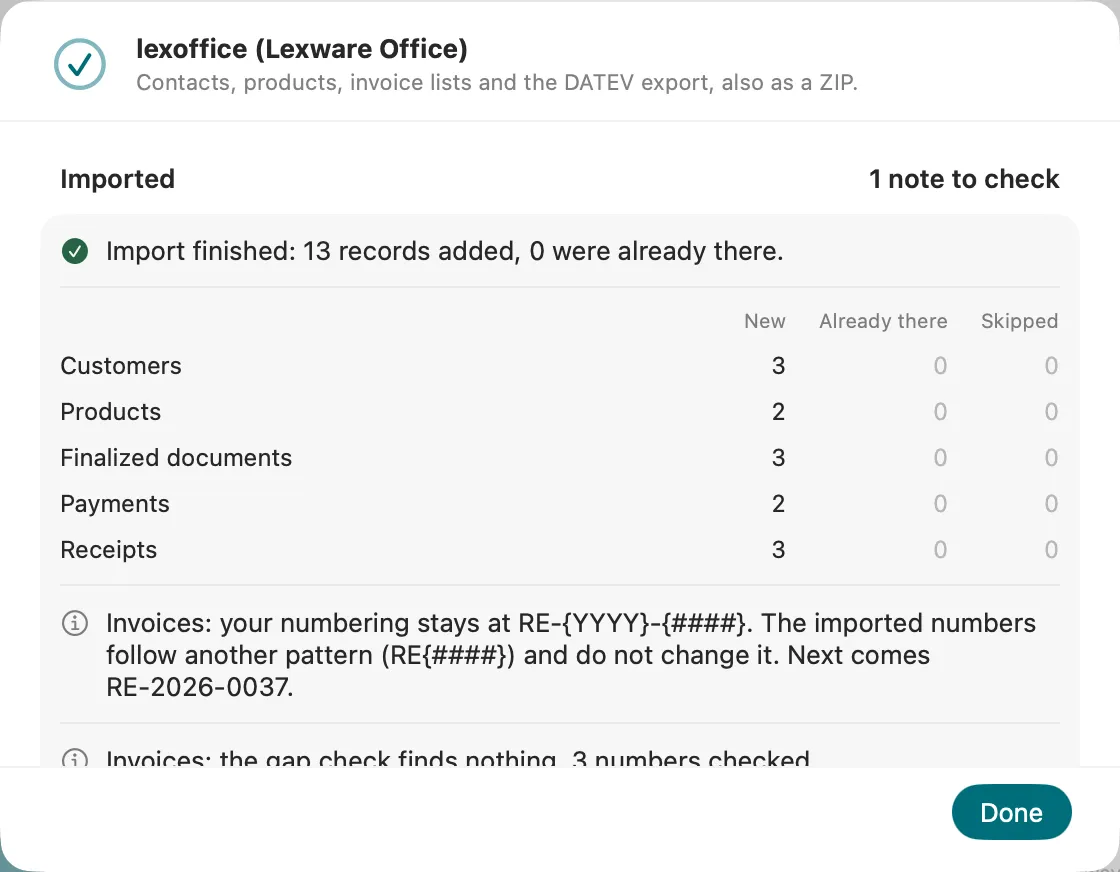
In Folnaro choose File > Import Data… and click Import… in the lexoffice (Lexware Office) row.
-
Choose everything at once
Click Choose… and select all files together, the ZIP included. A folder works too.
-
Check the preview
Click Show Preview. There are two checks: one for documents with revenue and one for receipts.
-
Import and follow up
Click Import. Then check the receipt inbox and look for duplicate customers.
Number ranges
Every number range carries on
Folnaro carries on after the highest number in every imported number range. The gap check names missing numbers. If invoice corrections had their own number range in Lexware Office, turn on Own number range for invoice corrections under Settings > Number Ranges before you import.
- Model
- Subscription, cloud
- List prices
- S €7.90, M €12.90, L €21.90, XL €32.90 net a month; VAT return and EÜR from L
- Source
- Lexware Office, As of 8 October 2026
Checked against the Folnaro importer on
What awaits you in Folnaro
Questions about switching
lexoffice is called Lexware Office now. Does this guide still apply?
Why does Folnaro need the DATEV export?
Can I use both apps side by side?
What happens to my old invoice numbers?
Will my tax advisor still get a DATEV export?

Try it with your own numbers.
Free for 30 days, no account and no payment details. Then subscribe or buy once, with the same features.