

Bring over data from another app
If you switch from SumUp Invoices, lexoffice or sevDesk, you take your customers, products, invoices and payments with you. Folnaro shows you a preview first, checks the sums against the old app and continues your invoice numbers without a gap.
What you can bring over
Under Bring Over From, Folnaro offers these sources:
| Source | What you export there | What arrives in Folnaro |
|---|---|---|
| Folnaro Backup | a backup from this Mac or another one | all data as it was backed up |
| SumUp Invoices | customers, products and invoices as CSV, Excel or JSON, plus the ZIP of original PDFs from the download center | customers, products, finalized documents, payments, recurring invoices and the original PDFs. Folnaro does not take over drafts; the report counts them. |
| lexoffice (Lexware Office) | the customer list, vendor list and product list as CSV, plus the DATEV export, also as a ZIP | customers, products, finalized documents, payments and receipts as expenses |
| sevDesk | contacts, products, invoices and receipts as CSV or Excel | customers, products, finalized documents, payments and receipts as expenses |
A plain customer list from another app comes in as CSV directly under Customers, see Import CSV. Bank statements come in through Bank, see Import a bank statement.
How an import runs
An import has three steps: choose the files, check the preview, import. Folnaro writes nothing before the preview.
- Choose File > Import Data…. Folnaro opens Settings at Import.
- In the row of your old app, click Import…. Below the file row it says what to export there.
- Click Choose… and select all exports at once. A folder or a ZIP file works too.
- Click Show Preview. At the top it reads “Preview: nothing has been saved yet”, below it the columns New, Already there and Skipped per kind, the notes and the Sum check.
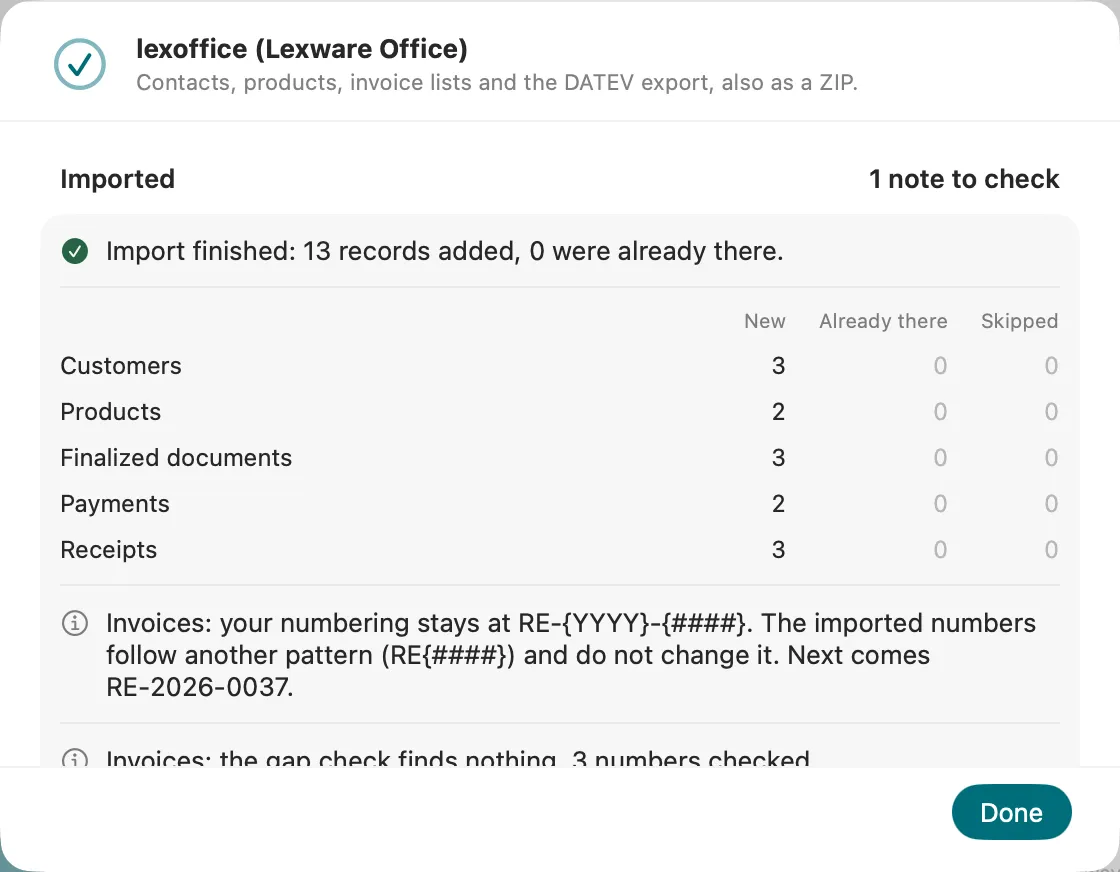
- If everything fits, click Import. Afterwards it reads, for example, “Import finished: 412 records added, 0 were already there.”
- Click Done.
Importing needs a subscription or the one-time purchase, see Subscription, trial and what always stays. During the trial it works without a purchase.
From SumUp Invoices
- In SumUp Invoices, export customers, products and invoices.
- Download the ZIP of original PDFs from the download center. Without the PDFs the archive lacks the originals.
- In Folnaro, choose everything at once: lists as CSV or Excel, JSON files and the ZIP. Single PDFs work too.
Folnaro assigns each original PDF to its invoice. A PDF without a matching invoice is named in the report with its file name.
Recurring invoices arrive paused so nothing is sent twice. A rhythm such as “every 2 weeks” or “every 5 months” stays exactly that; Folnaro never bills more or less often. A rhythm Folnaro does not know is set to yearly for now and named in the report. Folnaro does not take over a recurring invoice’s own email text; your email template applies instead.
Foreign currency: If SumUp converts an invoice in a foreign currency at a rate, Folnaro uses this rate for every euro total. You can change it on the invoice, see Payments, refunds and write-offs. If the rate is missing, the report names the invoice so you can add it before you pass on reports.
Archived but open: An invoice archived in SumUp but not paid counts as open in Folnaro. Record the payment, or write it off if it is uncollectible.
From lexoffice (Lexware Office)
- In lexoffice, export the customer list, the vendor list and the product list as CSV.
- Also create the DATEV export. lexoffice has no invoice list with line items, so Folnaro reads the invoices, payments and receipts from the DATEV Buchungsstapel.
- In Folnaro, choose all files at once, including the ZIP of the DATEV export.
From the Buchungsstapel, each receipt number becomes one invoice with its amounts per VAT rate, a payment to a bank account becomes a payment and a purchase becomes a receipt. Transfers, opening balances and cash discount entries are counted but not imported. If a list exists for a number, the list takes precedence.
From sevDesk
- In sevDesk, export contacts, products, invoices and receipts as CSV or Excel.
- In Folnaro, choose all files at once. A folder or a ZIP file works too.
Folnaro links cancellation invoices to the invoice they cancel. The report counts drafts; reminders and recurring templates from sevDesk are not taken over.
Receipts from lexoffice and sevDesk
Purchase receipts become expenses with one tax line per rate. When category, vendor and VAT case are clear, Folnaro records them at once. All others, such as reverse charge or foreign currency, go to the receipt inbox for you to check, see Review and record receipts in the inbox. If a receipt has line items in several categories, Folnaro takes the category of the largest line item and names the receipt. Vendors are not created as customers; their name stays on the receipt. Voided receipts and income receipts without an invoice are not taken over and are named in the report.
From a Folnaro backup
A Folnaro backup is not an import but a restore: it replaces all data after Folnaro has created a restore point. In the Folnaro Backup row, click Restore…. Everything else is under Restore a backup. If you move to a new Mac, iCloud works too, see Sync with iCloud.
What Folnaro checks for you
- Sum check: per year, Folnaro compares net, tax and gross of the imported documents to the cent with what the source states. If everything matches, it reads, for example, “120 revenue documents match the source: net …, tax … and gross ….” For lexoffice and sevDesk there is a second check for the receipts.
- Differences are named with the document, the amount in the source, the imported amount and the difference. If the stated totals of an invoice differ from the recalculation, Folnaro keeps the totals of the source.
- Gap check: for every number range, Folnaro checks whether numbers are missing and names those between two existing ones.
- Numbers in use: if a number already exists, Folnaro skips the document and names it. The import never stops because of it.
- Assumptions are always in the report: a payment without a date is dated on the invoice date, a missing VAT rate becomes the standard rate of the date with the gross amount unchanged.
Numbers and finalized documents
Imported invoices are finalized, keep their original number and date and can no longer be changed afterwards. Your next invoice in Folnaro gets the number after the highest imported one, so your number range continues without a gap. Invoice corrections and cancellation invoices continue the invoice numbers. If they had a number range of their own in the old app, the report says so. Before the import, turn on Own number range for invoice corrections under Folnaro > Settings… > Number Ranges if you want to continue it.
Quotes, order confirmations and delivery notes continue their own ranges.
If an imported invoice has its original PDF, Folnaro shows and sends that one. If it is missing, Folnaro puts the PDF together from the imported details and marks every page as Reconstruction. That way nobody mistakes a reconstruction for the original.
Import again
Importing the same files again is safe. Every record gets a fixed identifier from its source and number. What is in Folnaro already is recognized by the second run and not added twice. If the preview says “Everything is in Folnaro already. There is nothing to import.”, Folnaro does not offer the import at all. If a file was missing the first time, simply choose all files together in the next run.
After the import
- Read the notes of the report. Each one names the document and a next step.
- Check your customers for duplicates, see Merge customers.
- Check the receipts in the receipt inbox that Folnaro could not record at once.
- Under Recurring invoices, check rhythm, recipient and placeholders before you resume a series.
- Compare the reports of a closed year with the old app, see Reports: VAT return, EC sales list and EÜR.
Common problems
- “The chosen files hold nothing Folnaro can import.”
- The files come from another view or another app. Check that you clicked Import… in the right row, and export the lists as described below the file row.
- The sum check shows a difference
- Usually a document is missing from the export, or a list without its amount columns was chosen. Check the named documents in the export and in the notes, then import again. Documents already imported stay as they are.
- “The archive … could not be read.”
- The ZIP file did not download completely. Export it again and choose the new file.
- An invoice has no original PDF
- The PDF was missing from the export or could not be matched to an invoice. Download the ZIP from the download center and import again with all files. Until then, Folnaro shows a reconstruction.
- A number was skipped
- The number already exists in Folnaro, for example because you wrote an invoice by hand before. Check both documents, see Questions about invoice numbers and gaps.
- A recurring invoice has an unknown placeholder
- Folnaro would print it as it is. Replace it in the recurring invoice before you resume it.