

Reports: VAT return, EC sales list and EÜR
Under Reports, Folnaro prepares the figures of a period: revenue, the VAT return, the EC sales list and the profit statement (EÜR). Folnaro calculates with what you recorded. Filing stays with you or your tax advisor.
Choose a period
Every figure on the page belongs to one period: a month, a quarter or a year. The first time you open it, Folnaro shows the last finished period of your VAT return that has invoices, payments or receipts. The running period is one click away.
- Click Reports in the sidebar or choose Go > Reports (⌥⌘3).
- Click the name of the period under the title, for example “Q3 2026”. In the menu, choose the Period Type: Month, Quarter or Year.
- For a particular period, choose Choose Period… in the same menu: a month, quarter or year directly, and under Reports also a Custom Range from one day to another, for example 1 November to 31 January across the year end.
- Step with the arrows beside it, or click Today to go to the running period. The same commands are in the View menu:
| Command | Keys |
|---|---|
| View > Previous Period | ⌘[ |
| View > Next Period | ⌘] |
| View > Current Period | ⇧⌘T |
| Previous Year (hold Option) | ⌥⌘[ |
| Next Year (hold Option) | ⌥⌘] |
On a German keyboard these are ⌘Ö and ⌘Ä. You cannot go past the running period, because later periods have nothing recorded yet. Reports and Tax Advisor share the period: switching between both pages keeps it.
While the period is still running, in progress appears beside its name. A notice then says that the figures show today’s state.
Summary and charts
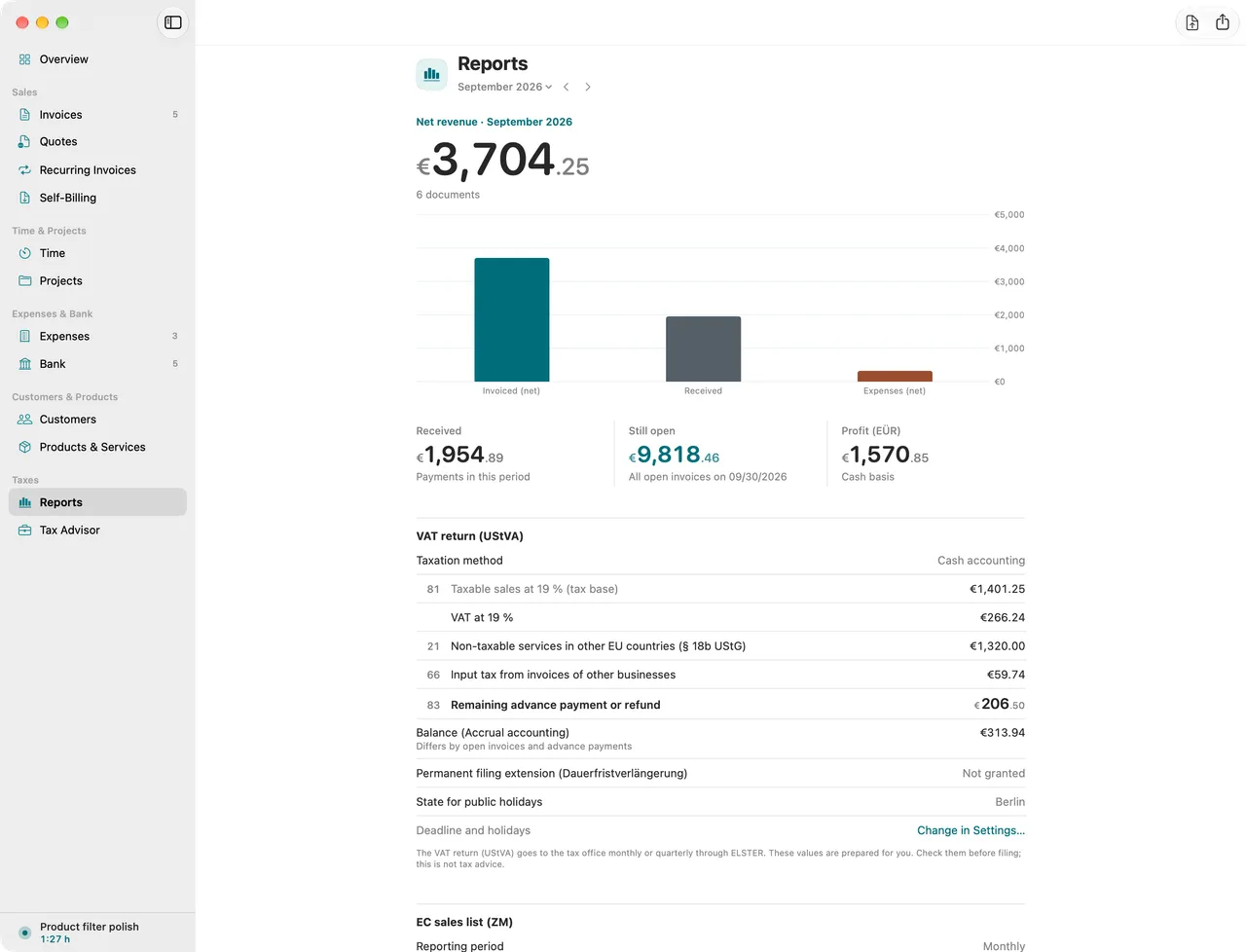
At the top, the period’s net revenue stands large with the number of documents, right under it the chart Revenue and expenses by month. It shows Invoiced (net), Received and Expenses (net). For a single month it says “Revenue and expenses in” and the month. While the period runs, the running month is marked on the axis.
Below follows a row of three figures:
- Received: the payments received in the period.
- Still open: what is not paid yet from this period’s invoices.
- Profit (EÜR): the profit on a cash basis, as in the EÜR further down.
Further down are Revenue by customer and Open items by age. The open items are grouped by age, and you expand each group. Show invoice opens the invoice. They show the state at the end of the period, or today’s state while it runs. The tax advisor package contains the same list.
Tax status
The Tax status section shows which status applied in this period: small business or regular taxation, cash or accrual VAT. As a small business you see the year’s revenue against the small business limit, and a notice when you approach or cross it. If the status changes within the period, Folnaro names the day. Every document and receipt follows the status of its own day. You change the status under Folnaro > Settings… > Taxes.
Invoices in another currency
Invoices in another currency count in every total with their amount in euros. Each such invoice needs an exchange rate for that. Without one, the invoice is missing from every total. A notice at the top then names how many. Open the invoice and enter the euro rate in the inspector.
VAT return (UStVA)
With the VAT return you tell the tax office every month or quarter how much VAT you collected and how much input tax you paid. The difference is the amount you owe or the refund.
The VAT return (UStVA) section shows each value with its field number (Kennzahl) in the form, base and tax apart. The most common ones:
| Field | Content |
|---|---|
| 81 | Sales at 19 % (net) and the tax on them |
| 86 | Sales at 7 % |
| 35, 36 | Sales at other rates |
| 41 | Intra-community supplies to businesses with a VAT ID |
| 21 | Services in other EU countries where the customer owes the tax (reverse charge) |
| 45 | Other non-taxable sales, for example services to non-EU countries |
| 46, 47 | Services you receive from businesses in other EU countries |
| 84, 85 | Other services for which you owe the tax, for example from non-EU countries |
| 66 | Input tax from invoices of other businesses |
| 67 | Input tax from services for which you owe the tax |
| 83 | Remaining advance payment or refund |
Below the table:
- Taxation method: cash or accrual VAT, as chosen in Settings. Below it, Folnaro shows the balance with the other method. The difference comes from open invoices and advance payments.
- Due: the filing date. If it falls on a weekend or a public holiday in your state, the next working day applies. A symbol beside the date then says which day it was moved from. You set the state with Change in Settings….
- Permanent filing extension (Dauerfristverlängerung): Granted or Not granted, as entered under Folnaro > Settings… > Taxes.
As a small business you file no VAT returns as long as you receive no services under reverse charge. If you received such services in a period, Folnaro points it out: you then owe this tax and report it, without input tax deduction.
EC sales list (ZM)
The ZM lists your sales to businesses in other EU countries per customer VAT ID, with the kind of sale: L for supplies of goods, S for other services. Folnaro shows the section only if you are not registered as a small business. Without such sales it says No EU sales to report in this period.
You set the reporting period under Folnaro > Settings… > Taxes at EC sales list period: Monthly or Quarterly. If your EU supplies of goods exceeded €50,000 in a quarter, Folnaro points out that the EC sales list has to be filed monthly.
Profit statement (EÜR)
The EÜR determines your profit for the tax return when you do not have to draw up a balance sheet. Income counts when it is received, expenses when they are paid.
- Income appears as Income (net), VAT received and VAT refunds from the tax office, together Total income.
- Expenses appear by category, plus Input tax paid and VAT paid to the tax office, together Total expenses. Below stands the Profit.
- Lines of the Anlage EÜR assigns the amounts to the lines of the form, for example “Line 15 of the form”. Expand the group to see every line.
- Ten-day rule: regularly recurring payments that are due and paid between December 22 and January 10 count in the year they belong to, for example a recurring invoice or a VAT prepayment. Folnaro shows for each one when it was paid and when it was counted.
- Fixed assets count with their depreciation. Receipts for fixed assets without a chosen depreciation are not included yet; Folnaro names how many. Asset Register opens the list of your fixed assets.
Annual returns
After the year come the annual VAT return and the Anlage EÜR. Folnaro prepares both and compares the annual VAT return with your VAT returns of the year.
- Choose a period in the year and then Export > Annual Returns….
- Choose the Form at the top:
- Annual VAT return: the values per field with Base and Tax, below them Remaining tax, Advance payments and the result as Final payment or Refund.
- Reconciliation: each field of the annual return beside the sum of the VAT returns, with the difference and its cause.
- Anlage EÜR: the amounts per line of the form.
- Click Copy Values, and every Kennzahl with its value is on the clipboard, as you type them into Mein ELSTER. You copy a single value from the row’s shortcut menu with Copy Base or Copy Tax.
- If your program works with ERiC, save the form as a file with Save ElsterXML…. The Reconciliation has no such button, it is only for comparing.
Folnaro submits nothing to the tax office. If a period of the year has no VAT return, the reconciliation names it: “No VAT return recorded for …”.
Folnaro keeps no record of filed VAT returns yet, so the reconciliation compares with the VAT returns as computed today. If you corrected a VAT return later, compare the reconciliation with what you actually filed. If no annual VAT return is due under your tax status, the figures are shown for reference only.
Export and share a report
Click Export in the toolbar. The menu gathers everything a period hands on:
- Report: Save as PDF… and Print…
- Taxes: Values for ELSTER…, Annual Returns…, Artists’ Social Security Levy… and Package for the Tax Advisor…
- DATEV: DATEV Entries…, DATEV Customer Master Data… and DATEV XML with Receipt Images…
- Journals (CSV): the period’s detailed records as a CSV file, one each for outgoing invoices, incoming invoices, payments received, open items, time tracking, VAT return preparation, EC sales list preparation, profit statement (EÜR), self-billing invoices received and the asset register. At the bottom of the same submenu you choose the Export Language: German or English, independent of the app language.
The same exports are under File > Export. DATEV Entries… has ⇧⌘E; holding Option turns it into DATEV Customer Master Data… (⌥⇧⌘E). Share in the toolbar hands the report on as a PDF, for example by email or AirDrop.
The DATEV entries and DATEV XML need your tax advisor and client number. Without them, Folnaro offers Open Settings…. More under Tax advisor and DATEV.
DATEV XML with receipt images
If your tax advisor works with DATEV Unternehmen online, you can send them receipts with their image and accounting data.
- Choose Export > DATEV XML with Receipt Images….
- Check under Contents how many Receipts and invoices and Attached files the period has.
- Click Export… and choose a folder.
Folnaro writes one or more ZIP files, each below DATEV’s size limits. If a single file is larger than DATEV accepts, Folnaro names it so you can upload it separately. Upload the ZIP files to DATEV Unternehmen online or send them to your tax advisor.
Where the figures in the PDF come from
Each figure in the PDF carries a superscript number. It refers to the section Where the figures come from at the end. Each source names its kind, period, records included and the time of calculation. The journal export contains the individual records. The PDF notes that the values are prepared and should be checked before filing.
Values for ELSTER
Folnaro sends nothing to the tax office. You transfer the values into Mein ELSTER yourself, as a file or value by value.
- Choose a month or a quarter. VAT returns and EC sales lists are filed per month or quarter; for a year there are the annual returns.
- Choose Export > Values for ELSTER… or File > Export > Values for ELSTER… (⌥⌘E).
- In the sheet VAT for ELSTER, check the Period with its code in the form and the Tax number in ELSTER format.
- Turn on Corrected return (Kz 10) if you already filed a return for this period and are correcting it now, or Receipts sent separately (Kz 22) if you send the tax office documents. With a permanent extension, enter the Special prepayment to deduct (Kz 39) in the last return of the year.
- Click Save UStVA File…. In Mein ELSTER, open the VAT return and choose “Upload form data”. Or copy each value with the copy button beside it.
- If there are EC sales list entries, Save ZM File… saves a CSV file. Import it into the ZM form of the BZSt online portal or Mein ELSTER. Enter the period and your VAT ID in the form there.
In the sheet, ⌘S saves the UStVA file, and Done closes it.
Artists’ social security levy
If you pay fees to artists or publicists, for example for design, photos or texts, the artists’ social security levy (KSK) may apply. Folnaro counts the fees of a year and calculates the levy.
- Choose Export > Artists’ Social Security Levy…. Folnaro shows the year of the selected period.
- Click Mark Vendor and mark this year’s vendors who count as artists or publicists.
- Choose the Field of art for each fee without one. Show Receipt opens the receipt, Edit Vendor… the vendor.
Folnaro shows the total under Fees counted, the levy at the year’s rate, the date under Report due by and next year’s monthly prepayment. If the rate is not published yet, it says so. Fees to a GmbH, UG, AG, OHG or KG usually do not count. If such a receipt belongs in anyway, choose Counts on the receipt.
Common problems
- An invoice is missing from the totals
- If a notice about another currency appears at the top, the invoice has no exchange rate. Open it and enter the euro rate in the inspector. A draft never counts: finalize the invoice first.
- The figures keep changing
- The period is still running, and the figures show today’s state. Wait for the end of the period, or step back with ⌘[ to the last finished one.
- The balance differs from your tax advisor’s calculation
- Check under Taxation method whether cash or accrual VAT is set. The row below shows the balance with the other method. Then check under Tax Advisor whether the checklist names unconfirmed receipts or transactions without a category.
- The due date is wrong
- Enter your state with Change in Settings… and check under Folnaro > Settings… > Taxes whether the permanent extension is entered.
- Values for ELSTER is not available for a year
- VAT returns and EC sales lists exist only per month or quarter. Choose a month or a quarter, or open Annual Returns… for the year.
- The EÜR does not include a fixed asset
- Folnaro names the number of fixed asset receipts without depreciation. Open the Asset Register and record the depreciation there.