

E-invoices: XRechnung and ZUGFeRD
An e-invoice holds the invoice as structured data that software can read. Folnaro writes it when you finalize, attaches it when you send, and reads e-invoices you receive, with a validation report.
When the e-invoice becomes mandatory
For invoices between businesses in Germany, the e-invoice comes step by step. A PDF by email is not an e-invoice; a ZUGFeRD PDF with the EN 16931 profile is.
| From | What applies |
|---|---|
| January 1, 2025 | Every business must be able to receive e-invoices. An email inbox is enough for that. |
| 2025 and 2026 | You may still write paper invoices. Other electronic formats such as a plain PDF are allowed if your customer agrees. |
| January 1, 2027 | If your revenue last year was above €800,000, you must write e-invoices. Below that, you may still use paper in 2027 and, with consent, other electronic formats. |
| January 1, 2028 | All businesses write e-invoices to their business customers in Germany. |
Invoices to private individuals, small-amount invoices up to €250 (§ 33 UStDV) and travel tickets (§ 34 UStDV) are exempt. As a small business under § 19 UStG you do not have to write e-invoices (§ 34a UStDV), but you do have to receive them. Public authorities already require the XRechnung today.
The formats Folnaro writes
- ZUGFeRD: a regular PDF with the invoice data embedded as XML (ZUGFeRD 2.5 and Factur-X 1.09, profile EN 16931). People read the PDF, software reads the data.
- XRechnung: a plain XML file following XRechnung 3.0. Public authorities in Germany require it.
Both use the same syntax (UN/CEFACT CII). E-invoices exist for invoices, partial and final invoices, invoice corrections, cancellation invoices and self-billing invoices. Quotes, order confirmations and delivery notes get none.
Set the e-invoice per customer
- Open the customer under Customers and click Edit.
- Choose an option under E-Invoice in PDF. For a public authority the field is in the E-Invoice section, otherwise in the More section:
- Automatic: businesses get the e-invoice in the PDF when all details are complete. Public authorities always get it. Private individuals get a PDF without data.
- Always: every invoice contains it. If details are missing, the invoice can only be finalized once they are added.
- Never: the PDF has no embedded data.
- Turn on XRechnung as separate XML file if the customer also needs the XML file. It is archived and attached to the email.
If you turn the XML file on only after an invoice was finalized, Folnaro builds it the next time you send, from the unchanged invoice, and archives it next to it. The PDF stays as it is.
Invoices to public authorities and the Leitweg-ID
The Leitweg-ID is a public authority’s address for e-invoices. You get it from the client; it is usually in the order.
- Set the customer’s Type to Public authority.
- In the E-Invoice section, enter the Leitweg-ID exactly as it appears in the order, for example
04011000-12345-03. - If a single invoice needs a different reference, such as an order number, enter it on the document’s page in the Your reference row.
Folnaro checks the check digits at the end of the Leitweg-ID as you enter it. If they don’t match, the customer form shows The Leitweg-ID or its check digits don’t match. Copy it exactly from the order. and cannot be saved that way. If an authority has no Leitweg-ID, Folnaro reports it in the customer and when you finalize. Many authorities accept invoices through portals such as ZRE or OZG-RE. There you upload the XRechnung you get with Save XRechnung.
What Folnaro checks before finalizing
Before an e-invoice is created, Folnaro checks the details the standard requires. If something is missing, the finalize sheet names it under Still missing:
- your address with postal code and city, your tax number or VAT ID, and your VAT ID for reverse charge
- for XRechnung also your email address, phone number and IBAN
- the customer’s address with postal code and city, for XRechnung their email address, for reverse charge their VAT ID
- at least one billable line item
- for cancellation invoices and invoice corrections, the reference to the original invoice
With Automatic, a business without complete details simply gets a PDF without data. With Always and for public authorities you have to add the details before the invoice gets its number. You keep your own details under Folnaro > Settings… > Business Profile, Taxes and Bank Account.
An invoice correction that pays money back to the customer has no due date. Folnaro then writes a refund as the payment terms into the e-invoice, so it passes the validation rules.
Save an XRechnung
- Select a finalized invoice.
- Open the File menu and hold down the Option key ⌥. Save as PDF… changes to Save XRechnung….
- Choose the location and click Save.
Shortcut: ⌥⇧⌘S. You also find the command in the document’s context menu and in Search and Capture. If an XRechnung is already archived for the invoice, you save exactly that file. Drafts have no number yet and therefore no XRechnung.
Send e-invoices
When you send, Folnaro attaches the PDF, as ZUGFeRD for customers with the e-invoice in the PDF. With XRechnung as separate XML file the XML file comes along. If details for it are missing, the send sheet says what is missing instead of silently leaving the file out. More under Sending documents by email.
Receive e-invoices
Since 2025, businesses in Germany must be able to receive e-invoices. You import them like any other receipt:
- Drag the XML file or the ZUGFeRD PDF onto the window, or choose File > Import Receipts… (⌘O).
- Folnaro reads vendor, amounts and tax rates straight from the data. No text recognition is needed. Folnaro reads XRechnung, ZUGFeRD and Factur-X in CII as well as UBL.
- The expense lands in the receipt inbox. Review it and record it as usual.
If an XML file is not a valid e-invoice, Folnaro takes it as an other invoice and tells you. Folnaro recognizes a file it already imported and does not create it twice.
Read and check a received e-invoice
- Select the expense under Expenses.
- Click E-Invoice. Folnaro shows the invoice in readable form with seller, buyer, line items, VAT, amounts and payment.
- At the top is the result of the Check:
- No findings: the checked rules found nothing. This is no statement on whether the invoice is correct for tax purposes.
- Hints: no errors, but points worth a look.
- Content errors: ask the sender for a correction before you claim input tax.
- Format errors: the file is not a valid e-invoice. Ask the sender for a new invoice.
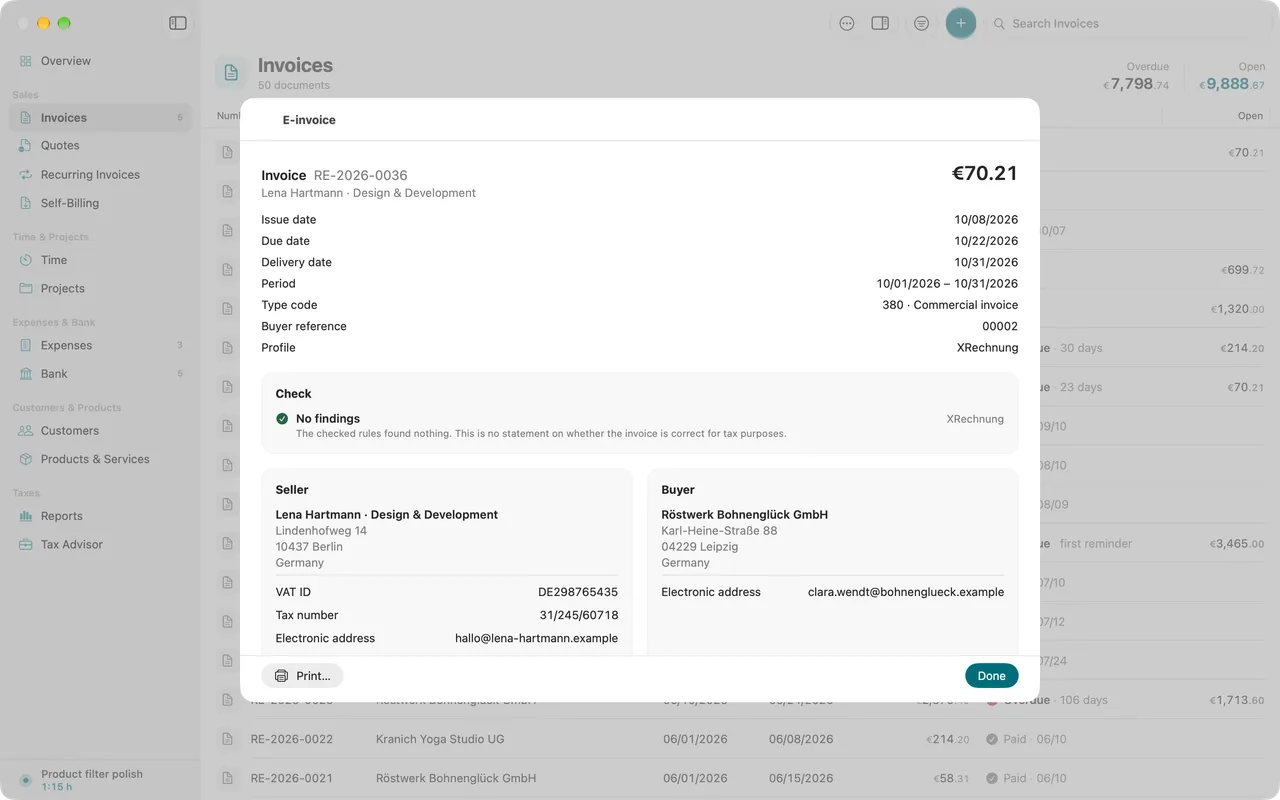
The rendering is only a view. The original stays archived unchanged, and Folnaro verifies it by its checksum before showing it. Show XML shows the file as it arrived. Print… prints the readable version, Share passes on the original file. Attachments of the e-invoice open in Quick Look.
Common problems
- The invoice cannot be finalized because details for the e-invoice are missing.
- The customer is set to Always or is a public authority. The sheet names the missing detail. Add it in your profile or in the customer and finalize again.
- The Leitweg-ID is not accepted.
- The check digit at the end does not match, usually a typo. Copy the Leitweg-ID straight from the order or ask the authority.
- The authority’s portal rejects the XRechnung.
- Read the portal’s message. If a reference is missing, enter it in a new invoice under Your reference. You do not change a finalized invoice; you cancel it and write a new one.
- Your customer finds no data in the PDF.
- The customer is a private individual, set to Never, or set to Automatic with incomplete details. Set them to Always, so Folnaro names missing details when you finalize.
- A received XML file is taken as an other invoice.
- The file is not an e-invoice in a known format. Ask the sender for an XRechnung or a ZUGFeRD PDF.