

Sync with iCloud
With iCloud sync your customers, documents, times and receipts are the same on every Mac signed in to your iCloud account. Folnaro has no server of its own: the data travels through your private iCloud database, and every Mac keeps a full copy.
What syncs and what stays on each Mac
You need sync when you work on more than one Mac, for example a desktop in the office and a MacBook on the road. With only one Mac, sync is a copy of your books in iCloud next to your backups.
Synced: customers, products and projects, quotes, invoices and every other document with its lines, payments and reminders, time entries, expenses with their receipt files, bank accounts and transactions, the business profile, taxes, number ranges, document design, email texts, reminder rules and the log of every change.
Stays on each Mac:
- the email account with its password, the Paperless token and other passwords in the Keychain
- what agents may do (Folnaro > Settings… > Agents), so an agent on one Mac never gets rights you gave on another
- folders you chose with an open panel, such as the watched receipt folder, the backup location and the folder for the tax advisor package
- backup settings, App Lock and the appearance of the app
Your subscription or one-time purchase belongs to your Apple Account, not to sync. On another Mac signed in to the same Apple Account it is recognized by the App Store.
Turn on sync
During setup, Folnaro offers Sync with iCloud as soon as an iCloud account is signed in. You can also turn it on later:
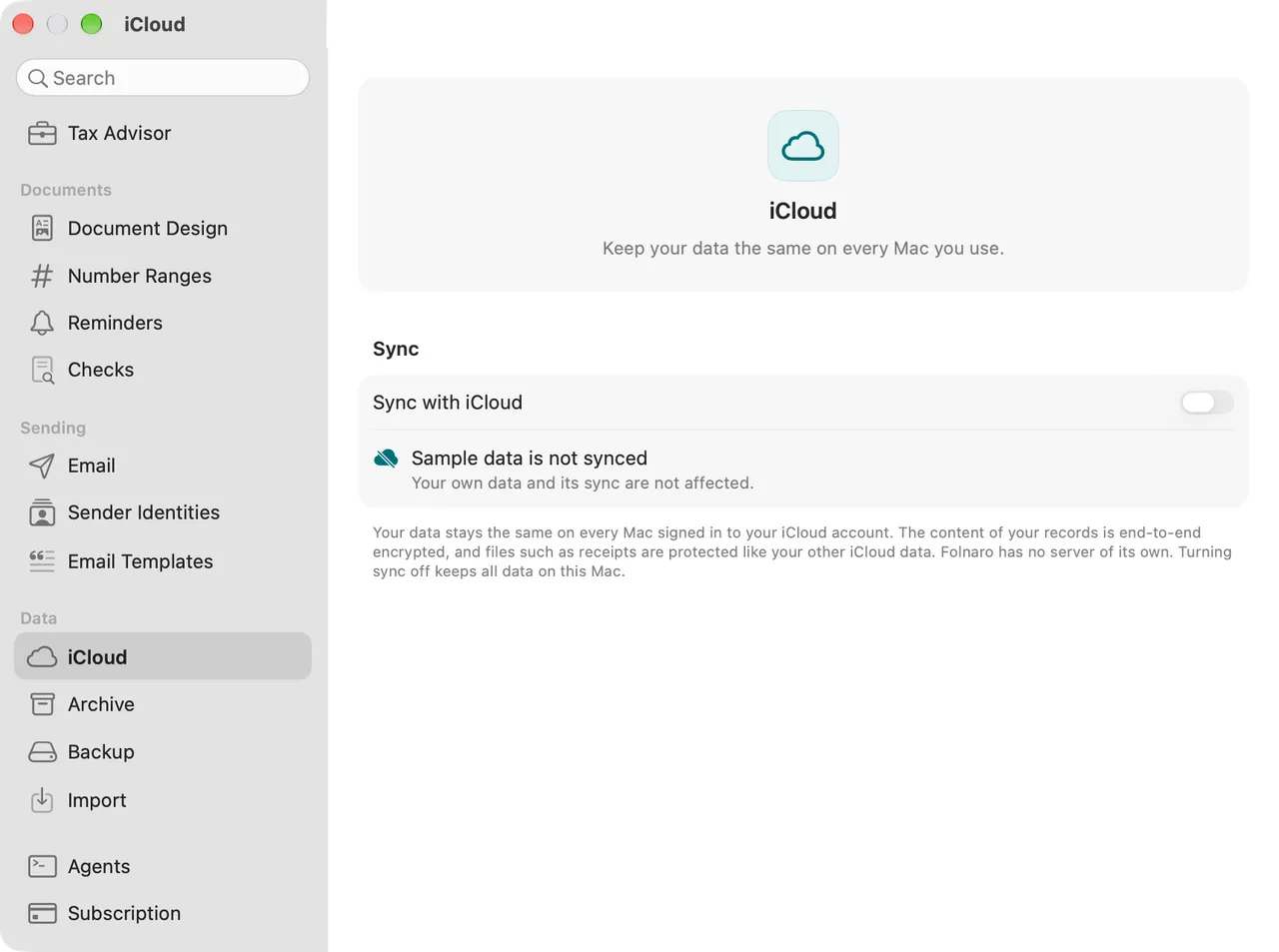
- Choose Folnaro > Settings… > iCloud.
- Turn on Sync with iCloud.
- If this Mac already holds data, Folnaro asks “Sync this Mac’s data with iCloud?”. Click Sync. The data is combined with what is in iCloud and nothing is deleted. Folnaro makes a backup first.
The first upload can take a while with many receipts. Status counts down what is left, for example Changes still to send: 240. You can keep working in the meantime.
Add a second Mac
- Install Folnaro from the App Store on the second Mac and sign in to the same iCloud account.
- In setup, leave Sync with iCloud on. Or turn it on later under Folnaro > Settings… > iCloud.
- Wait until Status shows Synced with a time. Your books then appear on the second Mac.
- Enter the email password again under Folnaro > Settings… > Email and allow agents again if you use them, because both stay on each Mac.
Read the status
Under Folnaro > Settings… > iCloud, Status says what sync is doing, and only what is true at that moment:
| Status | What it means |
|---|---|
| Synced with a time | Everything is sent and fetched. |
| Syncing… | Folnaro is sending or fetching changes. Below it you see how many are still to send. |
| Waiting for a connection | The Mac is offline. Changes are kept and sync when it is online again. |
| Not signed in to iCloud | Sign in under System Settings > Apple Account. |
| Another iCloud account is signed in | Sync pauses so the data of two accounts never mixes. |
| iCloud storage is full | New changes stay on this Mac until there is space again. |
| Some changes need a newer Folnaro | Another Mac uses a newer version. Update Folnaro in the App Store. |
| An invoice number exists twice | See A number exists twice. |
Whenever sync needs your attention, a small iCloud symbol appears in the toolbar of the main window. Click it to read the reason and choose Open iCloud Settings…. While all is well the symbol stays hidden.
Sync right now
Folnaro syncs by itself after every change and when another Mac changed something. To start it at once, for example before you close the MacBook, click Sync Now next to Status. The button sends and fetches all changes.
Invoice numbers on several Macs
Each invoice number may exist only once. That is why Folnaro coordinates the numbers of all your Macs through iCloud:
- While online, each Mac sets aside a few of the next numbers. Finalizing therefore never waits for iCloud, even offline.
- With only one Mac, the numbers stay in order without gaps.
- With several Macs, every number is still issued only once. Numbers of two Macs can interleave out of date order. That is allowed as long as every number stays unique.
- If a Mac has used up its set aside numbers while offline, a finalized document waits with Waiting for a number. It is assigned as soon as iCloud can be reached. It gets its number at the next sync.
A number exists twice
In one rare case two Macs can issue the same number: a second Mac joins while the first is offline and issuing numbers beyond its set aside ones. Both invoices may already be with customers, so Folnaro keeps both and shows the problem until you resolve it: in the overview, in the inspector of the invoice under Duplicate Number, in the toolbar and under Duplicate Numbers in the iCloud settings. The notice stays even with sync turned off.
- Choose Folnaro > Settings… > iCloud and click Open Invoice next to the notice “The number … exists twice”.
- Decide which of the two invoices you correct. Usually it is the newer one, or the one the customer has not paid yet.
- In its inspector, click Cancel and Reissue…. Folnaro creates a cancellation invoice and a corrected copy as a draft, see Correcting and canceling invoices.
- Finalize the copy. It gets a new number. Send the cancellation invoice and the new invoice to your customer.
- Once one of the two invoices is canceled, the notice says so. Click Done.
If you settle the matter another way, for example with your tax advisor, you can click Done without a cancellation and confirm Mark as Done. Both invoices then keep the number, and the log records that you closed the notice deliberately.
Another iCloud account
If a different iCloud account is signed in than the one your books synced with, Folnaro pauses and asks “Sync with the account signed in now?”:
- Use This Account uploads all data of this Mac to the account signed in now. Nothing is deleted anywhere.
- Turn Off stops sync. All data stays on this Mac.
Turn off sync or remove the data from iCloud
Turn off Sync with iCloud under Folnaro > Settings… > iCloud. All data stays on this Mac, and the copy in iCloud stays for your other Macs. Numbers this Mac had set aside are released, so the number series goes on without a gap.
To delete Folnaro’s copy in iCloud as well:
- Click Remove from iCloud… next to Data in iCloud.
- Confirm with Remove from iCloud.
Folnaro deletes its data in iCloud and turns sync off on every Mac. The data on your Macs stays. This cannot be undone in iCloud, but you can turn sync on again at any time to upload everything anew.
Privacy and security
- The data lies in the private iCloud database of your Apple Account. Only your account has access to it; the developer of Folnaro cannot see it.
- The content of your records is end-to-end encrypted. Files such as receipts and PDFs are protected like your other iCloud data. With Advanced Data Protection turned on in your iCloud settings, they are end-to-end encrypted too.
- Sync works without a subscription. Your books belong to you on every Mac, also after the trial.
- Sample data never syncs. While you try Folnaro with sample data, the pane says Sample data is not synced, and your own data stays untouched.
Common problems
- Status shows “Not signed in to iCloud”
- Sign in under System Settings > Apple Account. Changes are kept and sync afterwards.
- Status shows “iCloud denied access”
- Under System Settings > Apple Account > iCloud, allow Folnaro to use iCloud. Then click Sync Now.
- Status shows “iCloud storage is full”
- Free up space or choose a larger plan under System Settings > Apple Account > iCloud. New changes wait on this Mac until then.
- Status shows “Sync stopped”
- Changes are kept on this Mac. Click Sync Now again later. If iCloud keeps refusing and names an error number, send it with Help > Send Feedback….
- Status shows “This build can’t use iCloud”
- Only the version from the App Store can sync. Install Folnaro from the App Store.
- A change from the other Mac does not appear
- Check that both Macs are online and signed in to the same iCloud account, then click Sync Now on the Mac that made the change and then on the other one.
- The second Mac cannot send email
- The email account stays on each Mac. Set it up under Folnaro > Settings… > Email on the second Mac.
- Sync and iCloud Drive
- Folnaro does not store its data in iCloud Drive and needs no iCloud Drive folder. Only iCloud itself has to be signed in and allowed for Folnaro.