

Document design
How your quotes, invoices and reminders look as PDFs is set once in Folnaro > Settings… > Document Design. Template, color, logo and paper size apply to every document you create from then on. Folnaro fills the sender and the footer from your business profile.
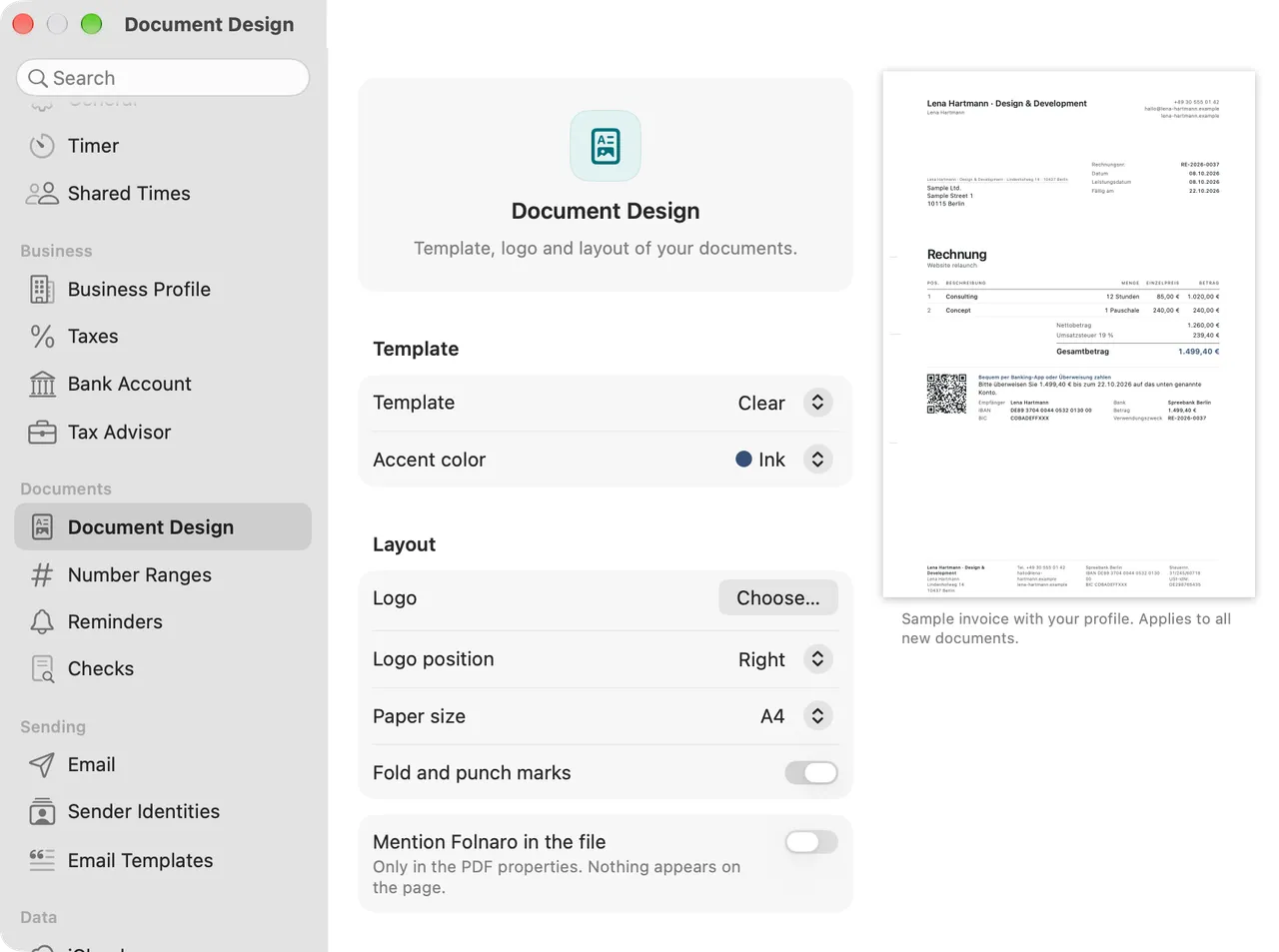
Template and accent color
Under Template you choose one of three templates. Each brings its own layout and its own font:
- Clear: SF Pro, generous white space, color only for rules and the total. The logo sits on the right.
- Classic: New York, a centered letterhead and double rules like a printed business letter. A centered logo stands in for the name there.
- Compact: Helvetica Neue, smaller type, a tinted table header and alternating row shading for long item lists. The logo sits on the left.
The fonts ship with macOS, so your PDFs look the same on every Mac. You don’t pick a font of your own; the font follows the template.
Accent color offers five calm colors: Graphite, Ink, Petrol, Oxide and Plum. If it shows Custom, a color outside these five is saved. It stays until you choose another one.
When you switch templates, Folnaro keeps what you set yourself: paper size and fold marks always, accent color and logo position when you changed them. Anything you never touched follows the new template.
Add a logo
The logo appears in the letterhead of every document.
- In the Layout section, click Choose… next to Logo.
- Choose a PNG, JPEG, SVG or PDF file. The preview shows the logo right away.
Folnaro prepares the file so it looks on the PDF exactly as in the preview:
- A PDF stays a vector drawing and is sharp at any size.
- An SVG is turned into an image that fills the logo’s largest print area at 300 dpi.
- A large image is scaled down to that area, keeping its aspect ratio. Folnaro never enlarges smaller images.
- A file that is not a readable image is refused with a note on which formats work. Your current logo then stays as it is.
The logo prints at most 60 mm wide and 16 mm high. Replace… picks another one, Remove takes it out after asking. PDFs you create after that show no logo.
Logo position, paper size and fold marks
Logo position moves only the logo: Left, Centered or Right. Your name and contact lines are in the letterhead in every position:
- Without a logo, the name is on the left and the contact lines on the right.
- With the logo on the left or right, name and contact lines are stacked on the other side.
- With a centered logo, name and contact lines sit to its left and right.
Under Paper size you choose A4 or US Letter. Fold and punch marks prints small lines on the left edge for folding and punching. Fold marks are only printed on A4, so the switch is dimmed for US Letter.
Mention Folnaro in the file writes Folnaro only into the PDF properties. Nothing appears on the page; your documents carry your name alone.
Sender and footer
Folnaro fills the sender line and the footer of every page from your details and simply leaves out an empty field. The footer has up to four columns:
- Business: name, owner and address from Business Profile.
- Contact: phone, email and website from Business Profile.
- Bank: bank, IBAN and BIC from Bank Account.
- Tax and register: Tax number, VAT ID, Register entry and Managing directors from Business Profile.
Text meant for one document only goes into that document’s introduction or closing text, see Writing invoices.
Under § 14 Abs. 4 UStG an invoice names the full name and address of the business providing the service and its tax number or VAT ID. On business letters a GmbH also names its register court, register number and all managing directors (§ 35a GmbHG), a registered sole trader (eingetragener Kaufmann) their trading name and register entry (§ 37a HGB). Enter these details in Business Profile and they appear on every document.
The preview
On the right of the pane you see the Preview of a sample invoice with your profile. It redraws with every change. Clicking the page opens the PDF full size in Quick Look, so you can check logo and type at full size.
If your profile lacks something every invoice needs, or the IBAN is not valid, a note below the preview says what to do.
The design applies to all new documents. A finalized document keeps the PDF Folnaro archived when it was finalized, so it stays exactly as the customer received it.
Document language
The app language follows macOS. The language of a document is set separately, German or English. It decides every printed label, the legal notices, the date format and how amounts are written:
- Document language in Business Profile applies to every customer without a choice of their own.
- Document Language on the customer applies to every new document for that customer, see Customers, products and projects.
- Language in the inspector under Tax and Payment changes a single document while it is a draft.
Once the document is finalized, its language is fixed.
Common problems
- Folnaro refuses my logo
- The file is not an image the documents can show, or it is damaged. Export the logo from your graphics app as PNG, SVG or PDF and choose it again.
- The logo looks blurry in print
- Folnaro never enlarges a small image. Use an SVG or PDF file, or a PNG at least 700 pixels wide.
- Fold and punch marks can’t be turned on
- The paper size is US Letter. Set Paper size to A4.
- An old invoice doesn’t show the new logo
- Finalized documents keep their archived PDF. The new design applies to documents you create from now on.
- A detail is missing from the footer
- The field is empty. Fill it in under Business Profile or Bank Account; the preview shows the change right away.