

Expenses and receipts
New receipts land in the receipt inbox first. Folnaro reads vendor, date, amounts and VAT, you check the result and record the receipt as an expense. Recorded expenses count in your reports and in the package for your tax advisor.
How Expenses is laid out
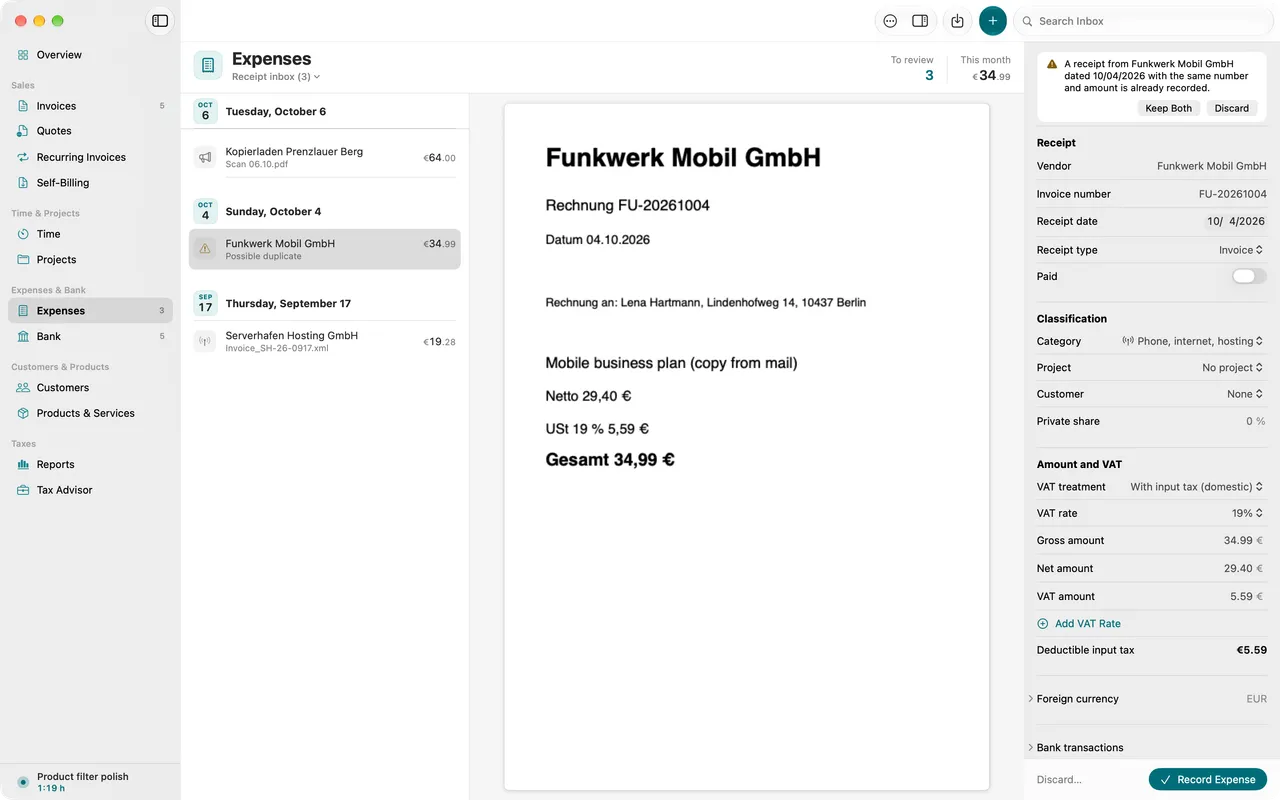
Choose Expenses in the sidebar. With Show in the toolbar you switch between three lists:
- Receipt inbox: receipts waiting for your review. It is laid out like Mail: the waiting receipts on the left, grouped into days by receipt date, the receipt itself in the middle and the recognized fields in the inspector on the right.
- Recorded expenses: everything you recorded, with amount, category and project.
- Voided: voided receipts, which are still retained.
At the top the area shows two figures: To review counts the receipts in the inbox, This month the recorded expenses of the current month, gross.
Add receipts
Folnaro takes PDFs, images and e-invoices as XML. Pick whichever way is handiest:
- Drag: Drag receipts onto the window or onto the Folnaro icon in the Dock.
- Menu: Choose File > Import Receipts… or press ⌘O.
- Paste: Copy an image or PDF and press ⌘V in Expenses.
- iPhone or iPad: Choose File > Import from iPhone or iPad, then take a photo or scan a document on the iPhone. The scan goes straight into the receipt inbox.
- Widget: The Capture Receipt widget opens capture from anywhere.
- Without a file: Create an expense without a receipt file with New Expense in the toolbar or File > New > Expense. Add the file later with Attach Receipt… or by dragging it in.
A bank statement is not a receipt. When Folnaro recognizes one, it tells you to import it under Bank, see Reconcile bank accounts.
Share from other apps
In Mail, Safari, Preview or the Finder you share a receipt straight to Folnaro.
- Choose Share in the app, then Folnaro.
- In the Add to Folnaro window you can add a Note, for example what the expense was for.
- Click Add. Folnaro puts the files into the receipt inbox and reads them there.
Share the receipt itself as a PDF or image, not a link to it.
Watch a folder
If you already save receipts to a folder, for example from your scanner or mail app, Folnaro picks them up on its own.
- Choose Folnaro > Settings… > Import.
- Next to Watched folder, click Choose… and pick the folder.
- To include files already in the folder, turn on Import files already in the folder when you choose it.
New PDFs, images and e-invoices then land in the receipt inbox. Folnaro skips bank statements and files it already imported. Stop Watching ends it.
Review and record receipts in the inbox
On import Folnaro reads vendor, date, amounts, VAT rate and invoice number from the receipt. Text recognition runs on your Mac; no receipt leaves it.
- Choose Expenses in the sidebar and set Show to Receipt inbox. It’s quicker with Go > Receipt Inbox.
- Choose a receipt. Fields recognized with low confidence are highlighted, with Check the highlighted fields above them. Check those first.
- Add Category and Project if needed. Values marked Suggested come from your earlier expenses with this vendor. Change them to override.
- Click Record Expense or press ⌘↩. Folnaro then opens the next receipt.
With Go > Next Open Item (⌃⌘↓) and Previous Open Item (⌃⌘↑) you move through the inbox. Search Inbox finds a receipt by vendor, invoice number, note, file name or amount.
A receipt that doesn’t belong in your books leaves the inbox with Discard Receipt…, in the context menu or with ⌫. Its file is removed from the archive. Discarding works only in the inbox. Recorded receipts are voided instead.
What text recognition reads
Folnaro recognizes vendor, receipt date, gross, net, VAT per rate, invoice number and currency. When a value is uncertain, the field says Recognized with low confidence. Please check. When Folnaro finds no text at all, for example in a very faint photo, the receipt shows No text recognized. Then you enter the values yourself.
Folnaro doesn’t run text recognition on an e-invoice (XRechnung or ZUGFeRD), it reads its data. With E-Invoice below the receipt you see it in a readable layout, see E-invoices: XRechnung and ZUGFeRD.
Duplicate receipts
When a receipt looks like one you already have, it shows Possible duplicate. Folnaro compares vendor, invoice number, date and amount for this. It recognizes the very same file already on import. Both stay until you decide: Show opens the existing receipt, then choose Keep Both or Discard.
The fields of an expense
Reviewing in the inbox and editing a recorded expense show the same sections. Every section is open, so you see everything at a glance:
- Receipt: vendor, date, Invoice number and Receipt type.
- Amount and VAT: gross, net and VAT per rate, the VAT treatment and the Private share.
- Classification: Category, Project and Customer. With a customer, the expense counts toward that customer’s margin.
- Foreign currency: appears when the receipt isn’t in euros.
- Bank transactions: the debits that belong to this receipt.
- Note: anything you want to know later.
Depending on the category, more sections appear: Entertainment, Gift, Asset treatment or KSK. Save keeps changes to a recorded expense, Edit > Undo takes them back.
Categories
The category decides which line of the cash basis accounts (EÜR) the expense lands in and which special rules apply. Folnaro comes with these categories among others: Software and licenses, Phone, internet, hosting, Office supplies, Subcontractors, Advertising and marketing, Training and literature, Rent and premises, Insurance, Legal and tax advice, Travel fares (train, plane, taxi), Accommodation and travel incidentals, Entertainment, Gifts, Low-value assets, Fixed assets (depreciation) and Other business expenses.
Amounts, VAT and special cases
- Several VAT rates: For receipts with food at 7 % and drinks at 19 %, click Add VAT Rate.
- Private share: Under Private share, enter 30 for a phone you use 30 percent privately. The amount and the input tax count only for the business part, which the form shows below it.
- VAT treatment: Under VAT treatment you choose how the VAT on the receipt is handled. The options are in the table below.
- Entertainment: With the Entertainment category you enter Occasion, Participants (including you), Place and a Tip. The tip is added as a line without VAT. Also confirm Machine-printed receipt from the till and, for larger amounts, Invoice names me as host.
- More files: Add File attaches a delivery note or another page to the same receipt.
- Standing receipt: Turn on Valid for several months for a notice that covers recurring debits, such as the broadcasting fee or a loan contract. This vendor’s debits within its validity then need no receipt of their own.
- Collective receipt: One receipt for several debits fits partial debits or a monthly statement.
| VAT treatment | When |
|---|---|
| With input tax (domestic) | German invoice with VAT. You deduct the input tax. |
| Without VAT | The receipt shows no VAT, for example for insurance or small businesses. |
| Reverse charge EU | A service from a business in another EU country, for example a software subscription. You owe the VAT and deduct it again in the same VAT return. |
| Reverse charge non-EU | A service from a business outside the EU. |
| § 13b domestic (construction etc.) | German invoice without VAT that refers to § 13b. |
| Intra-Community acquisition | Goods from a business in another EU country, net with your VAT ID. |
| Import VAT | Goods from a country outside the EU. You enter the value of the goods and the import VAT from the customs notice. |
| Foreign VAT (not deductible) | A hotel abroad, for example. The tax is not deductible input tax and never enters the VAT return. The gross amount counts as the expense, less the private share. |
As a small business you don’t deduct input tax. Folnaro then counts the full amount as an expense. You still owe reverse charge VAT to the tax office, and it appears in your VAT return. More in Small business rule and switching to regular taxation and Reverse charge and customers in other EU countries.
Receipts in a foreign currency
When a receipt isn’t in euros, the Foreign currency section appears. Folnaro records the euro amount that left your account.
- Check Currency of the receipt and Amount on receipt.
- Enter the euro amount from your bank statement or give the Exchange rate (EUR per unit).
- Click EUR Amount Is Correct and record the expense.
Without a euro amount or exchange rate the receipt can’t be recorded. If the debit is already imported, Folnaro finds it by the original amount even when the euro amount differs slightly.
Artists’ social security levy
Fees paid to self-employed artists and publicists, for example for texts, photos or graphics, count toward the artists’ social security levy. Mark the vendor once as an Artist or publicist and their expenses count automatically. In the KSK section you can change this for a single expense: Counts, Does not count or as set for the vendor. You also choose the Field of art there.
When the vendor is a company such as a GmbH, UG or KG, its fees count only when you explicitly choose Counts. You find the annual report in Reports: VAT return, EC sales list and EÜR.
Change several expenses at once
Select several rows under Recorded expenses and set the value for all of them with Receipts > Category or Receipts > Project. The context menu offers both too. To repeat an expense that is the same every month, choose Receipts > Duplicate for Next Month.
Link receipts to bank transactions
A receipt and the debit from your account belong together. That way your tax advisor sees the receipt for every debit and Folnaro knows when you paid.
- Open the expense and click Link Transactions… in the Bank transactions section.
- Choose the matching debits. The list shows counterparty and open amount.
- Click Link.
The other way round is usually quicker: in Bank, Folnaro suggests the matching receipt for every transaction. See Reconcile bank accounts.
Void a recorded receipt
Recorded receipts aren’t deleted, they’re voided. They stay with their files and history.
- Select the expense.
- Choose Receipts > Void….
- Give a Reason, for example Duplicate of another receipt. Then click Void.
The receipt then no longer counts in your reports and its bank transactions are open again. You find voided receipts under Show > Voided. A receipt created from a self-billing invoice can be corrected only through that invoice, see Self-billing.
Record travel costs
For trips in your private car and for meals on business trips there are flat rates instead of receipts. Folnaro calculates them and creates a self-made receipt.
- In Expenses, click More > Travel Costs in the toolbar.
- Under Type, choose Mileage for a trip in your private car or Per Diems for meal allowances.
- Enter Purpose, Destination and the kilometers or travel days. For per diems, mark meals that were provided.
- Click Record Expense.
Purpose and trip are saved with the expense as a self-made receipt. Flat rates contain no VAT and follow the rate table valid on the day of the trip.
Gifts to business partners
With the Gifts category you enter the Recipient in the Gift section, ideally person and company. Folnaro shows how much you have already given this recipient this year, so you can keep an eye on the limit of 50 € per recipient and year. Under Earlier recipients you pick someone you have given a gift before.
You open the list of all gifts in Expenses with More > Gifts.
Depreciate fixed assets
Expensive purchases you use for more than a year, such as a laptop or a car, are spread over their useful life. Folnaro suggests a treatment and keeps the asset register.
- Record the receipt with the Fixed assets (depreciation) category.
- In the Asset treatment section, click Choose Treatment.
- Enter a Description and choose the treatment. Folnaro shows a Proposed depreciation with useful life and source.
- Click Save.
The options are Low-value asset (full expense), Pool (one fifth per year), Hardware or software (one year) and Straight-line depreciation. When the law allows it for the acquisition date, Declining balance depreciation is added.
Until you choose a treatment, the net amount is missing from the profit calculation. The Asset register with depreciation schedule and disposals is under Reports, see Reports: VAT return, EC sales list and EÜR. Which treatment is right for you is best settled with your tax advisor.
Vendors and invoice links
For vendors whose invoices you download from a customer portal, save an Invoice link. You reach the Vendor sheet through Vendor Invoice Link… in the bank’s completeness check or in the KSK report. There you also mark whether a vendor is an Artist or publicist.
Connect Paperless-ngx
If you use Paperless-ngx as your document archive, Folnaro can fetch receipts from it and mark recorded receipts there.
- Choose Folnaro > Settings… > Archive and click Connect….
- Enter the server address and paste your API token. You find it in Paperless under your profile. It stays in the Keychain on this Mac.
- Click Test Connection, check how tags and fields are mapped and click Connect. Folnaro creates missing entries only after you confirm.
Then you can choose:
- Import tagged receipts into the inbox: documents with your receipt tag appear in the receipt inbox. Fetch from Paperless in the toolbar fetches them right away.
- Suggest receipts for transactions and expenses: bank transactions and expenses without a receipt show matching Paperless documents.
- Mark recorded receipts in Paperless: a recorded receipt gets the tag and fields in Paperless.
Disconnect removes the token from the Keychain. Expenses, files and links in Folnaro stay, nothing changes in Paperless.
Retention
Every expense shows under Keep until how long the receipt must be retained. Folnaro keeps the receipt file unchanged in the archive. Receipts stay readable and exportable, even after the trial, see Subscription, trial and what always stays.
Common problems
- Text recognition doesn’t find the amount or vendor
- The photo is usually blurred, skewed or very faint. Enter the values yourself or scan the receipt again with your iPhone. More tips in Troubleshooting.
- Record Expense isn’t available
- A receipt in a foreign currency lacks the euro amount. Enter it or the exchange rate and click EUR Amount Is Correct.
- A bank statement doesn’t land in the receipt inbox
- That’s on purpose. You import bank statements under Bank with File > Import Bank Statements….
- The watched folder no longer picks anything up
- If the settings say The folder can no longer be reached. Choose it again., it was moved or renamed. Choose it again under Settings > Import.
- Paperless reports an unknown certificate
- That’s common for a server at home. Compare the fingerprint shown with your server’s, then click Trust This Certificate. Folnaro then trusts exactly this certificate.
- A recorded receipt can’t be deleted
- Recorded receipts are voided, not deleted. Choose Receipts > Void….
- An expense is missing from the EÜR
- The Fixed assets (depreciation) category still needs a treatment. Open the expense and click Choose Treatment.