

Quotes, order confirmations and delivery notes
Quotes holds quotes, order confirmations and delivery notes. A quote can offer items to choose from. Once the customer agrees, one command turns it into an invoice, an order confirmation or a partial invoice with exactly the items they accepted.
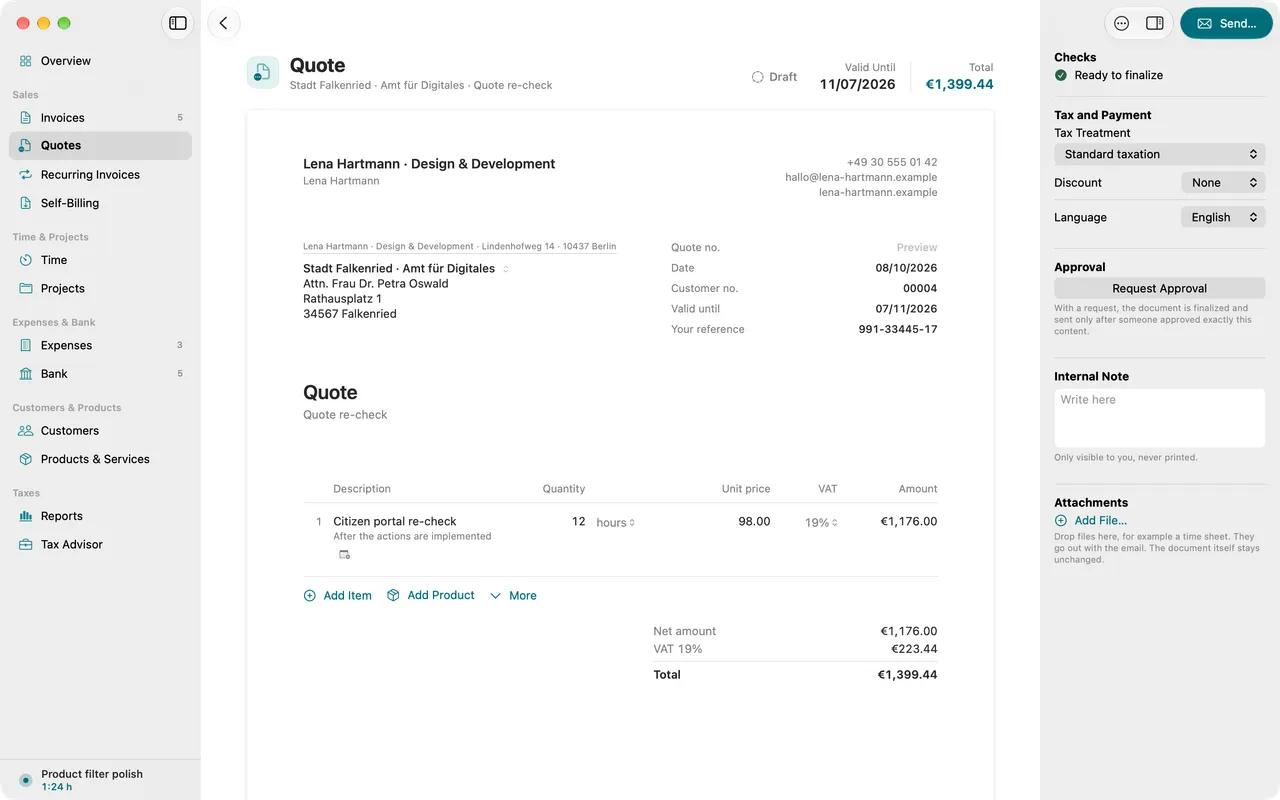
Write a quote
A quote tells the customer services and prices before they place the order. You edit it like an invoice, right on the page, see The editor.
- Choose File > New Quote or press ⇧⌘N. If a customer is selected in a list, File > New Quote for Selection (⌃⇧⌘N) starts the quote for them.
- Click Choose Customer in the address field. Recent lists the customers you wrote to last. If the customer doesn’t exist yet, type the name and choose Create “…” as New Customer….
- Enter a Subject and set Valid Until in the information block.
- Add lines as on an invoice, see Lines.
- Choose Document > Finalize and Send… (⌘↩). The quote gets its number and the send window opens.
Before finalizing, Folnaro checks that Valid Until lies after the quote date and that the quote has not expired already. Copy the quote’s number with Edit > Copy Quote Number.
Optional and alternative items
Items to choose from let you offer more than the customer has to take. They appear on the quote but do not count toward the total.
- Optional item: a service the customer can add, such as maintenance. Control-click a line and turn on Optional Item. The line is then marked Optional.
- Alternative item: a service that can replace another one, such as a bigger package. Click More below the lines and choose Alternative Item. Choose the line it replaces in the shortcut menu under Alternative to. Without a choice, the line directly above applies.
Items to choose from exist only in a quote. An invoice or an order confirmation bills what was agreed. That is why Folnaro asks what the customer accepted when you convert, see Which items the customer accepted.
Record the customer’s answer
Once the customer has answered, record it on the quote. The list then shows what you are still waiting for.
- Select the finalized quote in the list.
- Choose Document > Mark as Accepted or Document > Mark as Declined.
Both commands are available separately. If the customer changes their mind, mark a declined quote as accepted later, or the other way around. A draft has no answer yet; both commands need a finalized quote.
The list shows the status Accepted or Declined. When a quote without an answer is about to expire, it says, for example, “expires tomorrow”, and for an expired quote something like “expired on March 3”.
Convert a quote
- Select the quote.
- Choose Document > Convert To and then Invoice, Order confirmation or Partial invoice.
- If the quote holds items to choose from, select what the customer accepted, see below.
- Folnaro creates a new draft with the customer, subject, texts and lines and opens it.
A finalized quote you convert counts as accepted afterwards. A declined quote cannot be converted. Mark it as accepted first. The new document is linked to the quote in the inspector under Related Documents.
Which items the customer accepted
If the quote holds optional or alternative items, Folnaro asks when you convert: “Which lines did the customer accept?”
- Turn on every line the customer accepted. Each row names its kind and amount, for example “Optional · €300.00” or “Instead of Print · €800.00”.
- Click the button with the new document, for example Create Invoice.
Accepted lines become normal lines. An accepted alternative replaces its line. Lines not chosen are not carried over. The quote itself stays unchanged, as the customer received it.
Order confirmations and delivery notes
An order confirmation confirms an order with the agreed lines to the customer. A delivery note goes with a delivery and shows quantities without prices.
- Create a new order confirmation with File > New > Order Confirmation, a delivery note with File > New > Delivery Note.
- Convert an order confirmation into an invoice, a partial invoice or a delivery note with Document > Convert To.
- The same command turns a finalized invoice into a delivery note.
If the customer has an address with a role, such as a delivery address, it appears on the delivery note instead of the main address. Addresses with a role are set up on the customer, see Customers, products and projects.
Reuse a quote
Select a quote and choose File > Duplicate (⌘D). The copy is a new draft without a number, with every line including the items to choose from. It carries today’s date and is valid for 30 days. A service period moves by the same distance.
The quote list
The header of the list shows the number of documents and the Awaiting reply total: the amount in finalized quotes the customer has not answered yet. Order confirmations and delivery notes do not count there.
- Filter in the toolbar shows only Drafts, Waiting for Number, Awaiting Reply, Accepted or Declined. View > Only Awaiting Reply (⇧⌘L) switches quickly to the quotes still waiting for an answer.
- Edit > Find (⌘F) puts the cursor into the Search Quotes field.
- New in the toolbar starts a new quote, More saves the documents shown as PDFs or the list as CSV.
Common problems
- Mark as Accepted is dimmed
- The quote is still a draft. Finalize it, then you can record the customer’s answer.
- Convert To offers nothing
- The quote is marked as declined. If the customer agreed after all, choose Document > Mark as Accepted and then convert it.
- The invoice made from the quote has fewer lines
- Optional and alternative items come along only if you turn them on while converting. Convert the quote again and select the accepted lines, or add them in the draft.
- The quote total is lower than expected
- Items to choose from do not count toward the total. If a service is agreed for certain, turn off Optional Item in the shortcut menu.
- The checks say the quote has already expired
- The Valid Until date lies in the past. Choose a later date and then finalize the quote.