

Writing invoices
An invoice is a draft until you finalize it. You edit it right on the page, exactly as it prints. When you finalize it, it gets its number, and after that it can no longer be changed. Before that, Folnaro checks the mandatory details and points out anything that does not fit.
Start an invoice
You need an invoice as soon as you bill a service. For customers with unbilled time or expenses you can also start from those sections, see Track and bill time.
- Choose File > New Invoice, press ⌘N or click New in the invoice list. If a customer is selected in a list, File > New Invoice for Selection (⌃⌘N) starts the invoice for them.
- Click Choose Customer in the address field of the page. Recent lists the customers you wrote to last. If the customer doesn’t exist yet, type the name and choose Create “…” as New Customer….
- If the customer already has invoices, Folnaro asks whether to use the subject, texts and items of the last one. Click Use or start fresh.
- Enter the Subject, for example “Web development March”.
- In the information block, check Date, Due Date and the Service Date. Another due date changes the payment terms.
- Add lines, see Lines.
More invoice kinds are under File > New: Invoice Correction, Partial Invoice, Order Confirmation, Delivery Note and Recurring Invoice.
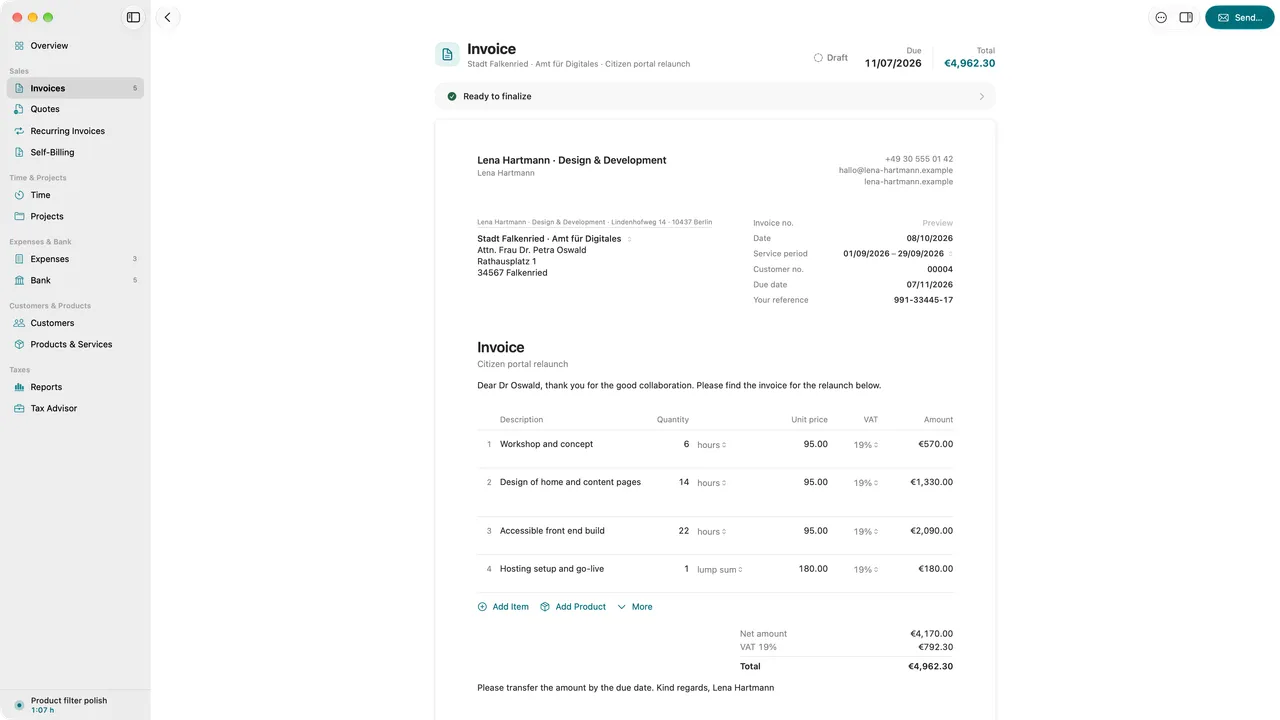
The editor: the document as a page
The editor shows the invoice as it appears on the PDF: letterhead, sender line and address field, the information block with number and dates, subject, introduction, the lines with their totals, legal notices, closing text and footer. Everything a document may change is edited with a click, right where it sits.
- Sender, letterhead and footer come from Settings. A click on them opens the matching page in Folnaro > Settings….
- The number appears on the page only after finalizing. Until then the information block says it is assigned when you finalize.
- Introduction and Closing Text are texts for your customer. They are in the document’s language and address the customer the way the customer is set up.
- When a mandatory detail is missing, Folnaro marks the spot in the page margin.
The inspector
Everything that never prints is in the inspector on the right. Show it with View > Show Inspector (⌃⌘I). Its sections sit open one below the other and appear only when they fit the document:
- Checks: the § 14 UStG check and your own rules.
- Tax and Payment: Tax Treatment, Discount, Payment Terms, Language and Bank Account.
- Approval, Internal Note and Attachments.
- After finalizing, Payments, Reminders, Sent and Related Documents.
- Depending on the case, Rebill Expenses, Partial Invoices, Exchange rate or Duplicate Number.
The Internal Note is visible only to you and never printed.
Lines
Each line describes a service with quantity and price. Folnaro calculates each line to the cent and the VAT per rate.
- Add Item below the lines or Document > Add Line (⌘L) adds an empty line. Enter Item, a Description if needed, quantity, Unit, unit price and VAT.
- Add Product or Document > Add Line from Product… adds a product with its price, unit and VAT rate. If the customer has a customer price, that one applies.
- More adds a Heading, a Text Line or a Subtotal. New lines go below the line you are typing in, otherwise at the end.
- A line’s shortcut menu offers Fill from Product…, Duplicate, Add Discount, Rights of Use at 7%, Move Up, Move Down and Delete. Drag the handle on the left to move a line.
- Service Date for This Line gives a single line its own date or period. The service date in the header then reads Per line.
- A discount on the whole document goes into the inspector under Tax and Payment > Discount, as Percent or Amount.
Optional and alternative items exist only in a quote, see Optional and alternative items. An invoice bills what was agreed.
Preview and checks
- View > Show PDF Preview (⌥⌘P) shows the exact PDF with its page breaks. A click opens it full size in Quick Look.
- The Checks section in the inspector shows where you stand: Ready to finalize, Something is missing before finalizing, To confirm before finalizing or Notes before finalizing, each with a count. Errors come before notes.
- If something is missing for the customer or in your profile, Complete Customer Details and Open Business Profile take you there.
What Folnaro checks
- Mandatory details under § 14 UStG: your name and address, tax number or VAT ID, the customer’s name and address, the service date or period, every line with a description, VAT rate and amount. For a GmbH or UG also the register entry and the managing directors.
- Tax treatment: no VAT shown by a small business, reverse charge only for customers in another EU country with a VAT ID, a note when an EU customer usually needs reverse charge.
- Dates: a due date before the invoice date, payment terms that have already passed, a date in the future or more than 30 days back.
- E-invoice: whether the details for XRechnung or ZUGFeRD are complete and whether a domestic customer needs an e-invoice, see E-invoices: XRechnung and ZUGFeRD.
- Plausibility: a customer who already has an invoice with the same amount for the same service period, a unit that does not fit the product, 0% for a domestic customer, an unconfirmed VAT ID, the § 19 UStG revenue limit and your own word rules.
Choose which plausibility checks run under Folnaro > Settings… > Checks. A word rule reports words that should never appear on a document and names the place where they appear.
Finalize and send
- Click Send… in the editor, choose Document > Finalize and Send… or press ⌘↩.
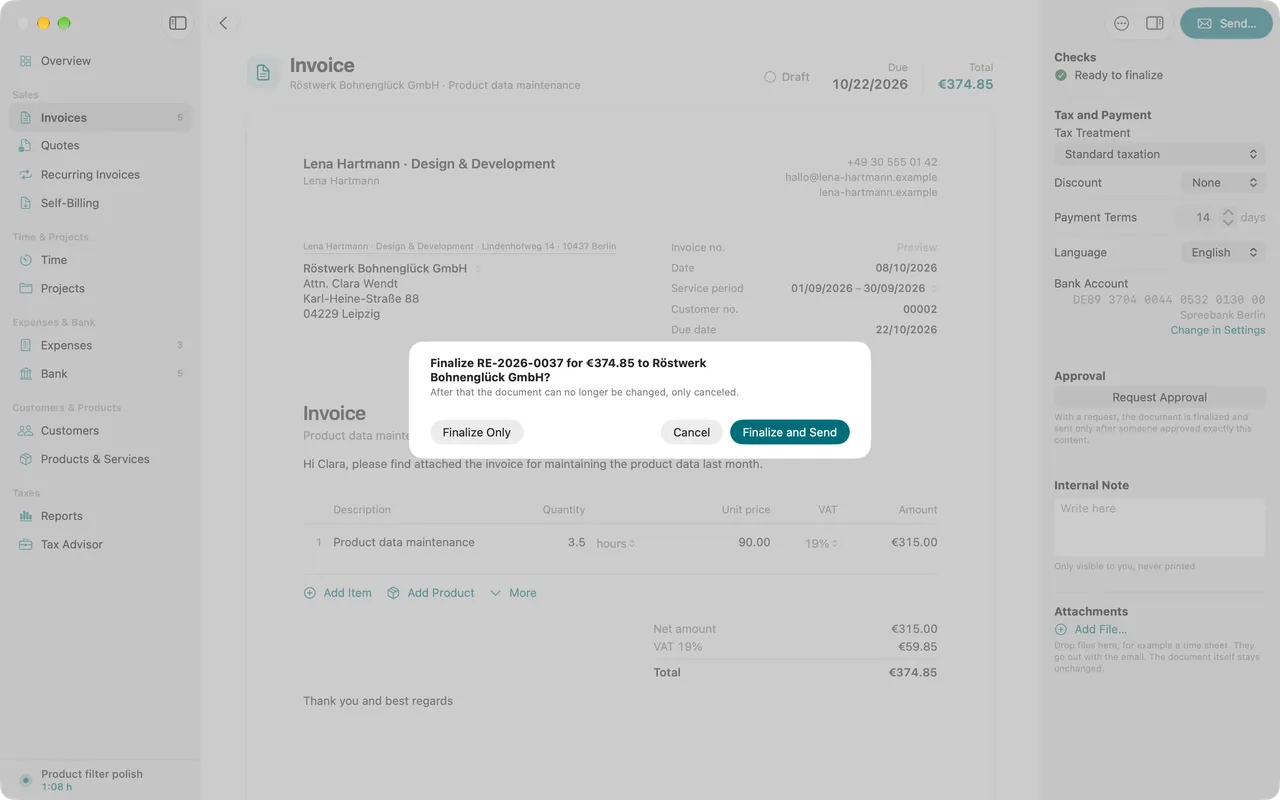
- Folnaro asks first, for example “Finalize Invoice for €1,190.00 to Muster GmbH?”. If details are missing, the sheet lists them under Still missing and Complete Details takes you there. Confirm notes under Is this right?, with a short Reason where needed. The reason goes into the document’s log.
- Confirm. The invoice gets the next number, the number appears on the page and the send window opens.
To send the invoice later, choose Document > Finalize Only… (⌥⌘↩). If the date is before the last document of the same number sequence, Folnaro points it out before finalizing.
A document with the status Waiting for number is prepared but has no number yet. This happens with iCloud sync when iCloud cannot be reached. The number is assigned as soon as iCloud answers again. Document > Assign Number… tries right away, Document > Withdraw turns it back into an editable draft.
A number was issued twice
If you use Folnaro on several Macs with iCloud, in rare cases two Macs can issue the same number while one of them was offline. Both invoices have then been issued. Folnaro keeps both and shows the problem until you resolve it: as the first message on the Overview, under Folnaro > Settings… > iCloud > Duplicate Numbers and as the first section, Duplicate Number, in the invoice’s inspector.
- Open one of the two invoices, usually the one the customer does not have yet.
- In the inspector under Duplicate Number, click Cancel and Reissue…. Enter a Reason (internal), leave Then create a corrected copy as a draft on and click Cancel and Correct. The copy gets a new number when you finalize it.
- Finalize the copy and send it to the customer with a short note.
- If one of the two is already canceled, click Done.
To keep both invoices with the same number on purpose, click Done and then Mark as Done. The log records that you closed the notice deliberately. More under Sync with iCloud.
Number ranges and number format
Each document type has its own number range: invoices, quotes, order confirmations, delivery notes, reminders, self-billing invoices and customer numbers. You set the format and the next counter under Folnaro > Settings… > Number Ranges.
- Under Number range, choose the document type, for example Invoices and corrections.
- Under Format, type the pattern, such as
RE-{YYYY}-{####}. With Insert you add the year, month, day or the Running number at the cursor.{####}is the running number with leading zeros,{N}the one without. - Under Restart counter, choose whether the number keeps counting (Continuous) or starts again at 1 with Restart every year or Restart every month. The Next numbers preview shows what comes next.
To continue a number series from another program, enter the Next counter under Next number and click Set…. With Own number range for invoice corrections, invoice corrections get their own series, for example RK-2026-0001. Otherwise they continue the invoice numbers.
Folnaro checks the format for you: it needs exactly one running number, and a counter that restarts every year or month needs the year and month in the number. You can never set the counter below a number already issued. If you skip numbers, Folnaro points out the gap first. Numbers already issued always stay as they are.
When you import from another program, Folnaro continues your numbering after the highest imported number and says in the import report how it continues. A number that already exists is never created twice: the document is skipped and named in the report. The import’s gap check names missing numbers, see Bring over data from another app.
Send by email
After finalizing, the send window opens. Later you reach it with Document > Send… (⇧⌘M). Check To, Cc, Subject, Sender and the text, and click Send or Send Later…. The PDF is attached. If the customer gets an XRechnung as a separate file, Folnaro attaches it too.
If you sent the invoice another way, for example by post, choose Document > Mark as Sent (⌥⇧⌘M). Add files such as a time sheet in the inspector under Attachments.
The email account, senders, templates, sending again and the send history are explained in Sending documents by email.
Approval before sending
If someone has to approve an invoice before it goes out, for example a colleague or your client, use the approval.
- In the inspector under Approval, click Request Approval. The document shows Waiting for approval.
- Once the person agreed, click Record Approval…, enter who approved under Approved by and click Approve.
- Finalize and send the invoice.
While the approval is pending, the checks block finalizing. If the document changes after the approval, it needs a new one. Withdraw Request takes the request back. After sending, the section stays as the record of who approved.
Record payments
When money has come in, select the invoice and choose Document > Record Payment… (⇧⌘P). If the whole open amount came in today, Document > Mark as Paid (⌥⇧⌘P) is enough. After a partial payment the rest stays open. Folnaro matches payments from your bank statement under Bank.
Partial payments, installment plans, refunds, settling cancellations and writing off a receivable are explained in Payments, refunds and write-offs.
GiroCode, PayPal and cash discount
Payment aids make it easy for your customer to pay the right amount. Folnaro prints them only where money is really open: on invoices and reminders in euros that are neither paid nor canceled. Invoice corrections, cancellation invoices, quotes and delivery notes never get one.
- GiroCode on invoices under Folnaro > Settings… > Bank Account prints a QR code with recipient, IBAN, open amount and invoice number. Your customer scans it with their banking app and pays without typing. The code needs a valid IBAN.
- With a PayPal.me name in the same section, the invoice also carries a PayPal link.
- If an invoice has cash discount terms, the PDF names the date, the percentage and the amount then due in its payment terms. Folnaro calculates the discount from the open gross amount. For now you grant a cash discount through a connected agent or an import; the editor has no field of its own for it.
If your customer pays the reduced amount within the discount period, choose Settle the remaining … as cash discount when you record the payment or match it in Bank. The invoice is then paid. Folnaro corrects the VAT to the reduced amount; the discount is no income and appears in the payment history.
Agree an installment plan
If a customer cannot pay an invoice at once, you agree an installment plan. The invoice and its VAT stay unchanged; Folnaro only splits the open amount into installments with their own due dates.
- Open the finalized invoice. With an open amount, the inspector shows the Installment plan section. Click Agree Installment Plan….
- Choose how many installments and First installment due. Split Equally creates one installment per month; rounding cents go to the first installment. With Add Installment and Remove Installment you adjust the plan by hand.
- If you like, turn on Whole rest due when an installment is late and choose after how many days late this applies. Under Note, record how you agreed it, for example by phone.
- Click Save Plan.
Folnaro checks that the installments add up exactly to the amount to split and names what is missing or too much. Payments settle the installments in order. The inspector shows each installment as Open, Partly paid, Paid or Overdue. Reminders claim only overdue installments. If an installment is overdue past the agreed days, the whole rest becomes due.
Send the plan to your customer as a letter with Save Letter as PDF… or Print Letter…. The letter is archived. Edit Plan… changes the plan, Delete Plan removes it: the invoice is then due as printed again, and recorded payments stay.
Partial and final invoices
For a larger job, partial invoices bill part of it in advance and the final invoice bills the rest at the end.
- Choose File > New > Partial Invoice, or convert a quote or an order confirmation with Document > Convert To > Partial invoice. Finalize it like an invoice.
- For the final invoice, select a finalized partial invoice and choose Document > Convert To > Final invoice. It takes over the charged lines of the original job.
- In the inspector under Partial Invoices, choose which partial invoices are deducted.
The final invoice deducts the net amount and the tax of each selected partial invoice per VAT rate and shows the Total remaining. If the service date of a partial invoice lies after its invoice date, the PDF says “Planned service date” or “Planned service period”.
Folnaro checks that the final invoice deducts at least one partial invoice and points out when a deducted partial invoice is not paid yet. If another final invoice already deducts all of the customer’s partial invoices, write this one as a regular invoice with Write as Invoice.
Send reminders
If an invoice is overdue, select it and choose Document > Create Reminder…. To remind several overdue invoices at once, use More > Create Reminders… in the invoice list. The history is in the inspector under Reminders.
Levels, deadlines, fees, default interest and the reminder rules are explained in Reminders.
Set reminder fees, interest and the lump sum
Under Folnaro > Settings… > Reminders you set the deadlines and the Fee for each level. There you also turn on Charge default interest and Charge businesses a 40 € lump sum. Folnaro calculates the interest at the current base rate, separately for consumers and businesses. The lump sum is added once, to the first reminder.
Folnaro leaves out the fee while the customer is not yet in default, and points out a fee above the usual cost of a letter. Everything else is under Reminders.
Recurring invoices
For services you bill regularly, such as hosting or a monthly flat fee, set up a recurring invoice: with File > New > Recurring Invoice, or from an existing invoice with Document > Make Recurring…. All of them are in the sidebar under Recurring Invoices.
Intervals, period placeholders and finalizing and sending automatically are explained in Recurring invoices.
Rebill expenses
If you paid for something on a customer’s behalf, such as a license or a train ticket, rebill the expense on their invoice.
- Open the invoice and find the Rebill Expenses section in the inspector. It shows how many billable expenses of this customer are not on an invoice yet.
- Click Choose Expenses… and select the expenses.
- Enter a Markup in percent if needed and click the button with the count, for example Add 3.
The markup is added to the net cost. As a small business, you pass on the gross cost. An expense added here is reserved for this invoice. Removing its line releases it again. Whether an expense can be rebilled is set on the expense, see Expenses and receipts.
Invoices in another currency
Folnaro converts documents in a currency other than euros, for example from an import, for every euro total: open items, revenue, UStVA, ZM, EÜR, DATEV and the tax advisor package.
- Open the document. The inspector shows the Exchange rate section.
- Click Change rate, enter the Rate in euros per unit of the foreign currency and click Save Rate.
Folnaro then shows the Gross in euros. The rate is stored beside the document, the invoice itself stays unchanged. A document without a rate stays out of every euro total. Reports and the Overview say how many there are, and the tax advisor package can be exported only once every rate is there.
PDF, printing and e-invoice
- File > Save as PDF… (⇧⌘S)
- File > Save XRechnung… (⌥⇧⌘S), once the invoice is finalized and the e-invoice details are complete
- File > Print… (⌘P)
- Document > Open PDF shows the PDF in your PDF app.
- To save every invoice the list shows, use More > Save Shown as PDFs….
Whether the PDF carries a ZUGFeRD invoice or the customer gets an XRechnung is set on the customer, see E-invoices: XRechnung and ZUGFeRD. Layout, logo and letterhead are set under Folnaro > Settings… > Document Design.
The invoice list
Invoices in the sidebar holds invoices, invoice corrections and cancellation invoices. The header shows the number of documents and the Overdue and Open totals of the invoices shown.
- Filter in the toolbar shows one status only: Drafts, Waiting for Number, Unpaid, Sent, Overdue, Reminded, Paid, Written off or Canceled. View > Only Unpaid (⇧⌘L) switches quickly to the unpaid invoices.
- Edit > Find (⌘F) puts the cursor into the search field, even while the table is selected.
- Next to the status, the status column says what is still open, when an invoice is due or overdue and which reminder level it has reached, for example “first reminder”.
- With several invoices selected, the shortcut menu offers Mark as Paid…, Save PDFs…, Create Reminders… and, for drafts, Delete Drafts….
- File > Export > List as CSV… (⇧⌘E) saves the invoices shown as a table.
What belongs on an invoice
Folnaro calculates from the details you enter and the rules it knows. Which rules apply to you is something to settle with your tax advisor when in doubt.
Common problems
- Send… is dimmed
- Something is missing before finalizing. Open Checks in the inspector, complete the marked details and try again.
- I found a mistake in a finalized invoice
- The content can no longer be changed. Cancel the invoice or write an invoice correction, see Correcting and canceling invoices.
- The invoice shows “Waiting for number”
- iCloud could not be reached when you finalized. Check the internet connection and choose Document > Assign Number….
- The checks say optional and alternative items belong in the quote
- The invoice holds lines only a quote can offer, for example from a duplicate. Click Remove These Lines in Checks or turn them into normal lines.
- The checks report a duplicate billing
- The customer already has a finalized invoice with the same amount for the same service period. Check the service period. If the invoice is right anyway, confirm the note with a reason.
- An invoice is missing from the report totals
- It is in another currency and has no rate yet. Enter it in the inspector under Exchange rate.