

Search and Capture
One field for everything: find records, run commands, start a timer and capture something new in one line, such as “Taxi 23.40 yesterday”. It opens in Folnaro with ⌘K and from any other app with ⌃⌥⌘Space. You choose the keys in Settings > General.
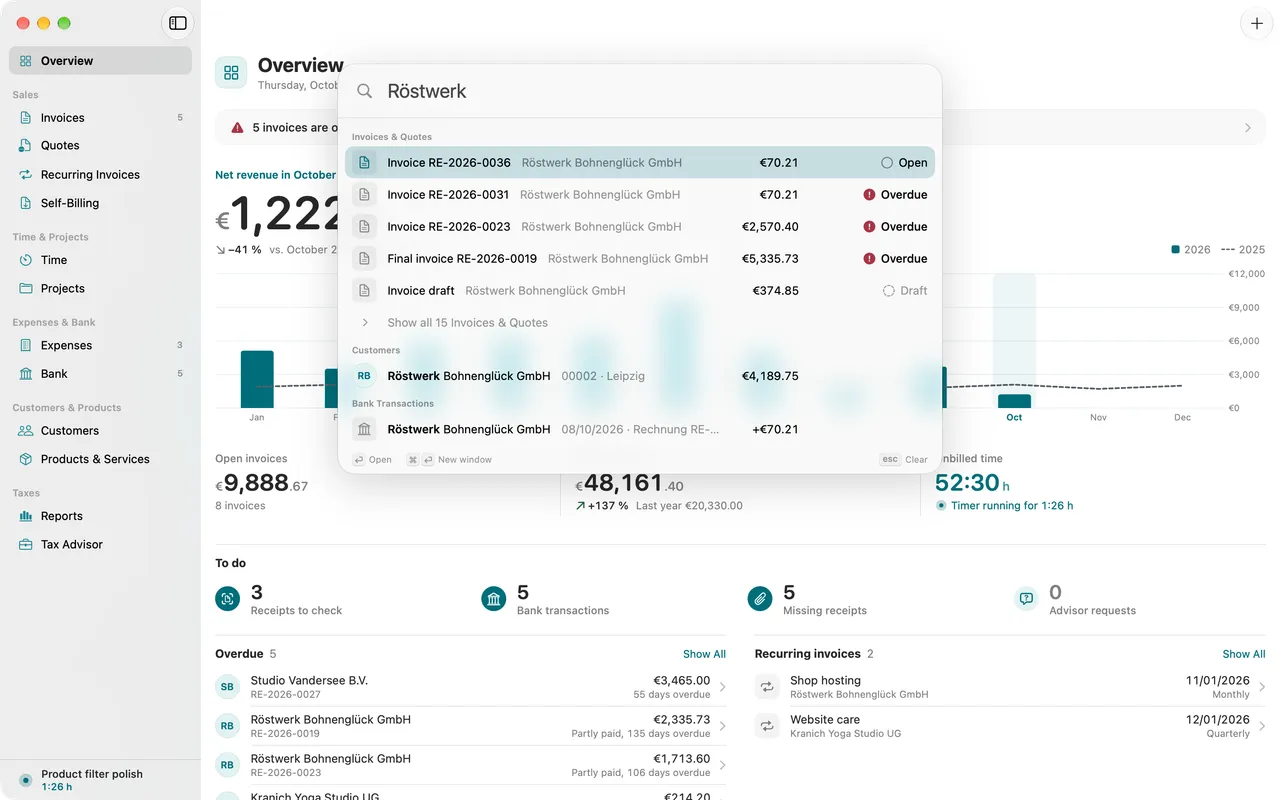
Open Search and Capture
- In Folnaro: Choose File > Search and Capture… or press ⌘K.
- From any app: Press ⌃⌥⌘Space. The field appears over the app you are working in, even when no Folnaro window is open. Folnaro needs no Accessibility permission for this: macOS passes only this one key combination to Folnaro.
- Menu bar: Click the timer in the menu bar. At the bottom of the timer menu, Search and Capture opens the field.
- Dock: Control-click the Folnaro icon in the Dock and choose Search and Capture….
- Widget: Capture Receipt in the Folnaro widgets opens the same field.
- Customers and projects only: Edit > Search Everywhere… (⌥⌘F) opens the field right in Customers and Projects.
While the field is empty, Recent lists the records you opened last. esc clears the field, a second esc closes it.
Find records and run commands
- Type a name, a number or an amount. Folnaro searches invoices and quotes, customers, projects, expenses, bank transactions, time entries, recurring invoices, self-billing invoices received and products. More words narrow the results; case and umlauts do not matter, so “mueller” also finds “Müller”.
- Select a result with ↑ and ↓.
- Press ↩ to open it. ⌘↩ opens it in a new window.
Under Actions you find the commands from the menus, such as New Invoice or Review Next Open Transaction. Go to lists every section of the sidebar, Selection the commands for the record you selected. When a command is not possible right now, the reason stands next to it, for example This record has no number yet.
Search by amount
Type an amount to find invoices, expenses and transactions of that amount. With cents, such as 1,163.75, Folnaro finds exactly this amount. Without cents, such as 1163, it finds everything from 1,163.00 to 1,163.99. Next to the result it says which amount matches, such as Net or Open.
Find commands by other words
Many commands can also be found by words you know from other programs. issue
or assign number
finds Finalize and Send… and Finalize Only…, email
finds Send…. So you do not need to know exactly what a command is called in Folnaro.
Narrow the search
A character at the start narrows the search:
| Character | Scope |
|---|---|
| > | Actions: commands only |
| @ | Customers and Projects |
| # | Numbers: invoice, customer or transaction number. Spaces and hyphens do not count, “RE 2026 014” finds RE-2026-014. |
| = | Calculate: an amount or a formula |
| ? | Help and Settings: help topics, glossary terms and settings |
| / | Capture: choose what you want to create |
The character only counts at the very start. ⌫ in an empty field removes the scope again.
Help, glossary and settings
With ? at the start you search the help and the settings. Glossary lists terms such as reverse charge or permanent extension with a short explanation. ↩ opens the full entry in the glossary. A result under Settings opens that part of the settings.
Control the timer from here
Type “timer” or the name of a project. Folnaro then offers Start Timer for … or, while a timer is running, Switch Timer to …. ↩ starts or switches right away. More in Track and bill time.
Capture in one line
Write what you want to record. Folnaro recognizes the kind and shows a card with the fields it understood. Recognition runs on your Mac; the text does not leave it.
| Example | Becomes |
|---|---|
| 2h Relaunch Acme yesterday | Time entry |
| start Acme Support | Start timer |
| Taxi 23.40 yesterday | Expense |
| invoice Acme 1,200 consulting | Invoice draft |
| quote Acme 3,500 concept | Quote draft |
| Acme paid 500 | Payment |
| customer Example Ltd | Customer |
| note for advisor: check car costs | Note for the tax advisor |
| 1190 gross | Calculation |
- Check the card. ⇥ expands the preview so you can change single fields such as customer, project or date.
- Press ↩ to save or ⌘↩ to save and open.
If the recognized kind is wrong, press / and pick another under Also possible. If something is missing, the card says what, for example an amount or an unambiguous date.
What Folnaro checks when you capture
- An expense needs an amount. It lands in the receipt inbox, where you attach the receipt. See Expenses and receipts.
- Folnaro matches a payment to the customer’s open invoice that fits the amount. If there is none, the card says so and nothing is recorded.
- A time entry needs a duration such as 2h or 9-11:30, and a date must be unambiguous, such as 3.10. or October 3.
- An invoice or quote draft gets no number yet. Folnaro assigns it when you finalize.
Calculate
Type a calculation such as 1,200 * 1.19 or an amount with “gross” or “net”. ⇥ shows the breakdown into net, VAT and gross. ↩ copies the result. You can also turn a calculation straight into an expense, a time entry or an invoice line.
After the trial
Searching and opening always stay free. Creating new records needs Folnaro Pro; such rows say Needs Folnaro Pro. See Subscription, trial and what always stays. If App Lock is on, unlock Folnaro first; until then the field shows no records.
Spotlight
Folnaro gives Spotlight the same records you find in Search and Capture: documents, customers, projects, receipts, bank transactions, time entries, recurring invoices, self-billing invoices received and products. Search there for an invoice number, a customer or a vendor and choose the result, and Folnaro opens it. Archived customers, projects and products do not appear.
Shortcuts and Siri
Folnaro comes with actions for the Shortcuts app. They work right after installation, also in Spotlight and with Siri:
- Open Search and Capture, optionally with text filled in. Siri: “Open Search and Capture in Folnaro”.
- Start Timer, for a project or the one you used last. Siri: “Start the timer in Folnaro” or “Start the timer for Relaunch in Folnaro”.
- Stop Timer. Siri: “Stop the timer in Folnaro”.
- Timer Status: whether a timer is running and how long you worked today and this week. Siri: “How long did I work today in Folnaro”.
- Get Open Invoices: number and amount of unpaid invoices. Siri: “What is unpaid in Folnaro”.
- Create Document and Open Section for your own shortcuts.
Widgets, the Focus filter and the other places where Folnaro fits into macOS are described in Folnaro on the Mac.
Common problems
- The shortcut does not open the field
- Another app already uses the same key combination, so Folnaro does not receive it. Open the field from the timer menu in the menu bar or with ⌘K in Folnaro, or free the combination in the other app. In Settings > General you choose different keys; it also says there when macOS uses the keys itself. See A shortcut does not respond.
- A record is not found
- Check whether a character such as @ at the start narrows the search and delete it with ⌫. Archived records are still found here and are marked Archived. In Spotlight, archived customers, projects and products do not appear.
- The card recognizes the wrong kind
- Press / and choose the right kind under Also possible. Your text stays.
- The field shows no records
- Folnaro is locked. Click Unlock and confirm with Touch ID or your password.