

Sending documents by email
Folnaro sends invoices, quotes, reminders and cancellation invoices straight through your outgoing mail server or hands them to Apple Mail. You set up the account once, choose senders and texts, and every document shows when it went to whom.
Set up the email account
To send by itself, Folnaro needs the details of your outgoing mail server (SMTP). Without an account, every email opens fully prepared in your mail app. Setup at first launch already asks for the account; you can skip it there with Set Up Later in Settings.
- Choose Folnaro > Settings… > Email.
- Under Outgoing server (SMTP), choose your Provider. For iCloud Mail, Gmail, Outlook.com, IONOS and STRATO, Folnaro fills in Server, Port and Encryption. With Other, you enter the details your provider gives you.
- Enter User name (usually your email address) and Password.
- Click Test Connection.
Under When sending you see the Default sender. You keep its name and address under Sender Identities. With Send me a copy, every email you send also goes to the sender address, so you find it in your own mailbox.
What the connection test checks
The test opens an encrypted connection to the server and signs in with user name and password. It sends no email.
- Connected and signed in: server and sign-in work. Only then does Folnaro show the account as connected.
- Server reached. Without a user name the test checks no sign in.: the server answers, the sign-in is unchecked.
- The connection failed: followed by the reason the server gives.
Before the test, Folnaro checks that a server is entered, that the port is between 1 and 65535 and that user name and password are there. Without encryption Folnaro does not sign in at all, so your password is never sent readable. If the sender address does not fit the provider’s account, Folnaro points it out, because many providers only send from addresses set up in the account.
Password, Keychain and removing the account
The password is stored in your Keychain, never in the Folnaro database. So it is not carried over by iCloud or in backups either. On a second Mac you enter it again.
If you no longer need direct sending, click Remove Account… at the bottom of the Email pane and confirm with Remove Account. Folnaro removes the server, the user name and the password from the Keychain. Sender identities and sent emails stay. After that you send documents through your mail app.
Sender identities and signatures
A sender identity sets the name and address an email goes out with. You need several when, for example, invoices go out from billing@ and quotes from your own address.
- Choose Folnaro > Settings… > Sender Identities.
- Click Add Sender.
- Enter Label, Name and Email address. Optional: Reply-to, BCC copy to and a Signature.
- Under Send via, choose whether Folnaro sends directly (Folnaro (SMTP)) or prepares the email in Apple Mail (Mail app). With Own mail server, the sender uses its own SMTP server instead of the account from Email.
The first sender becomes the Default sender. In a customer you choose under Sender which sender applies to them; in the send sheet you can change it for a single email. Folnaro saves a sender only once its address is complete, and it checks Reply-to and BCC copy to as well.
When you remove a sender, customers and documents that used it switch to the default sender. If it has its own mail server, Folnaro also deletes that password from the Keychain. The password of the account from Email is not touched. You can change the default sender but not remove it.
Email templates
Every email starts from a template text. There is one template per kind: invoice, final invoice, quote, invoice correction, cancellation invoice, self-billing invoice, payment reminder, first reminder, final reminder and documents for the tax advisor. Each exists in German and English, the German one also with “Sie” (formal) and “du” (informal).
- Choose Folnaro > Settings… > Email Templates.
- Under Email for, choose the kind, then Language and, for German, the Form of address.
- Change Subject and Text. Insert Placeholder adds a placeholder at the end; from there you move it where it belongs.
Changes apply to new emails right away. Sent emails stay as they are. Restore Default… brings back the built-in text. Folnaro picks the template itself: the language follows the document language, the form of address follows Form of Address in the customer. Customers get the formal template by default.
Placeholders
Placeholders are written in curly braces and filled when the email is written. The menu shows only those that fit the chosen kind. The German names such as {Nummer} work in both languages too.
| Placeholder | Replaced with |
|---|---|
{Customer} | Customer name |
{Contact} | Contact person at the customer |
{DocumentType} | Document type, for example invoice |
{Number}, {Date} | Document number and document date |
{Amount} | Amount, the open amount in reminders |
{Due} | Due date |
{Company}, {Sender} | Your business name and your name for the sign-off |
{PaymentLink} | Payment link |
{ValidUntil} | Quote valid until |
{DaysOverdue}, {NewDeadline} | Days since the due date and the new payment deadline of a reminder |
{OriginalDocument} | Number of the canceled document |
{Deductions} | Deducted partial invoices of a final invoice |
{Period} | Period of the documents for the tax advisor |
A placeholder Folnaro does not know shows up as a hint below the text. Placeholders you type into the send sheet are filled as well.
Send a document
After Document > Finalize and Send… the send sheet opens by itself. For a finalized document, choose Document > Send… (⇧⌘M) or Send by Email… in the list’s context menu.
- Check To, Cc and Bcc. Folnaro takes the address of the customer or their contact person, the copy from CC in the customer, and the blind copies from the sender and Send me a copy. So you see before sending who gets a copy.
- Check Sender, Subject and text. The sender’s signature is already below it.
- Look at the attachments. Clicking one shows it in Quick Look.
- Click Send.
While the email is on its way, Folnaro shows a short scene, then when and to whom it went. From then on the document counts as sent, and its payment period is tracked from that day.
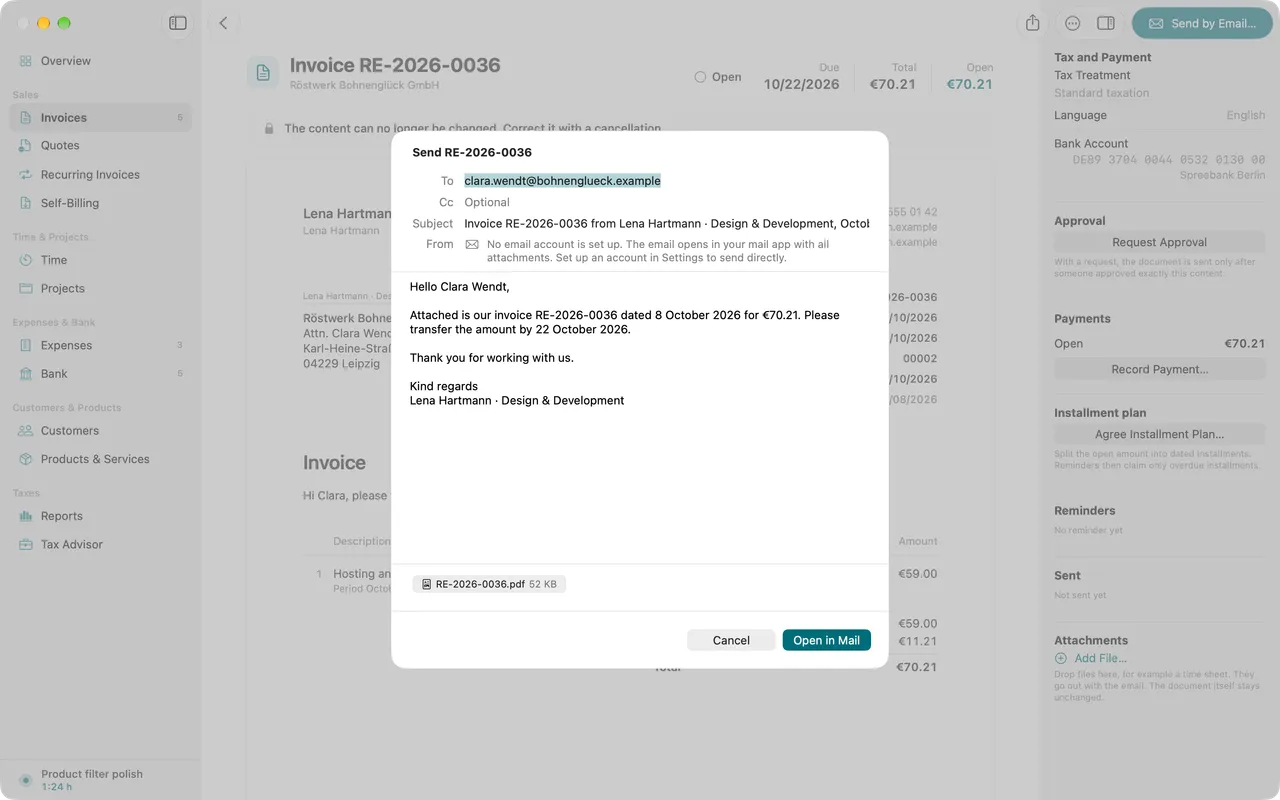
Sending is possible only when at least one recipient is entered, all addresses are complete, a required approval exists and there is a file to attach. If something is missing, the button names the reason.
What is attached
- the document’s PDF, exactly as it was archived when you finalized it. If the customer gets the e-invoice in the PDF, it is a ZUGFeRD PDF with the data embedded.
- the XRechnung as a separate XML file when XRechnung as separate XML file is on in the customer. If you turned the switch on only after finalizing, Folnaro builds the file when sending, from the unchanged document, and archives it next to the PDF. If details for it are missing, the sheet says The separate XRechnung file is missing from this email. and names what is missing.
- files you added in the inspector under Attachments with Send with the email turned on, such as a time sheet. The document itself stays unchanged.
Reminders get their own PDF. If the invoice itself was never sent, Folnaro attaches its PDF as well, so your customer can check what they are asked to pay.
Send later
In the send sheet, click Send Later…, choose day and time under Send at and click Schedule. The email then waits in the outbox. Folnaro sends it at the planned time while the app is running, even with all windows closed. After a restart of the Mac, Folnaro has to be opened once. So turn on Open Folnaro at login under Folnaro > Settings… > General. Cancel Schedule takes the send back.
If the mail server cannot be reached at the moment, the email stays in the outbox and goes out by itself as soon as the server answers again.
Send through Apple Mail
Without an account, or with a sender set to Mail app, you click Open in Mail. Apple Mail opens the email with all attachments, and you send it there. Back in Folnaro the sheet asks Did you send the email?. Mark as Sent counts the document as sent from now on, Not Yet leaves it open.
Mark as sent
If you handed over a document another way, by post or through your customer’s portal, choose Document > Mark as Sent (⌥⇧⌘M). From then on the payment period is tracked, and reminders follow it.
Approval before sending
If someone has to look at a document before it goes out, click Request Approval under Approval in the inspector. The status then reads Waiting for approval. In the send sheet you record the approval with Record Approval…: enter who approved it (Approved by), optionally a Note, and click Approve.
The approval applies to exactly this content. If the draft changes afterwards, Folnaro says The document changed after it was approved. It needs a new approval. and blocks finalizing and sending until the new approval is there. Withdraw Request cancels the request.
Send again
A document that was already sent or marked as sent offers Send Again…. The sheet is then called, for example, “Send RE-2026-0042 Again”. The subject starts with “Resent:”, so your customer recognizes the second email as a repeat. In the send log the email appears as Sent again. If an invoice is already paid, the email names its total instead of 0.00 €.
Send cancellation invoices and invoice corrections
You send a finalized cancellation invoice or invoice correction like an invoice with Document > Send…, or mark it as sent. The Cancellation invoice template names the invoice it cancels with {OriginalDocument}. Your customer should receive the cancellation invoice, so they can correct their input tax deduction.
Reminders by email
When you create a reminder with Create and Send…, the same send sheet opens with the reminder’s PDF and the template text for its level: Payment reminder, First reminder or Final reminder. Reminders go to the contact person entered in the customer for reminders, otherwise to the customer’s address. More under Reminders.
Follow every send
In a document’s inspector, the Sent section shows every email with date, recipient, subject, Cc and Bcc, including scheduled ones and those still waiting in the outbox. A Marked as sent stays next to later emails, so the whole history is kept. A document that was never sent shows Not sent yet.
Common problems
- The mail server refused the login.
- User name or password are wrong, or the provider needs an app-specific password. Create it in your provider account, enter it under Settings > Email, click Test Connection and send again.
- The mail server refused the email.
- Usually a recipient address is wrong or the provider does not allow the sender address. Check the address in the customer and the sender address under Sender Identities, then send again.
- It is unclear whether the email went out.
- The connection broke after the handover, or Folnaro was quit while sending. Look in your sent folder. If the email is there, click It Went Out, otherwise Send Again. That way your customer never gets the email twice.
- The mail server could not be reached.
- Folnaro tries again by itself. If the server stays away for several days, Folnaro gives up and tells you. Then check the internet connection and the server details and send again.
- The customer has no email address.
- Enter it in the customer under Email and open the send sheet again.
- The XRechnung is missing from the email.
- Details for the XML file are missing; the sheet names them. Add them in the customer or in your profile. If that does not help because the missing detail is part of the finalized document, cancel it and write it again.
- Your email app could not be opened.
- No email account is set up in Apple Mail. Set one up there, or enter your outgoing mail server in Folnaro, and try again.
More steps under The email is not sent. An invoice whose sending failed stays finalized. You can send it again at any time.