

Folnaro on the Mac
Folnaro works like a Mac app: the timer stays in the menu bar even when every window is closed. Widgets, Control Center, Focus, Share, Spotlight and Shortcuts reach Folnaro without opening the app. This page shows all of these places at a glance.
Menu bar and closed windows
When you close the last window, Folnaro keeps running. The timer in the menu bar shows the running time; its menu starts, pauses and stops it and opens Search and Capture. Clicking the Folnaro icon in the Dock brings the main window back, and so does Window > Main Window (⌘0).
Choose what the menu bar shows in Folnaro > Settings… > Timer under Menu bar shows: Symbol only, Running time or Time and project. Everything else about the timer, including the Timer Island below the menu bar, is in Track and bill time.
Open at login
To keep the timer and reminders running after a restart, turn on Open Folnaro at login in Folnaro > Settings… > General. Folnaro then starts quietly in the menu bar without opening a window. The option stays off until you turn it on.
If macOS asks for your approval, you see macOS needs your approval in System Settings. Click Open Login Items and allow Folnaro there.
Dock icon and Dock menu
Control-click the Folnaro icon in the Dock. The menu shows the running timer with pause and stop, your tasks to start under Recent Tasks, and below them New Invoice, Search and Capture…, Import Receipts… and Send Feedback…. While Folnaro is locked, the menu offers to unlock it first.
The Dock icon can carry a small badge. In Folnaro > Settings… > Timer, choose under Badge on the Dock icon between None, Running time, Today’s hours and Overdue invoices and new receipts.
Widgets
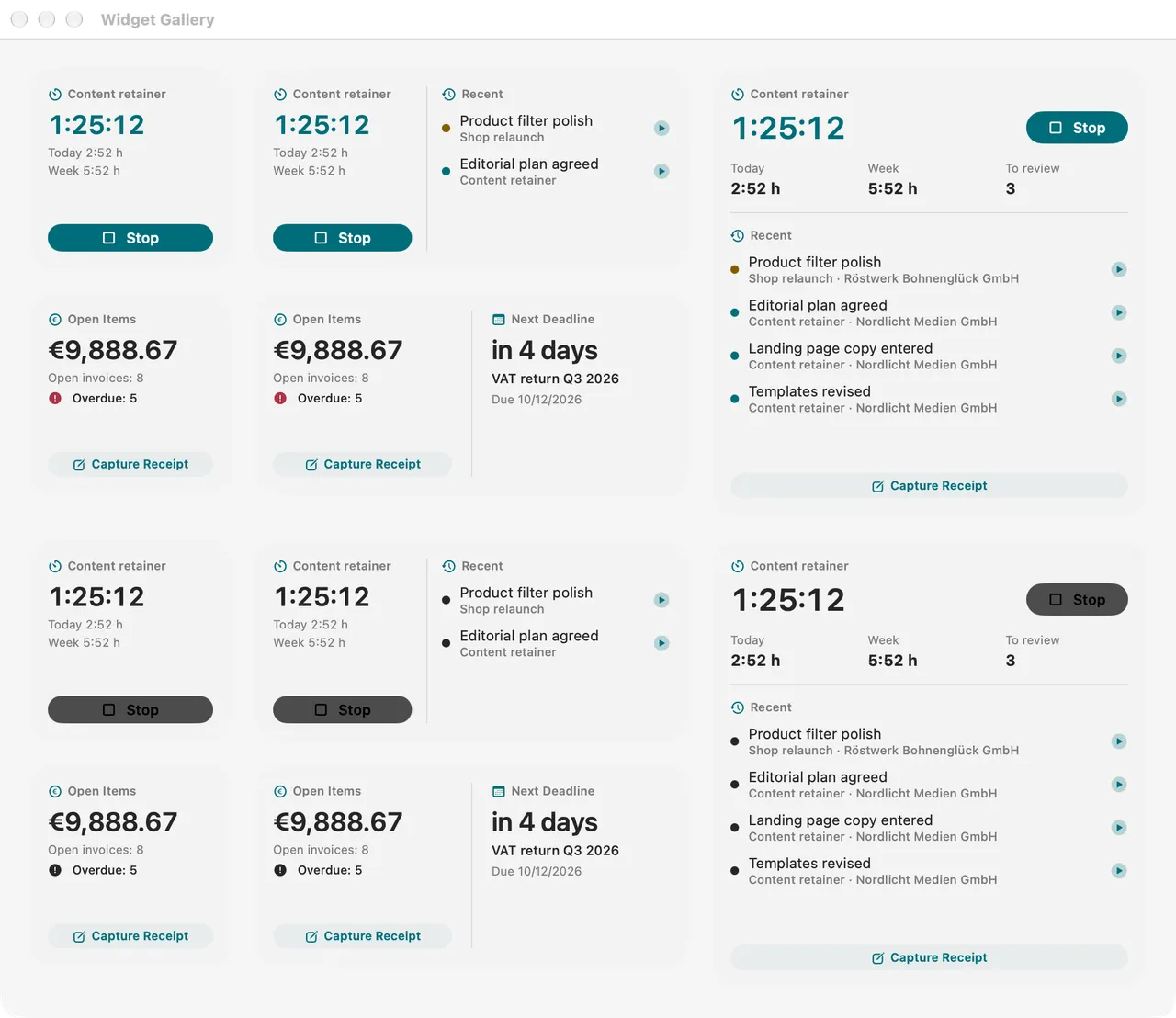
Folnaro comes with two widgets for the desktop and Notification Center. Control-click the desktop, choose Edit Widgets and search for Folnaro.
- Timer in three sizes: the running timer with start and stop, your hours today and this week, the number of receipts to review and, in the large size, your recent tasks to start.
- Open Items and Deadlines in two sizes: how many invoices are open and how many are overdue, and the next deadline for the VAT return, EC Sales List or KSK report.
Both widgets have a Capture Receipt button that opens Search and Capture. If a widget says Open Folnaro so your figures appear here., open the app once and it fills in.
Control Center
Put the Folnaro Timer control into Control Center or straight into the menu bar. It starts the timer for your last project or stops it. Open Control Center, click Edit Controls at the bottom and drag it into place.
Focus
With the Timer Project Focus filter, new time entries start with a fixed project while a Focus is on, for example “Work Acme”. Open System Settings, choose Focus, then your Focus, and add Folnaro’s filter under Focus filters.
Share from other apps
Send receipts from Mail, Safari, Preview or Photos to Folnaro with Share.
- In the other app, choose Share and then Folnaro.
- Check the files under Add to Folnaro and add a Note if you like, for example what it was for.
- Click Add.
Folnaro takes up to 20 PDFs or images at once, puts them into the receipt inbox and reads them there. If you share a link instead of the file, Folnaro does not appear in the list. More in Expenses and receipts.
Drag and drop
- Drop receipts anywhere in the Folnaro window and they land in the receipt inbox.
- Drop bank statements on Bank to import them, or a file on a bank transaction to attach it as a receipt.
- Drop files on a document’s inspector to send them as attachments, or on an expense to give it another file.
- Drop a self-billing invoice a customer sent you on Self-Billing.
- Drag a document from the list into the Finder or an email and it comes along as a PDF.
- In the editor, reorder lines by dragging them by their handle.
Quick Look
Select a document, receipt or file and press ⌘Y or choose File > Quick Look. In the invoice and quote lists, the Space bar opens Quick Look too, and pressing it again closes it. That way you see a PDF large without opening it.
Spotlight, Shortcuts and Siri
Spotlight finds your invoices, customers, projects, receipts and transactions. The Shortcuts app knows actions such as Start Timer, Timer Status and Get Open Invoices, which also work with Siri. The full list is in Search and Capture.
Notifications
Folnaro lets you know when something is due: a billing cycle ready to bill; a VAT return, EC Sales List or KSK report in the next three days; overdue invoices ready for the next reminder; a recurring invoice that was sent or waits as a draft; a finished bank statement import; and a timer that has been running for a very long time.
- Open shows the matching area, Remind Me Tomorrow brings it back the next day.
- For a long running timer, Stop Timer stops it right from the notification.
Whether Folnaro may show notifications is shown in Folnaro > Settings… > General under Notifications from Folnaro. How they look is set in System Settings under Notifications, as for any Mac app.
Undo and Redo
Take back changes in Folnaro with Edit > Undo (⌘Z) and bring them back with Edit > Redo (⇧⌘Z), for example a match in Bank or a deleted line. If a step fails, it disappears from the menu instead of repeating a broken state.
A finalized invoice cannot be undone. It has a number and is immutable under the GoBD; you correct mistakes with a cancellation invoice or an invoice correction, see Correcting and canceling invoices.
Print, share and export
File > Print… (⌘P) prints the selected document, a report or an e-invoice. File > Share passes PDFs, exports and packages to Mail, Messages or AirDrop. File > Show in Finder (⇧⌘R) shows the file of a receipt or document.
Windows and restoring
With File > Open in New Window (⌥⌘↓) you can put a customer and an invoice side by side. When you quit Folnaro, it remembers for each window the sidebar area, expanded sections and the table columns, and restores them at the next launch.
Appearance, contrast and motion
Folnaro follows your Mac’s appearance: light, dark or automatic. With Increase contrast in System Settings under Accessibility > Display, colors and borders get stronger. With Reduce motion, Folnaro skips animations and only crossfades.
During longer operations such as sending, importing, exporting or backing up, Folnaro shows a short scene. In Folnaro > Settings… > General, turn off Animations during longer operations to see only the progress. PDFs and emails to your customers always look the same, whatever appearance your Mac uses.
Common problems
- A widget shows no figures
- The widget reaches your data only after Folnaro has run once. Open Folnaro and the widget updates on its own.
- Folnaro is missing from the Share list
- Folnaro appears only for PDFs and images, at most 20 at once. Share the file itself, not a link to it. macOS turns on a new extension only once you allow it: at the bottom of Share, choose More… and turn on Folnaro. You can also drag the file onto Expenses in Folnaro.
- The timer is missing from the menu bar after a restart
- Folnaro does not start by itself. Turn on Open Folnaro at login in Folnaro > Settings… > General.
- No notifications arrive
- Notifications are turned off in System Settings. In Folnaro > Settings… > General, click Open System Settings and allow notifications for Folnaro.