

The Overview
The Overview is the first page in the sidebar. It shows the month at a glance: your net revenue, where your money stands, what is waiting for you and which tax deadlines are coming. Every figure leads to the records behind it with one click.
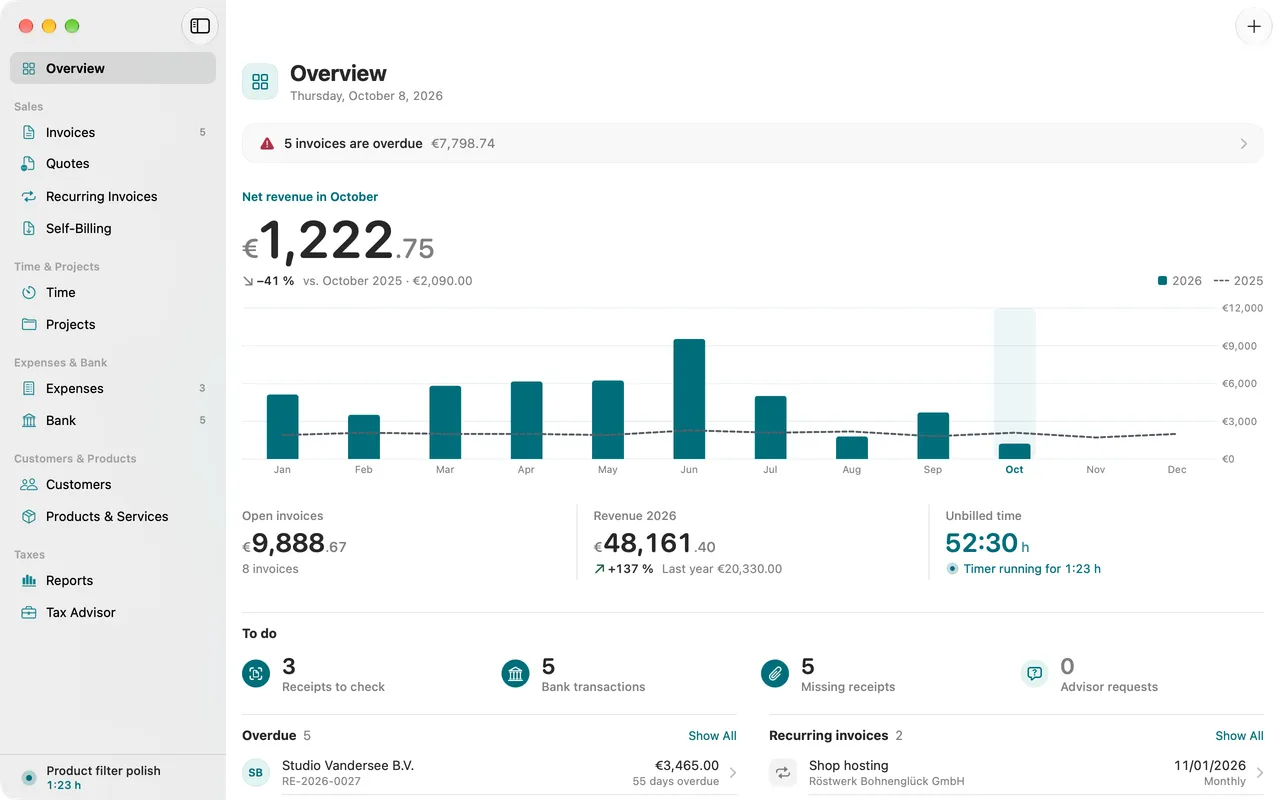
The line at the top
Above everything stands a single sentence: the most pressing thing of the day. Folnaro picks it in a fixed order:
- an invoice number that exists twice
- overdue invoices
- invoices due today
- a VAT return, an EC sales list or the KSK report that is due within a week or already overdue
- recurring invoices that are due
- receipts waiting for review
- bank transactions not matched yet
When nothing is waiting, it says Nothing is waiting for you today or Everything matched up to …. Clicking the sentence shows the records concerned.
The month as one large figure
The large figure is your Net revenue in the current month: the sum of finalized invoices without VAT. Below it, a line compares it with the same month last year, for example “vs. October 2025 · €2,090.00”. If there was nothing back then, it says Nothing in the same period last year.
The bars below show the whole year month by month next to last year. The current month is highlighted.
The three key figures
- Open invoices: the amount still outstanding and the number of invoices. Invoices in another currency without a rate are not included; Folnaro names their count below.
- Revenue: net revenue from January 1 to today, compared with the same range last year.
- Unbilled time: approved time on no invoice yet, rounded as billing rounds it. While a timer runs, it says Timer running for …. Its time counts once you stop it.
Clicking a key figure opens the matching list, for example all open invoices.
To do
This section counts what is waiting for you. Each count opens its list:
- Receipts to check: receipts in the receipt inbox that you still need to check and record. See Expenses and receipts.
- Bank transactions: transactions not yet matched to a receipt or an invoice. See Reconcile bank accounts.
- Missing receipts: this month’s transactions that still lack a receipt, a link or a reason.
- Advisor requests: open questions from your tax advisor. See Tax advisor and DATEV.
- Agent proposals: payments an agent proposed, which you can accept or decline. See Connecting agents through MCP.
When every count is zero, Folnaro hides the section. The line at the top already says that nothing is waiting.
Overdue invoices
Here are the invoices whose payment term has passed. Folnaro orders them so that the claims to chase first are at the top:
- the largest open amounts in euros first
- then small remainders after a part payment
- last, claims that may be time-barred
Each row says what it is: Due since …, Partly paid, … overdue, Small remainder after a part payment, … overdue or Possibly time-barred. Clicking a row opens the invoice. There you record a payment, send a reminder or write off a rest. See Reminders and Payments, refunds and write-offs.
Recurring invoices
The next recurring invoices by date. One that is already due says Due now. Clicking it opens the recurring invoice. See Recurring invoices.
Taxes
Everything about VAT and deadlines in one place:
- Payable for … so far or Refund for … so far: VAT minus input tax for the VAT return that is next. While the return of the previous period is still due, Folnaro shows that period, afterwards the running one. The figure says “so far” because receipts can still arrive until the period ends.
- The package for your tax advisor: whether it has no blocking items so far or how many open items are left. Clicking it opens the package with the open items.
- The next deadlines: VAT return, EC sales list, KSK report and special prepayment, each with its date. Due soon marks a deadline within the next few days. With a permanent extension Folnaro counts the deadline one month later.
- Notes about your tax status when they concern you (see below).
Show All opens Reports. See Reports: VAT return, EC sales list and EÜR.
Note about the small business limit
If you use the small business rule, Folnaro warns from 80 percent of the limit: … percent of the small business limit reached, … left before regular taxation. Once an invoice has crossed the limit, it says Regular taxation since …: record your tax status. Clicking it opens the tax settings, where you record the switch with the day it applies from.
Note about cash accounting
If you pay VAT on payments received (cash accounting) and last year’s revenue was above the permitted limit, Folnaro shows Check cash accounting. Clarify with your tax advisor or the tax office whether you may keep using cash accounting. The limit does not apply to freelancers who are not required to keep books.
Getting started
Until you have finalized an invoice, the Getting Started section stands at the top with A few steps to your first invoice. The steps tick themselves off once the data exists:
- Continue setup, if you closed setup early. Continue opens it at the step where you stopped.
- Add your sender details: your profile with name and address.
- Add your first customer.
- Write your first invoice. The sample draft from setup does not count, only a finalized invoice.
Below it you see how many days of your free trial are left. Bring over data from another app opens the import. See Getting started with Folnaro and Bring over data from another app.
Create something new
In the toolbar, New Invoice opens a menu with invoice, quote, expense and time entry. ⌘N writes a new invoice directly.
Look around with sample data
To get to know Folnaro first, open an invented business year with customers, invoices, time and receipts. The Overview is filled right away.
- In setup, choose Look Around with Sample Data, or under Folnaro > Settings… > General click Look Around next to Business year with sample data.
- Folnaro restarts and shows Sample Data with the note “Your own data stays untouched” at the bottom of the sidebar.
- To go back, choose Folnaro > Back to My Data, Back to My Data in Settings or the context menu of the mark in the sidebar.
The sample data lives in a place of its own. Your real data is never touched. Exports for your tax advisor or the tax office (package, DATEV, ELSTER) are locked with sample data, so invented figures never end up there. Sample data is not synced with iCloud. What you set under General and Timer also applies to your own data.
Common questions
- The revenue on the Overview is lower than expected
- Only finalized invoices count, net. Drafts and quotes do not. Cancellation invoices and invoice corrections that lower an invoice subtract their amount. Check the Invoices list for open drafts.
- An invoice in another currency is missing from the open invoices
- Without an exchange rate Folnaro cannot count it in euros. Open the invoice and enter the rate.
- Unbilled time does not match the time list
- The Overview counts only approved time and rounds it as billing does. Proposed time counts once you approve it. See Track and bill time.
- The top line says “The invoice number … exists twice”
- Two Macs issued the same number while one of them was offline. Click the sentence, cancel one of the two invoices and issue it again. See An invoice number exists twice.