

Tax advisor and DATEV
Under Tax Advisor, Folnaro collects everything your tax advisor needs for a period: invoices, receipts, payments, entries in DATEV format and a cover letter. Folnaro checks first whether anything is missing. What follows for your taxes is for your tax advisor to check.
Enter your tax advisor and DATEV numbers
You set this up once. From then on, every package knows the recipient, the delivery channel and the numbers that go into the header of every DATEV file.
- Choose Folnaro > Settings… > Tax Advisor.
- Under Contact, enter Firm, Name, Email and Phone. Separate several email addresses with commas.
- Under Package delivery, choose at Delivery how the package reaches your tax advisor: By email, Into a folder (for example a shared folder in iCloud Drive or Dropbox that you pick with Choose…) or DATEV Upload Mail with your tax advisor’s Upload address.
- Under DATEV, enter the
Consultant number
and the Client number and choose the Chart of accounts, SKR03 or SKR04. Your tax advisor gives you all three.
Folnaro checks the numbers as soon as you leave the field. The first number has 4 to 7 digits, from 1001 to 9999999, the client number 1 to 5 digits, from 1 to 99999. If one does not fit, a notice appears right below the field. Folnaro also points out an incomplete email address there.
If you change the chart of accounts, Folnaro asks first: “Switch the chart of accounts to SKR04?”. From then on, DATEV exports use the accounts of the new chart; exports you already handed over stay as they are. Only click Switch if your tax advisor works with this chart.
Set up DATEV Upload Mail
With DATEV Upload Mail, Folnaro sends invoices and receipts with one click straight into your tax advisor’s DATEV document management.
- Ask your tax advisor for the DATEV Upload Mail address and enter it as the Upload address.
- Give your tax advisor the address Folnaro sends from. That is the sender address of your email account under Folnaro > Settings… > Email. DATEV only accepts emails from sender addresses your tax advisor approved for it.
DATEV accepts PDF and TIFF, at most 50 files and 20 MB per email. Folnaro splits larger packages into several emails.
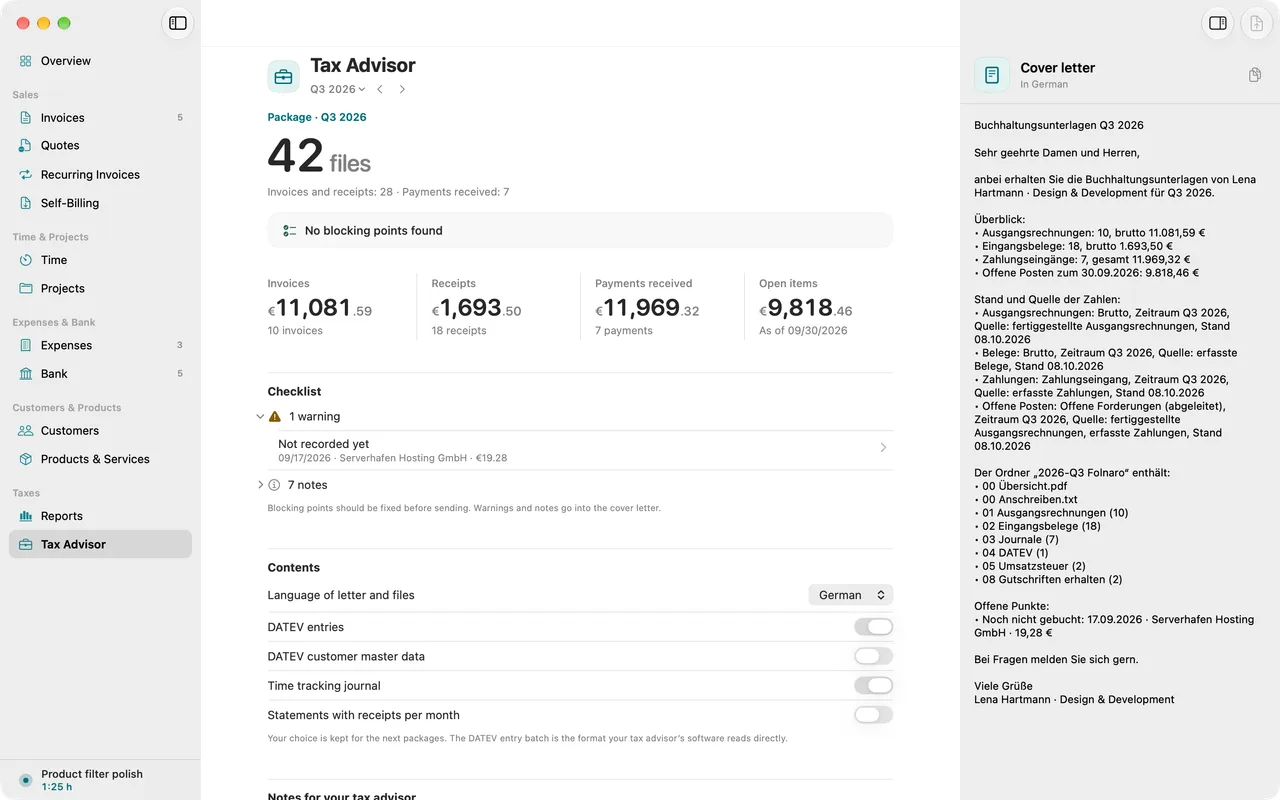
Check the package for a period
- Click Tax Advisor in the sidebar or choose Go > Tax Advisor (⌥⌘4).
- Click the period under the title and choose month, quarter or year. ⌘[ and ⌘] move between periods, ⇧⌘T jumps to the current one. The period is the same as under Reports.
- The package is at the top: “Package” with the period, the number of files and how many invoices, receipts and payments received it contains. A line below says whether everything is ready: No blocking points found or Gaps to fix before sending. Clicking the second one leads to the checklist.
- The row below shows Invoices, Receipts, Payments received and Open items with their amounts.
- Go through the Checklist. It counts blocking issues, warnings and notes. Show opens the entry concerned, Copy puts the point on the clipboard.
The check covers whether every receipt file is really stored, unconfirmed receipts, open invoices, bank transactions without category or link, missing statement months and balance gaps, and gaps in invoice numbers. Whether the figures are correct for tax purposes is for your tax advisor to check.
The open items show the state at the end of the period. While the period runs, they show today’s state. The date then appears below the amount. Cover letter and journal name the same date.
Explain gaps in a number series
Invoice numbers must have no gaps. If a number is missing, for example because it was skipped during an import, you write down why.
- In the checklist, click Explain… next to the gap. Folnaro shows the Number range, the Missing numbers and their Position.
- Write the Reason, for example “Number skipped during import”.
- Click Save Reason.
The reason appears in the cover letter and in the audit log. Edit Reason… changes it. If the gap changes, it is open again.
A gap inside the package’s period blocks the export until it is explained. A gap that lies before the period, for example from an earlier program years ago, does not block. It appears as a note in the checklist and stays out of the open points of the cover letter. Explain it once to mark it as explained.
Choose what the package contains
Under Contents you decide what goes into the package. Your choice is kept for the next packages.
- Language of letter and files: the cover letter, folder and file names and tables use this language. Until you choose one, the document language from the profile applies.
- DATEV entries: the entries as a CSV file that your tax advisor’s software reads directly.
- DATEV customer master data: your customers as master data. Only together with the DATEV entries.
- Time tracking journal: the journal of your tracked time.
- Statements with receipts per month: one PDF per account and month, first the statement, then the receipts and invoices of its transactions.
- Notes for your tax advisor: one note per line, they appear in the cover letter.
You see the Cover letter on the page. Copy Cover Letter puts it on the clipboard. Folder structure shows which files the package contains.
Export and hand over the package
- Click Export Package in the toolbar or open File > Export. There, Export to Folder… has the shortcut ⇧⌘E and Export as ZIP… ⌥⇧⌘E.
- In the menu under Package for This Period, choose:
- Export to Folder… or Export as ZIP…,
- Send by Email…: Folnaro prepares an email to your tax advisor with the package attached, and you check it before it is sent,
- Send to DATEV Upload, if you set up DATEV Upload Mail. Folnaro sends invoices and receipts as PDF. An unchanged package is not sent again. If the mail server does not respond right now, the emails wait and go out as soon as it responds.
- After the export, Folnaro names the number of files, their location and the package’s figures. Show in Finder opens the folder, Send by Email then still creates an email to your tax advisor.
If you handed the package over yourself, for example through a portal, click Record Delivery… at the version and enter Channel, Recipient, Sent on and, if needed, a Note. Click Record. An entry cannot be changed afterwards.
Exported versions
Each export is kept as a version under Exported versions, as Package, Supplement or Year archive. If the data changed since the last export, Folnaro saves a new version. If it is unchanged, the files are byte-identical.
Export Again writes a version once more, to a folder or as a ZIP file. Folnaro checks that every file matches the original. It names the files that differ because stored data changed since then.
Answer requests from your tax advisor
If your tax advisor asks for a receipt or an explanation, you record the question in Folnaro and send the items they asked for.
- Under Requests from your tax advisor, click Add Request.
- Enter the Question and Asked on. If you already have an Answer, enter it too. The answer appears in the cover letter of the supplement.
- Add the invoices, receipts or transactions under Requested items. Search Entries helps you find them.
- Export them with Export Supplement for This Request…, or all open ones at once with Export Supplement….
The Status moves from Open to Collected to Delivered. A supplement contains only the requested items and a short letter; the original package stays as it was.
Year archive
In the Export Package menu, Year Archive exports the whole year, for example with Export Year 2026 to Folder… or Export Year 2026 as ZIP…. The year archive can always be exported, even while the checklist shows blocking points. That way you always get to your records.
GoBD: tax audit and procedure documentation
- Tax Audit Data Export… writes an index.xml with CSV files following the description standard for the chosen year, readable by the audit software IDEA. Folnaro then names the number of tables and rows.
- Procedure Documentation… creates a PDF describing how Folnaro is set up for you. Folnaro then names how many questions in it are still open for you. It is a starting point for your own procedure documentation, which you agree on with your tax advisor.
Both are in the Export Package menu under GoBD.
Common problems
- “The package cannot be exported yet”
- The checklist has blocking points, for example a gap in the invoice numbers or a missing receipt file. Fix them or explain the gap. You can still export the year archive.
- The DATEV export asks for your DATEV numbers
- Click Open Settings… and enter both numbers under DATEV. Ask your tax advisor if you do not have them.
- DATEV does not accept the emails
- DATEV Upload Mail only accepts emails from approved sender addresses. Give your tax advisor the sender address of your email account and have it approved. If Folnaro names files DATEV did not accept, upload them one by one.
- An old number gap appears in every package
- If it lies before the period, it no longer blocks. Click Explain… once to mark it as explained.
- Your tax advisor works with a different chart of accounts
- Change the Chart of accounts under Folnaro > Settings… > Tax Advisor and export the DATEV entries again. Exports you already handed over do not change.