Guide

How to open and read an XRechnung on a Mac

An XRechnung is a file for software, not for people. With the right app it becomes an invoice you can read, check and record.

As of

An XRechnung becomes readableA file full of XML passes Folnaro’s viewer and comes out as a readable invoice with line items and a total. A check mark shows the validation passed.<xml/>€1,428.00
  • An XRechnung is an XML file. Preview does not open it, and TextEdit and Quick Look only show the source.
  • To read it you need an app that displays the data as an invoice and checks it against the standard.
  • You have to keep the XML file itself, unchanged. A printout or PDF of it does not replace it.
  • A ZUGFeRD PDF shows the invoice as a PDF, but the embedded data are what count.

Why your Mac only shows source code

An XRechnung is not a file to look at. It holds the invoice as structured XML data, so the recipient’s accounting software can take it over without retyping. There is no layout, no fonts and no logo in it.

That is why opening one on a Mac is underwhelming:

  • Preview does not open XML files.
  • Quick Look (press Space) and TextEdit show the source, with elements like <ram:SellerTradeParty>.
  • A browser shows the same structure, sometimes slightly indented.

Every detail is in the file, but spread over dozens of elements. Picking out amounts, tax rates and line items takes time and invites mistakes.

ZUGFeRD is different. It is a PDF that Preview opens as usual, with the invoice data embedded as an XML file. According to the BMF letter of 15 October 2025, that XML file is the invoice that counts. If the PDF differs from the data, the data prevail. The guide XRechnung vs. ZUGFeRD explains the two formats.

What you need to read it

A workable approach has three properties:

  1. It shows the data as an invoice, with sender, recipient, line items, tax and total.
  2. It checks the file against the rules of EN 16931. The BMF letter of 15 October 2025 recommends validating the e-invoices you receive.
  3. It leaves the original untouched. The view is only a rendering.

There are web services where you upload an XRechnung and get a readable version back. In doing so you hand your vendors’ invoice data to a third party. That may do for the occasional case. If you receive e-invoices regularly, an app on your own Mac that also takes the invoice over as an expense serves you better.

What to check

The BMF distinguishes three kinds of error:

  • Format errors: the file is technically not a valid e-invoice. It then counts as an other invoice, and you ask the sender for a new one.
  • Business rule errors: a rule of the standard is broken, for example in totals or codes. The file is still an e-invoice. If the details required by § 14 UStG are complete and correct, the input tax deduction usually stays intact.
  • Content errors: such as a wrong tax rate or a wrong VAT ID. Until a corrected invoice arrives, the input tax deduction is at risk.

Apart from the technical check, look at every invoice the usual way: are the service, the amount and the service date right? Which details an invoice needs is in invoice requirements.

Keeping it the right way

For an e-invoice the XML file is the original. According to the BMF letter of 15 October 2025, you keep it unchanged in its original format so it stays machine-readable. A printout or a PDF of it is not enough. Invoices are kept for eight years (§ 14b (1) UStG). More in the guide on retention periods.

In practice: do not open the file in an editor and do not save it from TextEdit, because even a line break changes it. The safest way is an app that archives the file on import and only shows you a view of it.

How to handle a faulty invoice in your particular case is a question for your tax advisor if in doubt.
How to open an XRechnung in Folnaro

  1. Save the file

    Save the XML file from the email somewhere you will find it again. Do not open or save it in an editor, so it stays unchanged.

  2. Drop it into the receipt inbox

    Drag the file onto the Folnaro window or choose File > Import Receipts… (⌘O). Folnaro reads vendor, amounts and tax rates straight from the data.

  3. Show the readable invoice

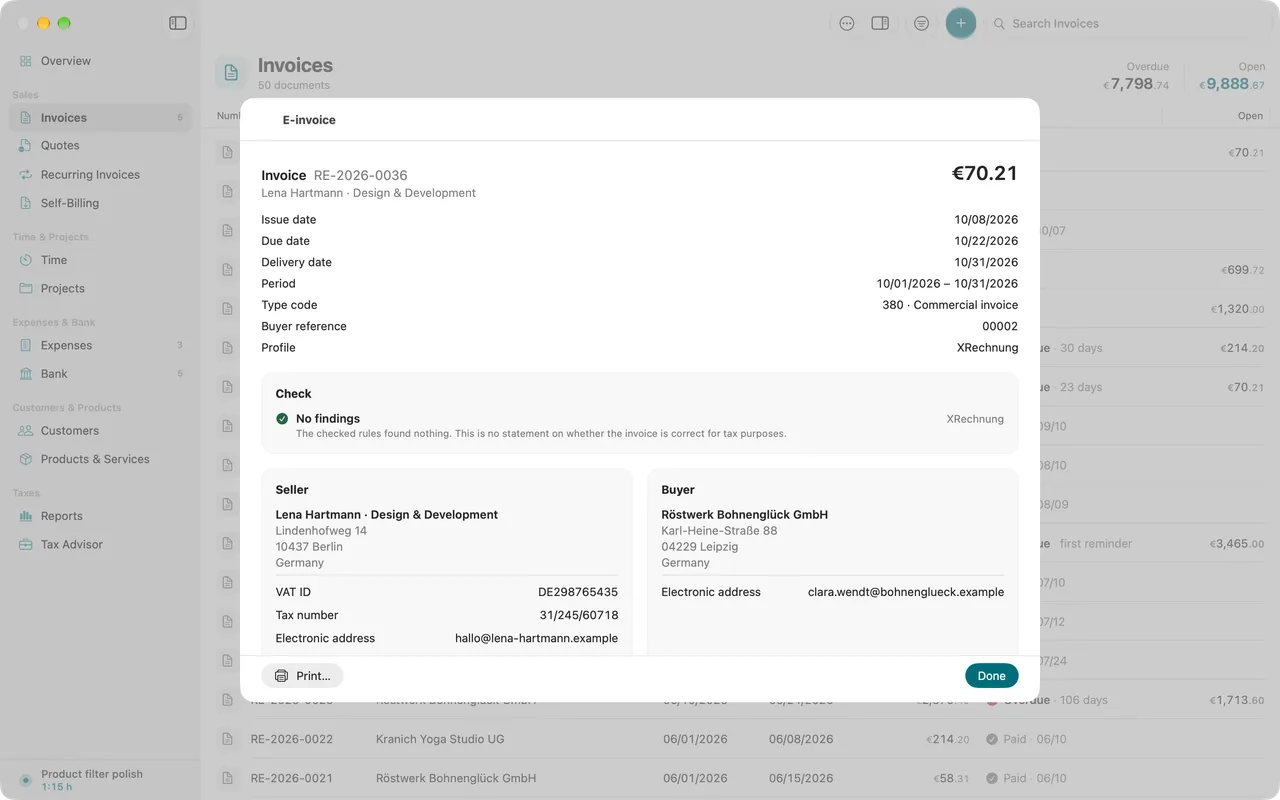
    Select the expense under Expenses and click E-⁠Invoice. You see seller, buyer, line items, VAT, amounts and payment.

  4. Read the check result

    At the top is the result of the check: no findings, hints, content errors or format errors.

  5. Ask when something is wrong

    For content or format errors, ask the sender for a corrected invoice before you claim input tax.

  6. Record the expense

    Review the details in the receipt inbox and record the expense. The XML file stays archived as the original.

In Folnaro

How Folnaro does it

Folnaro takes XRechnung and ZUGFeRD like any other receipt and shows them as a readable invoice. The original stays archived unchanged.

  • Reads XRechnung, ZUGFeRD and Factur-X in CII and UBL syntax
  • Readable view with a check result in four levels; Show XML shows the file as it arrived
  • Before showing it, Folnaro verifies the archived original by its checksum
  • Folnaro recognizes a file it already imported and does not create it twice
  • Viewing, printing and sharing always work; you import new receipts during the trial or with a purchase or subscription
Readable view of a received XRechnung with sender, lines and tax amounts.

Sources

Laws and administrative guidance in the version in force on the date above.

  1. § 14 (1) UStG (definition of an e-invoice) read on
  2. § 14b UStG (keeping invoices) read on
  3. IHK Köln on the BMF letter of 15 October 2025 Error classes, validation, retention in the original format read on
  4. IHK notes on the BMF letter of 15 October 2024 read on

This guide explains the rules in general and is not tax advice. How they apply to you is best settled with your tax advisor.

Try it with your own numbers.

Free for 30 days, no account and no payment details. Then subscribe or buy once, with the same features.

Coming soon to the Mac App Store See pricing